
Auto-upgrades
renewal in 1 year for $ 33 .00


Receive editing suggestions for your photos. Get a starting point, see which tools to use, and learn how to enhance your images with confidence—one photo at a time.
Works as MacOS & Windows app
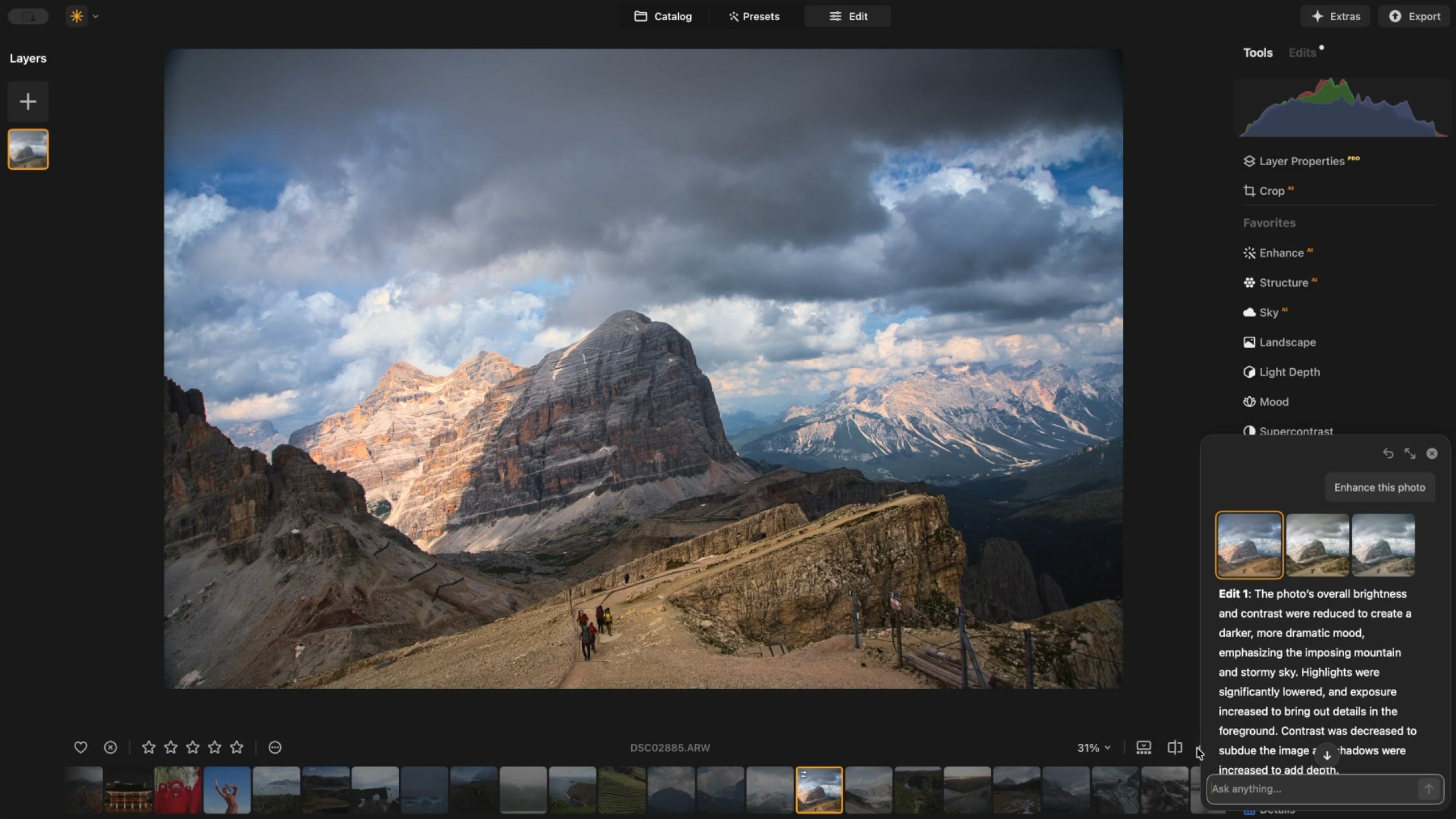
Our CTO, Dmytro Mykhalchuk, introduces the new AI Assistant and highlights how it enhances your workflow.
Get up to three suggested edits for each request. Each suggestion comes with a preview and a short description. Apply a suggestion with one click, tweak it in the Edits tab, or reuse it from previous suggestions.
Ask AI Assistant for guidance, edits, or suggestions starting with ‘how-to’. For guidance-type queries, it recommends specific tools with descriptions and provides buttons to open them, letting you start editing immediately.
Discover creative inspiration and see which tools fit your photo best. AI Assistant can suggest enhancements, boost colors, adjust white balance, and apply toning styles. It also guides edits like brightening, contrast, dehazing, or using creative tools such as sky replacement and background replacement—helping you find the right approach for each image.
English, Deutsch, Español, Français, Italiano, 日本語, 한국어, Português, Nederlands, 简体中文, 繁體中文, Ukrainian, Polish, Svenska, Norsk Bokmål, Dansk, Czech.
Al Assistant is available only in Luminar and requires an internet connection. Make sure your device meets Luminar's system requirements.
AI Assistant supports RAW and non-RAW files just like Luminar, with no strict size or resolution limits.
AI Assistant doesn’t yet support Generative, Merge, or Enhancement tools from the Catalog. It can suggest how to use Edit tab tools but won’t apply them automatically, focusing on guiding and inspiring your creativity. More features and guidance are coming in future updates.
Luminar has plenty of other features to help you edit faster and easier.

Revive old photos
NEW
Add dimensional lighting
NEW
Enhance in seconds

Remove distractions

Instantly replace skies

Replace objects seamlessly

Sharpen every detail

Reveal hidden details

Refine every pixel
Enhance in seconds
Reveal hidden details

Boost contast

Fix composition
Refine every pixel

Improve colors

Sculpt light and shadow
Instantly replace skies

Recreate the golden hour

Add realistic fog
Remove haze

Brighten with rays of light

Deepen evening tones

Perfect water textures
Remove distractions

Expand your scene
Replace objects seamlessly
Revive old photos
NEW
Sharpen every detail

Denoise with precision

Upscale without loss
Add dimensional lighting
NEW
Add luminous depth

Color grade with ease

Illuminate with neon

Add cinematic texture

Layer creative effects

Smooth skin naturally

Enhance facial features

Sculpt body proportions

Blur backgrounds beautifully

Add studio lighting

Replace backgrounds easily

Brighten with style

Merge multiple brackets

Stitch wide panoramas

Stack focused shots
All Platforms
One-time payment, use apps forever
$ 159 .00
products:
included:
Luminar on Desktop, Mobile, Web: yours forever. AI Tools renewable after 365 days with Luminar Prime.
*365 days unlimited usage. Subject to fair use policy.
Most Popular
Max
One-time payment, use apps forever
$ 199 .00
products:
Luminar Prime:
Luminar on Desktop, Mobile, Web: yours forever. Access to new and generative AI tools, plus Library of Assets: 365 days.
*365 days unlimited usage. Subject to fair use policy.
Desktop Only
One-time payment, use app forever
$ 129 .00
products:
included:
Luminar: yours forever. AI Tools renewable after 365 days with Luminar Prime
*365 days unlimited usage. Subject to fair use policy.
Your extra 10% OFF is waiting — copy the code below and apply it at checkout, but hurry, it expires in just 15 minutes!
15:00
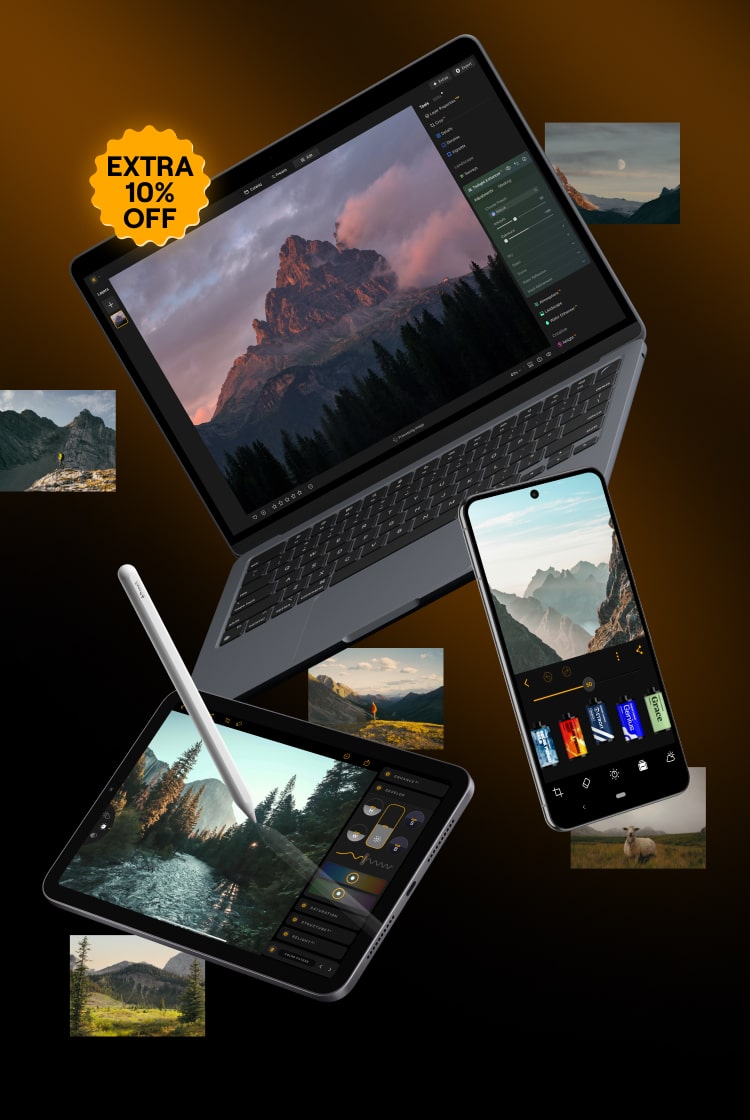
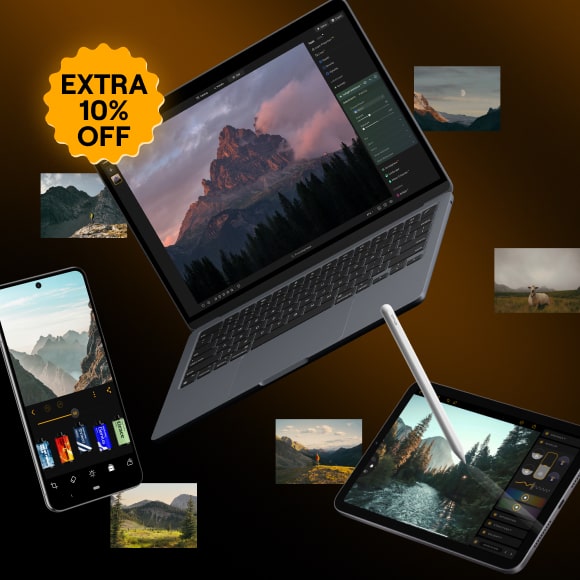

Desktop for Windows/MacOS and full access to all generative tools for one year.
Luminar Video Course
Desktop for Windows/MacOS and full access to all generative tools for one year.
Mobile App for iOS/Android/ChromeOS
Luminar Video Course
Desktop for Windows/MacOS and full access to all generative tools for one year.
Mobile App for iOS/Android/ChromeOS
Luminar Video Course
100 Creative Add-ons
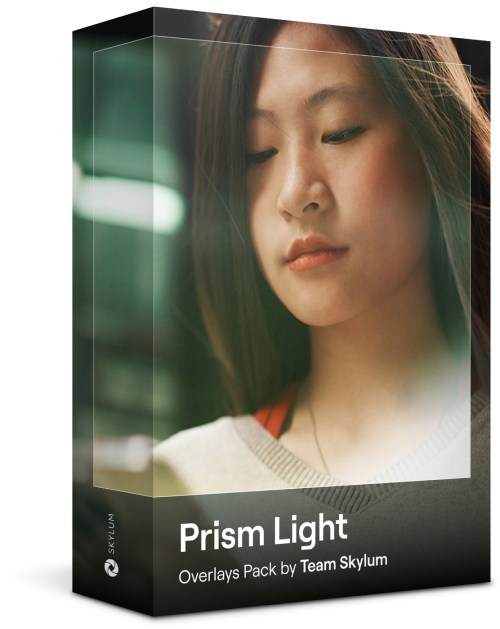
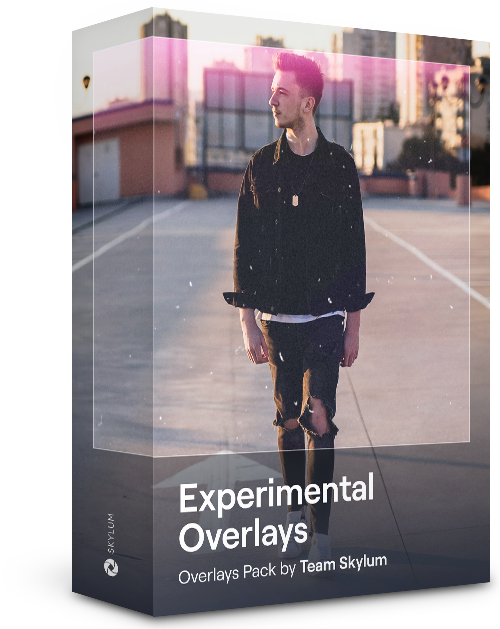
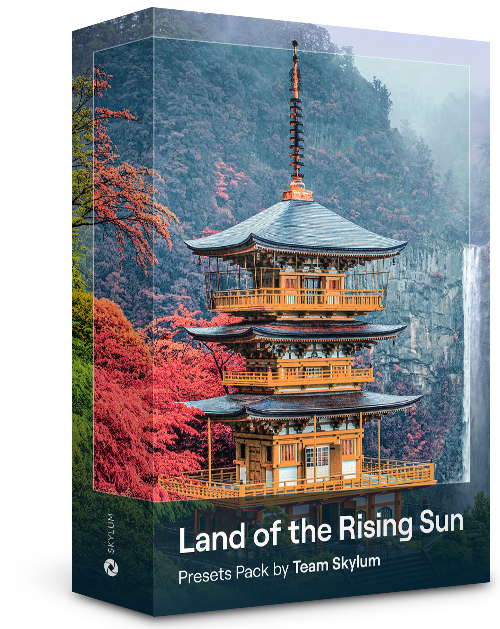
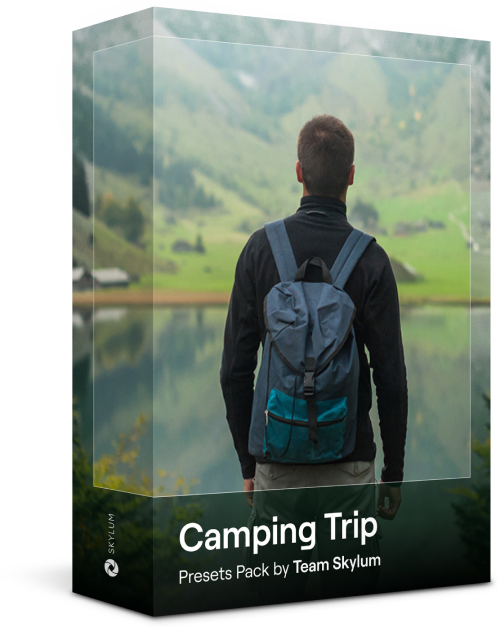
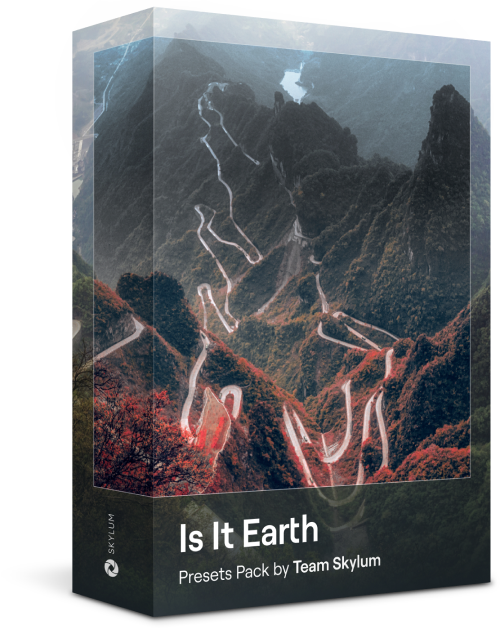
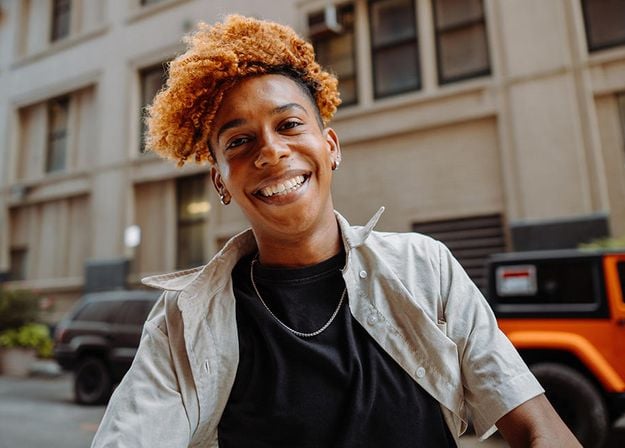
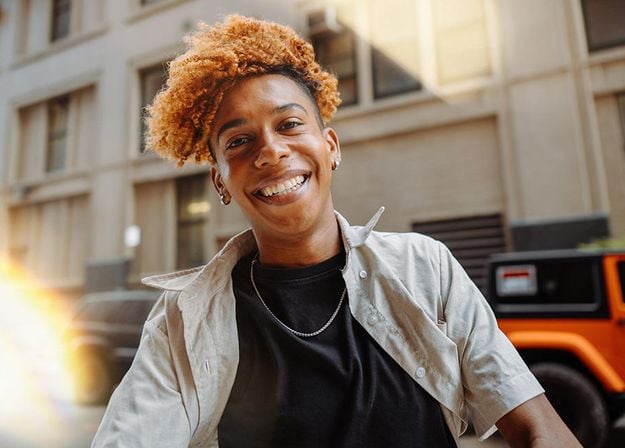


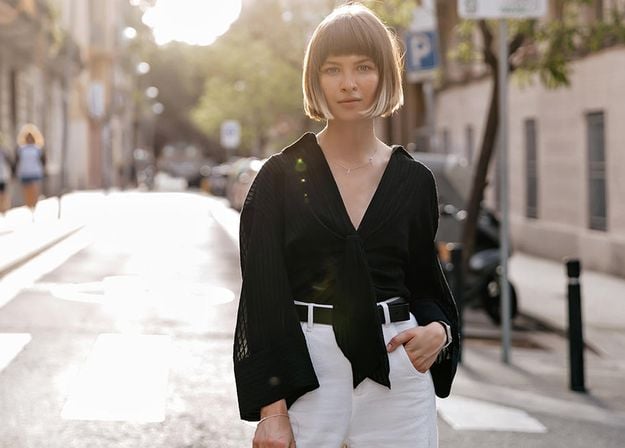
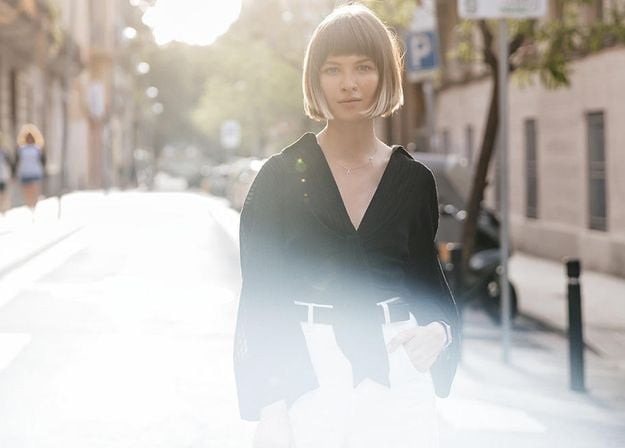
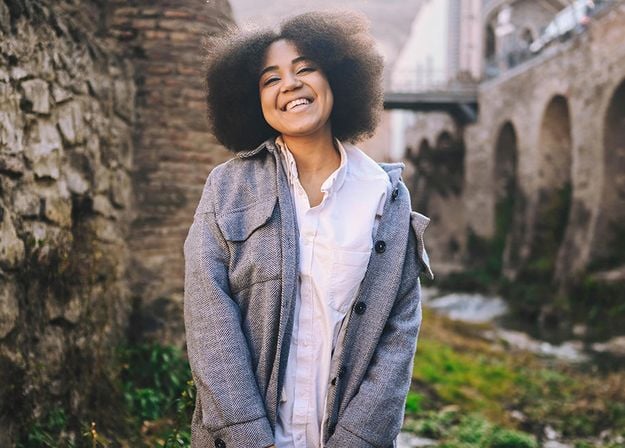
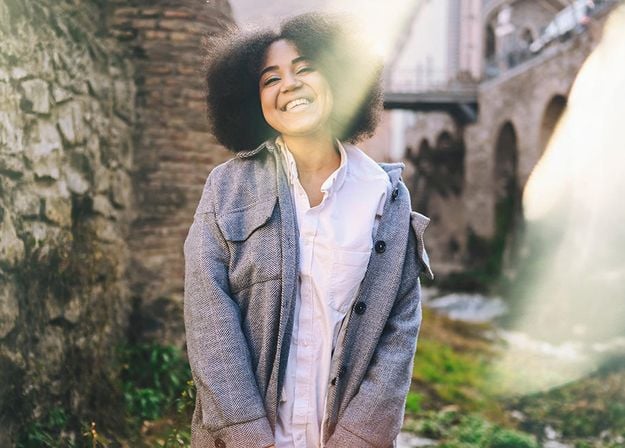




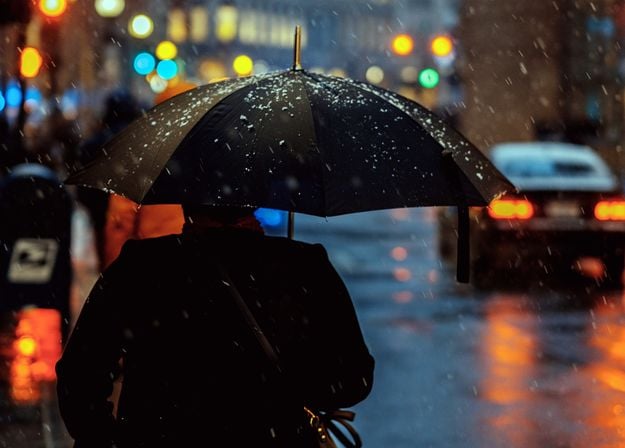
Create atmospheric images with these 10 Overlays in JPEG format that contain shimmering lights and flares in various colors. Make sure to use them with Luminar’s Layers and/or the Portrait Background Removal tool, and experiment with your photos in any genre. You can add an interesting light effect or make the subject stand out in new ways, all in just a few clicks. Time to try it out!
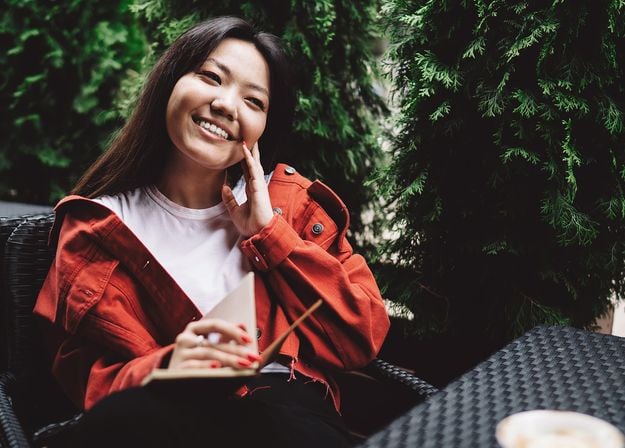
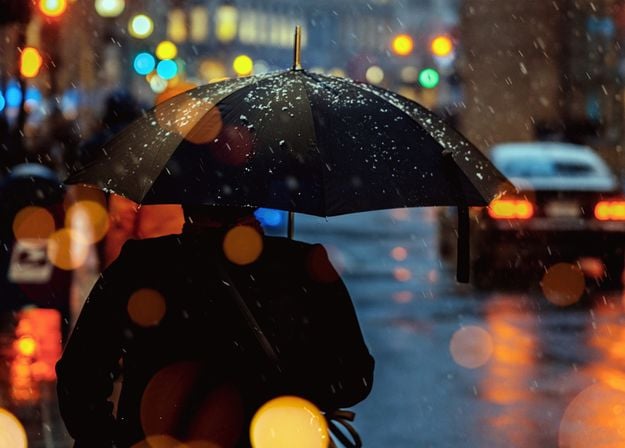
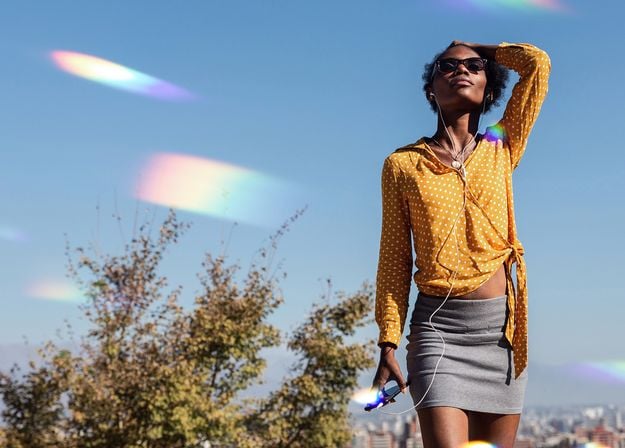
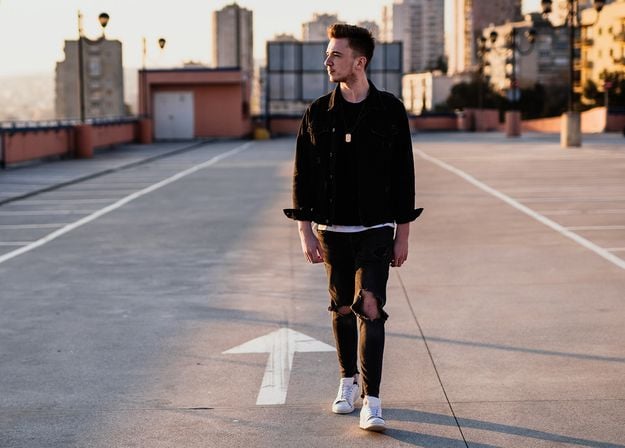
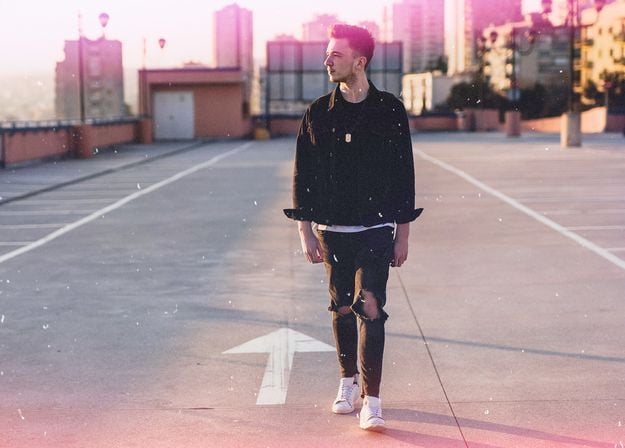
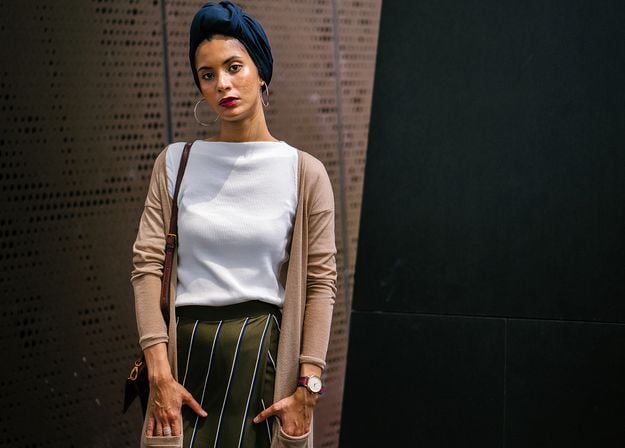
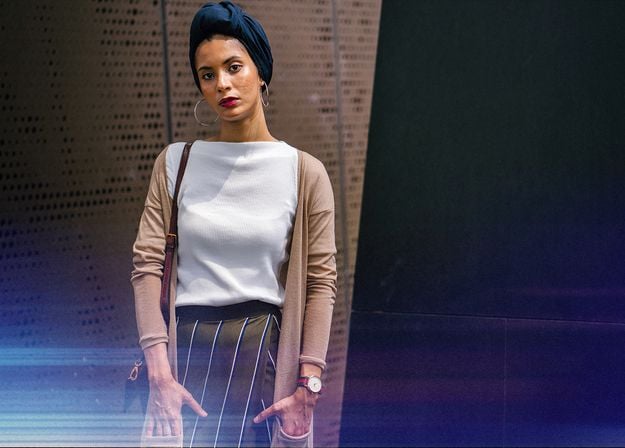


Feel like adding a touch of something extra to your photos? Discover these 10 Experimental Overlays in JPEG format that you can easily use with Luminar’s Layers feature to transform any photo into a shot that catches the eye. Choose from 10 mesmerizing effects of different colors and shapes, and create a unique mood in a few clicks. From pink hues to golden circles, you’ll certainly find an Overlay perfect for your next masterpiece.
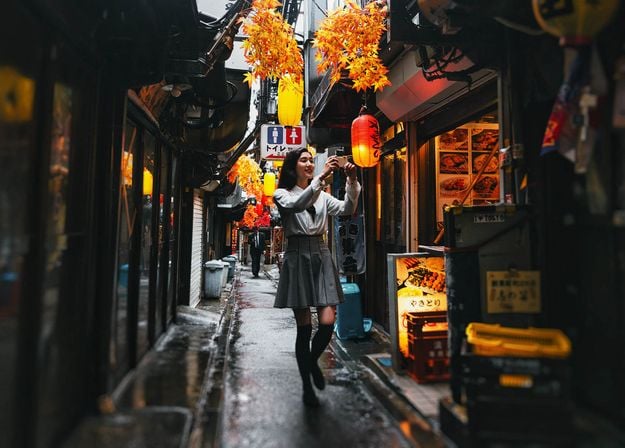
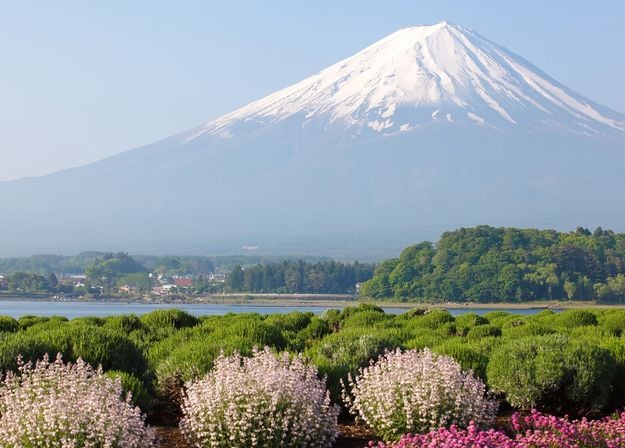
_after.jpeg?q=80&w=625&h=448&resize=cover)


_after.jpeg?w=54&h=30&resize=cover)
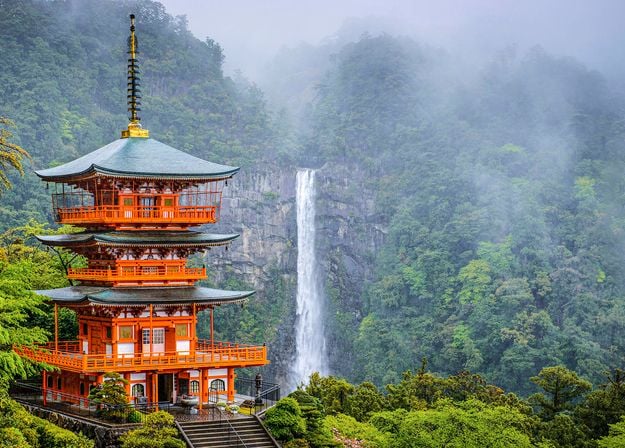
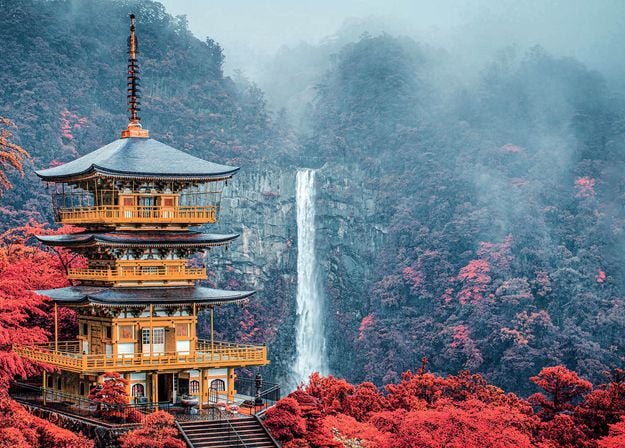
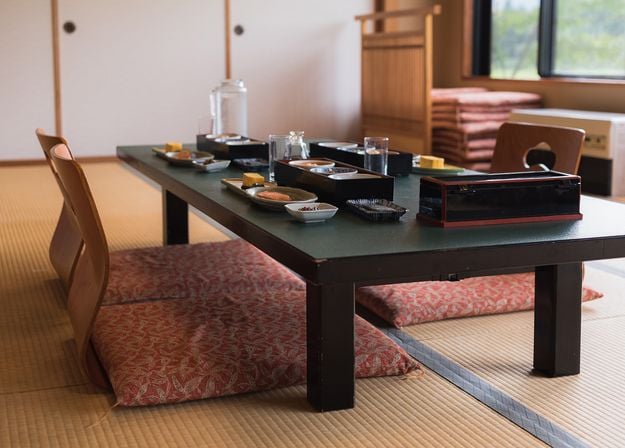
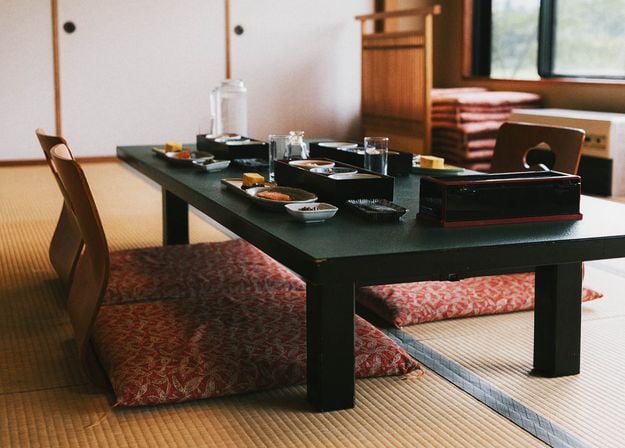
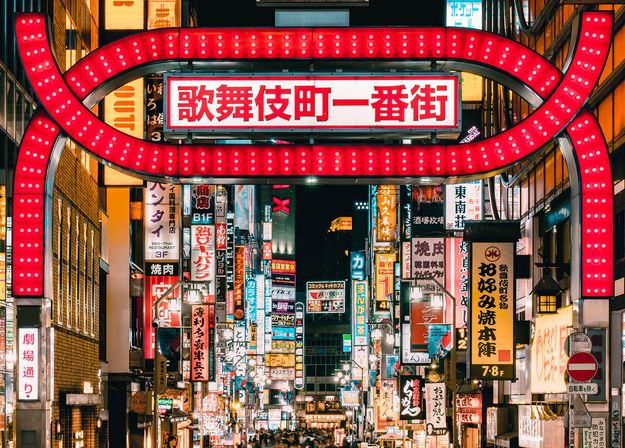
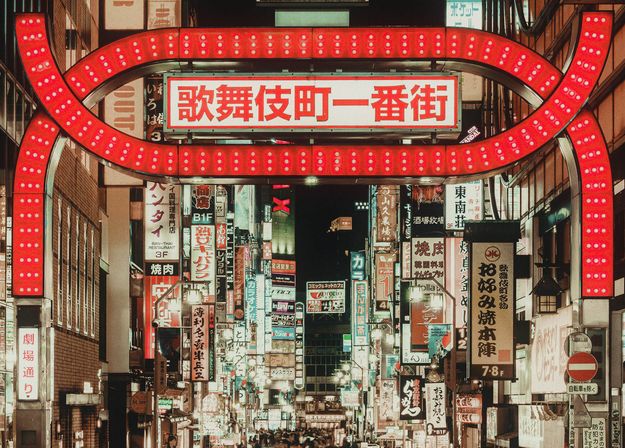
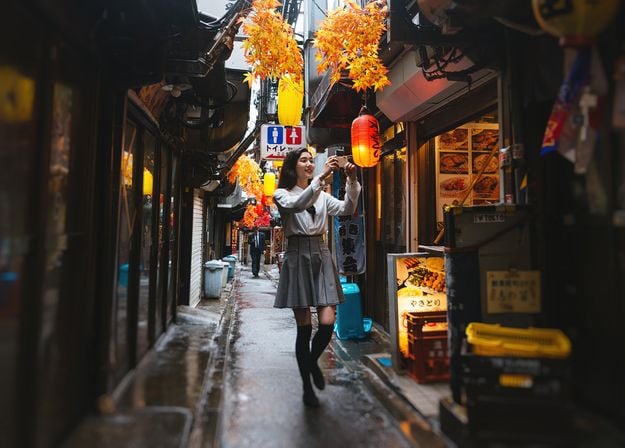
Enhance photos that you captured during a trip to Japan, or the ones that you want to have an atmospheric feeling reminiscent of the Japanese style. From landscapes, to iconic sights, to photos of food — this pack is incredibly versatile!
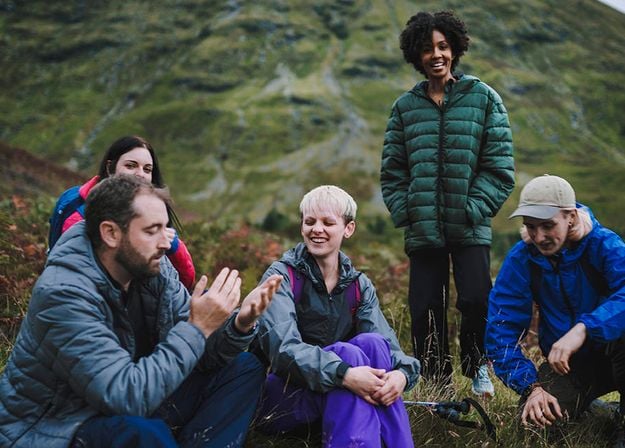
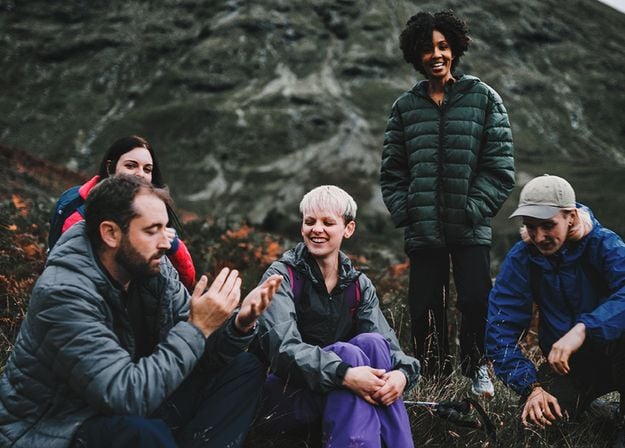
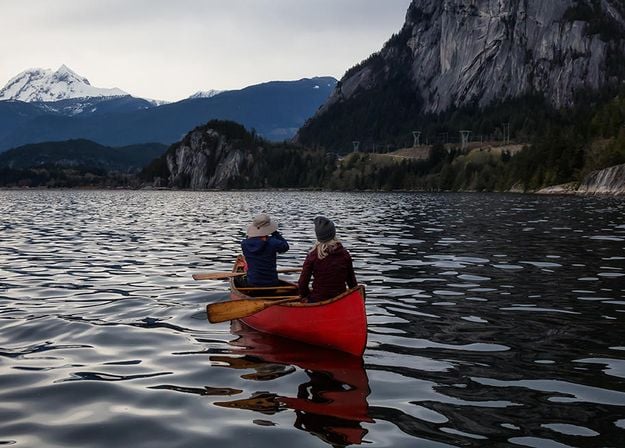
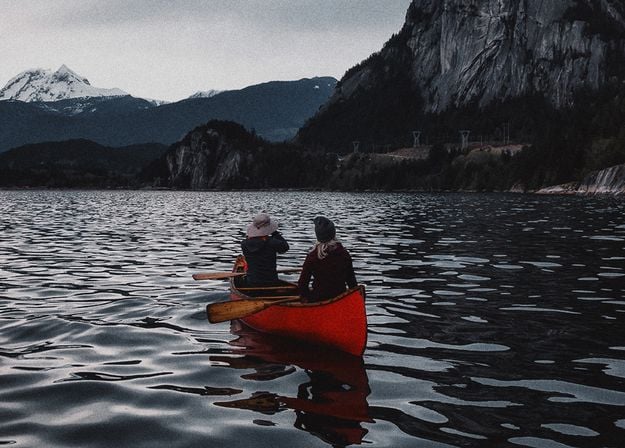
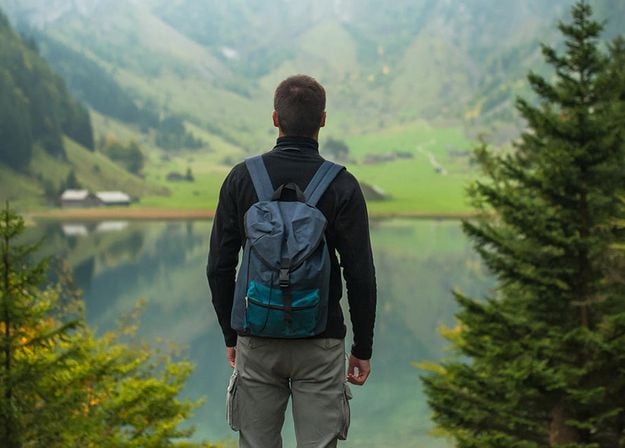
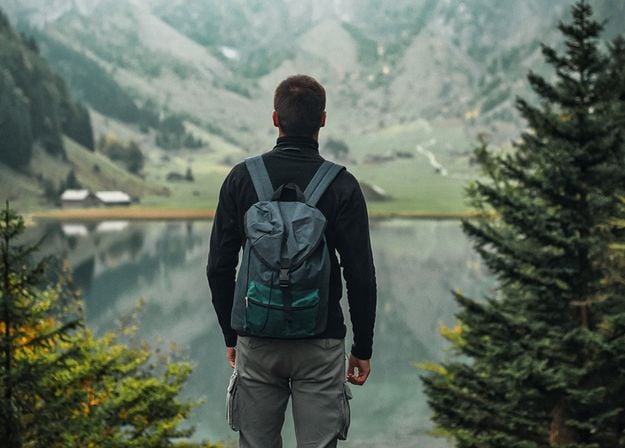
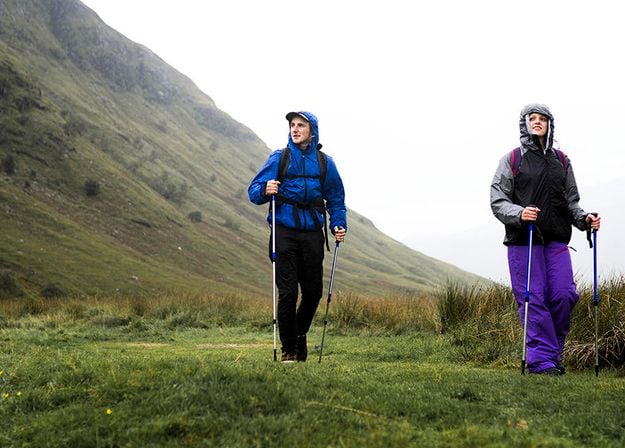
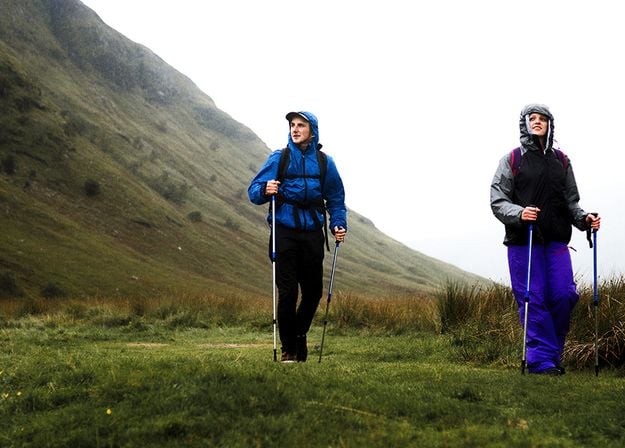
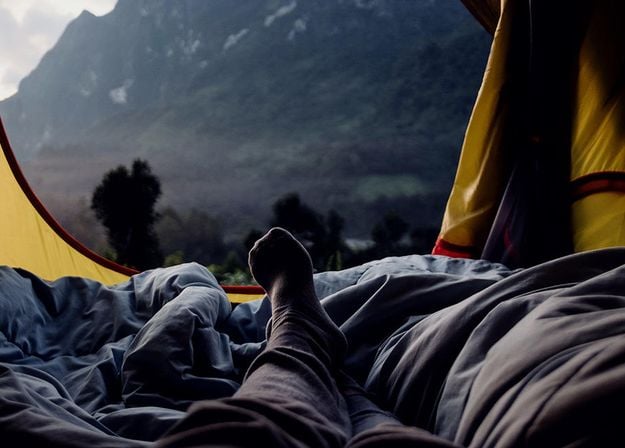
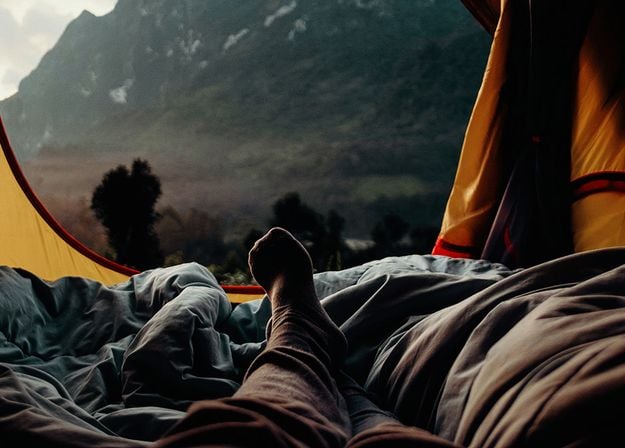


Designed to give your camping and hiking photos their best look, these 10 Presets are here to give your outdoor photos a natural, vibrant look. Whether you’re capturing shots of majestic mountains or cozy campfires, bring out the best in your images in one click.
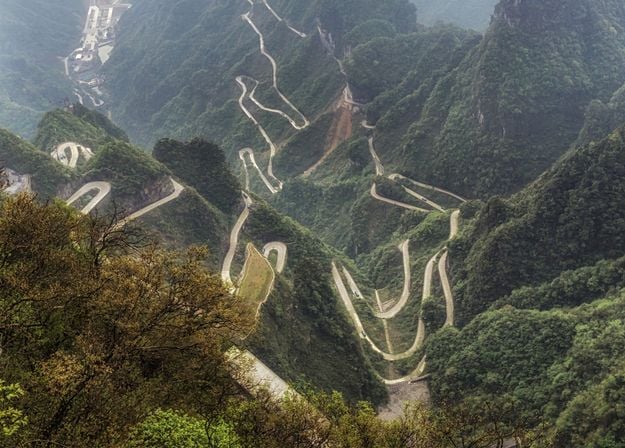
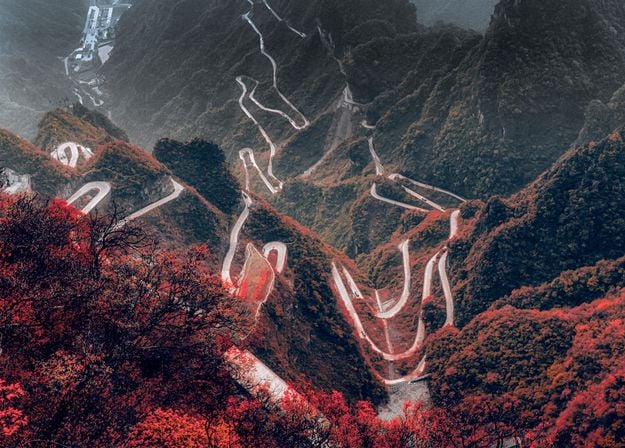
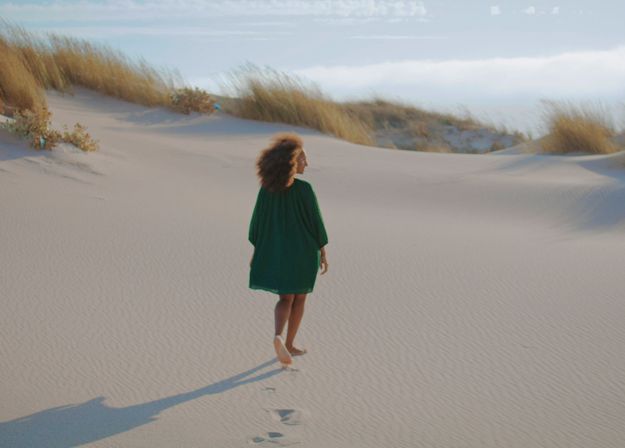
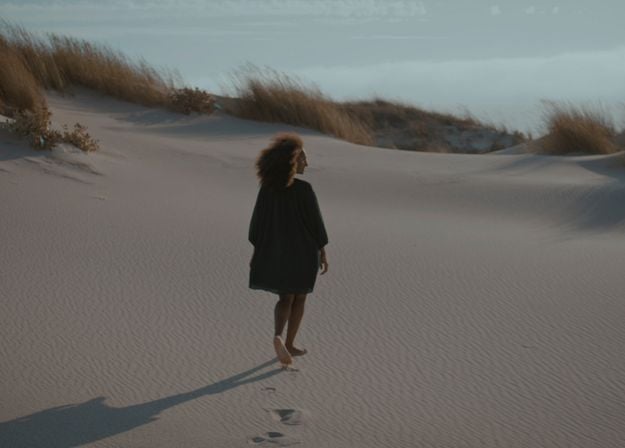
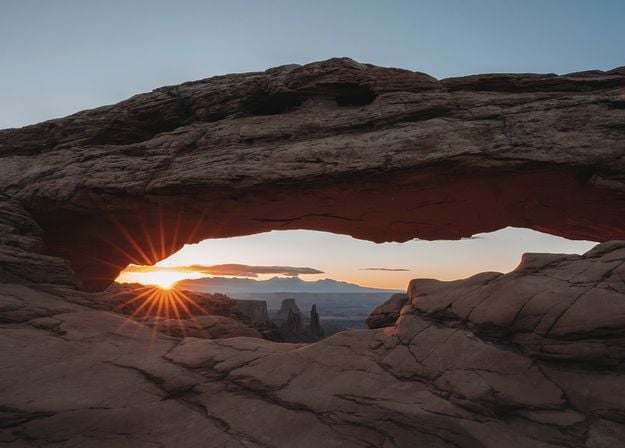
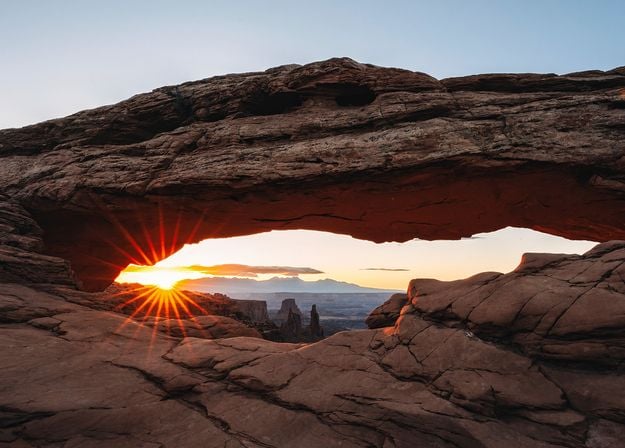
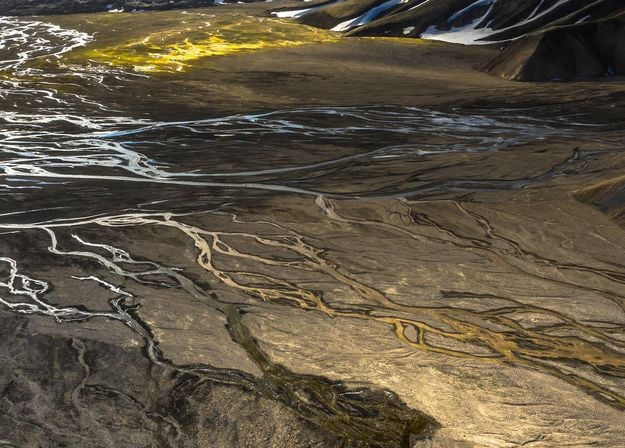
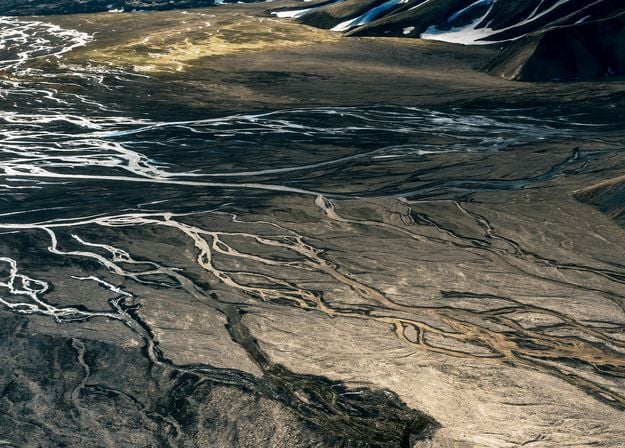


Is it still Earth, or are we on an alien planet? This collection of 10 extraordinary Presets is designed to give your landscape photos an ethereal, otherworldly feel. Transform ordinary landscapes into surrealistic scenes with vivid colors that will immediately draw the viewer’s eye.
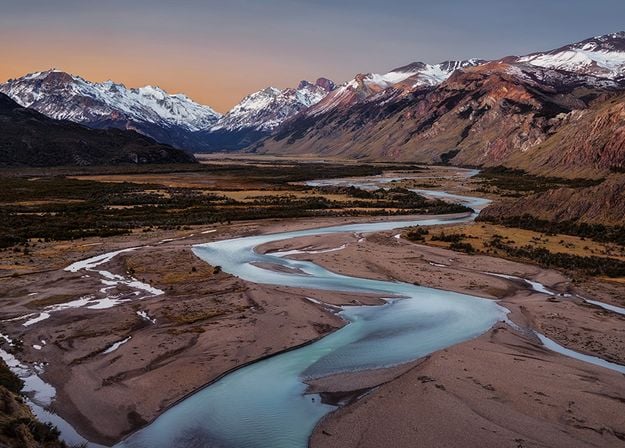
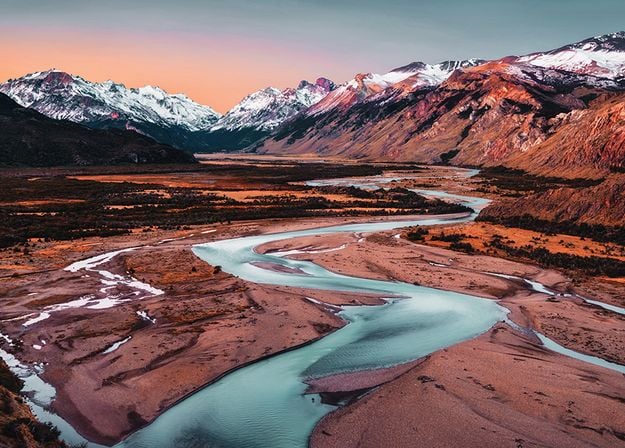
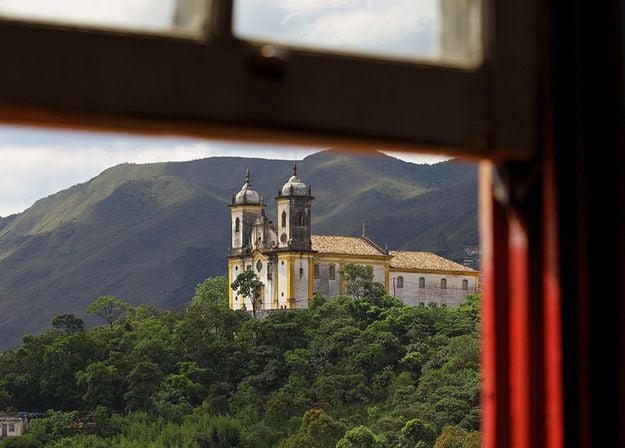
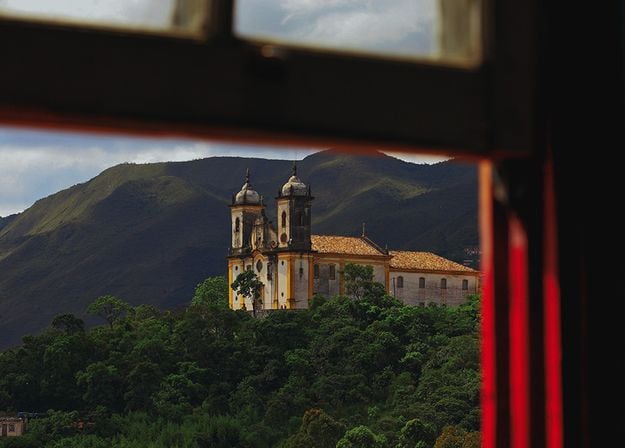
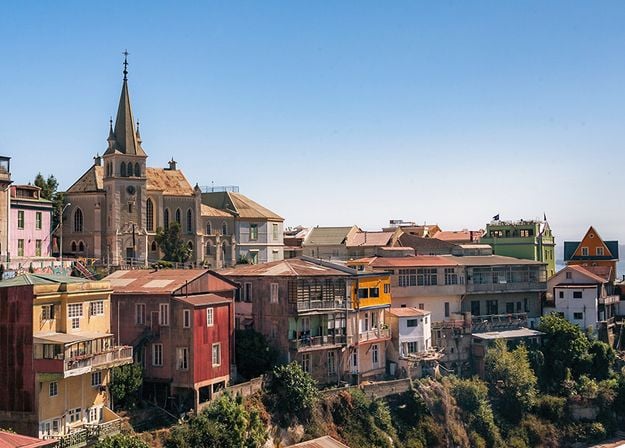
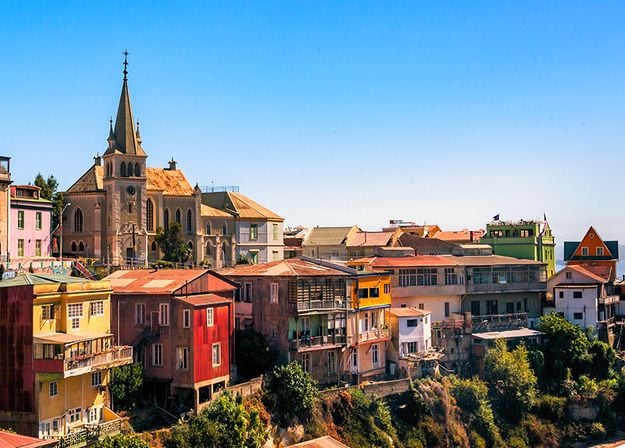
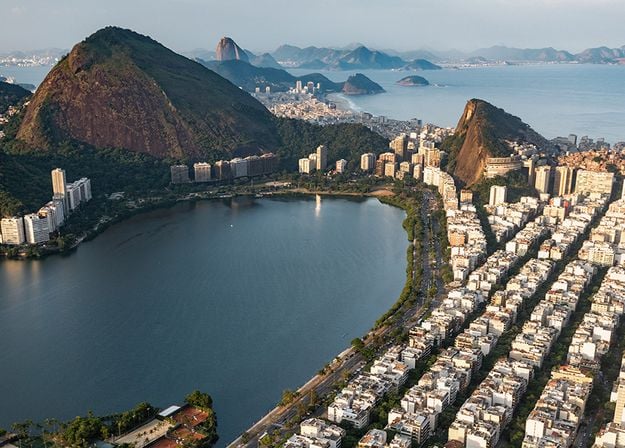
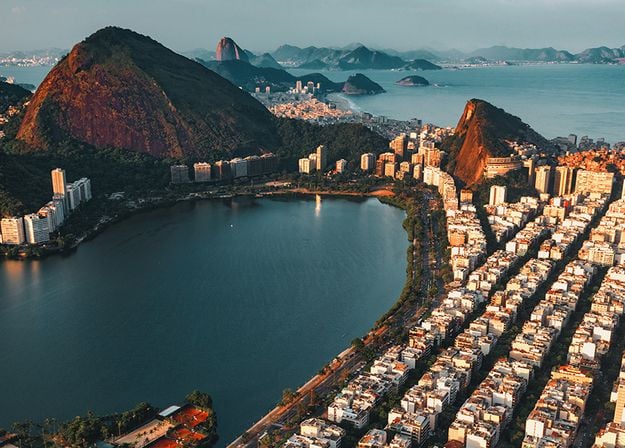




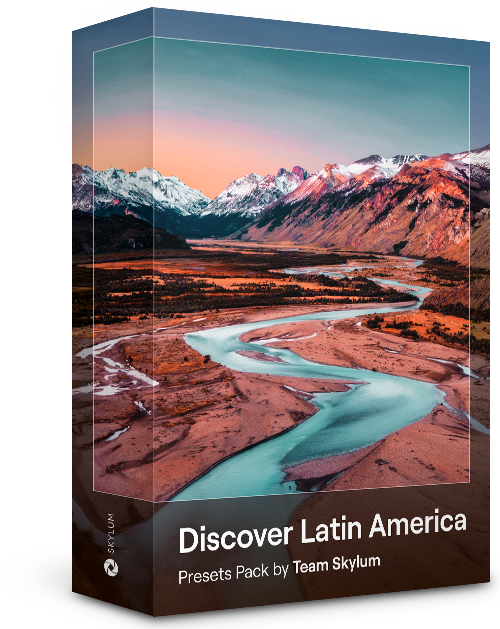
Experience the cinematic feel each of these 10 Presets adds to your photos as you journey through the countries of Latin America. Embrace the beauty and add some flair to your shots with this travel-friendly collection designed for landscapes.
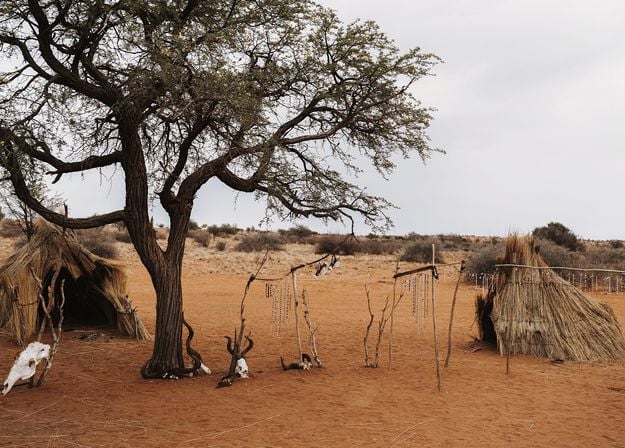
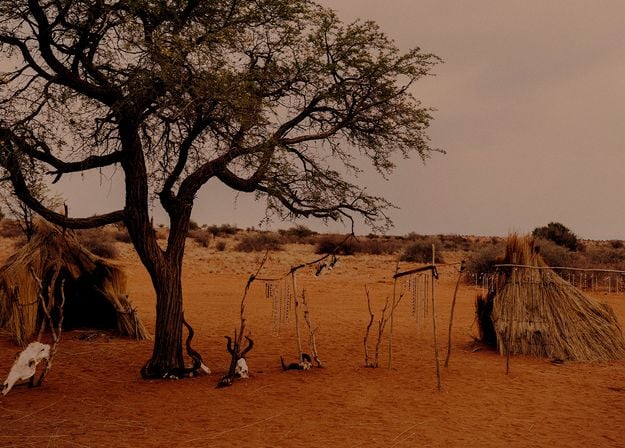
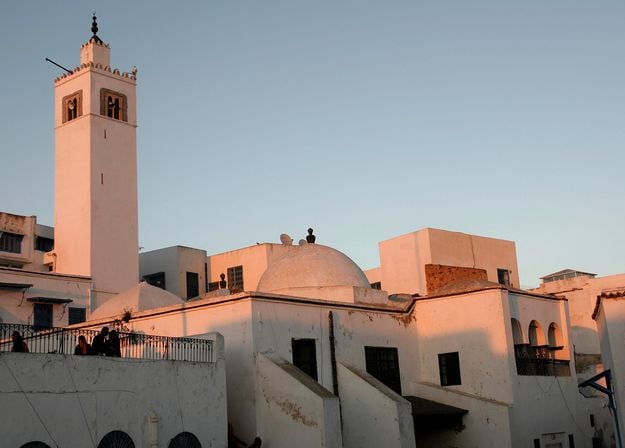
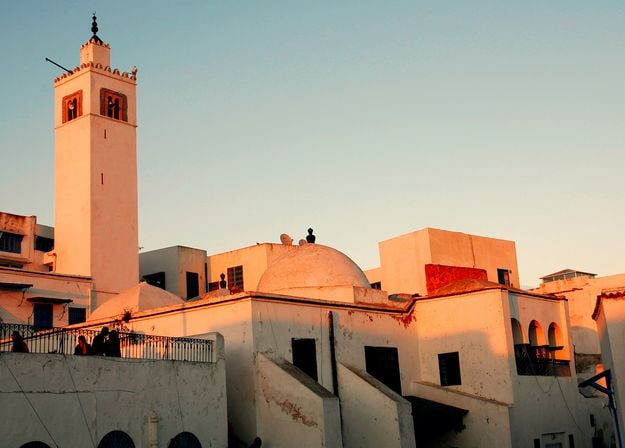


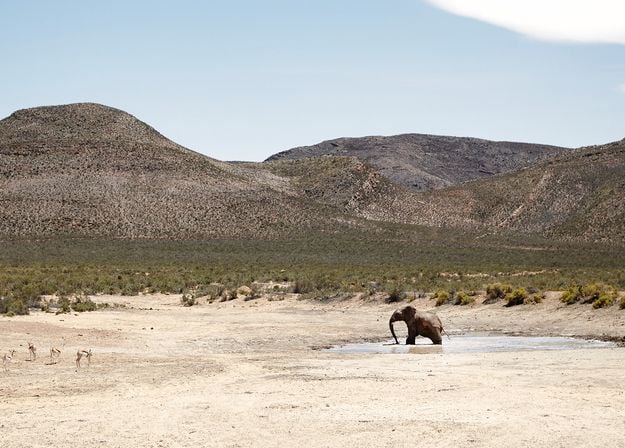
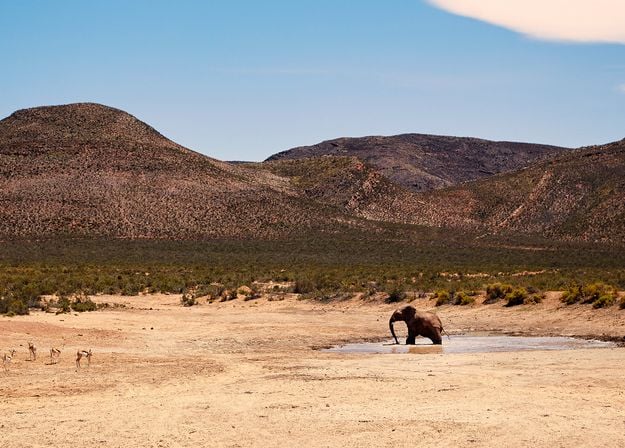
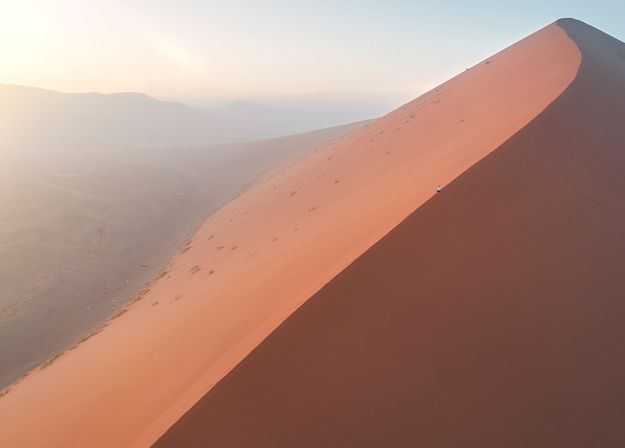
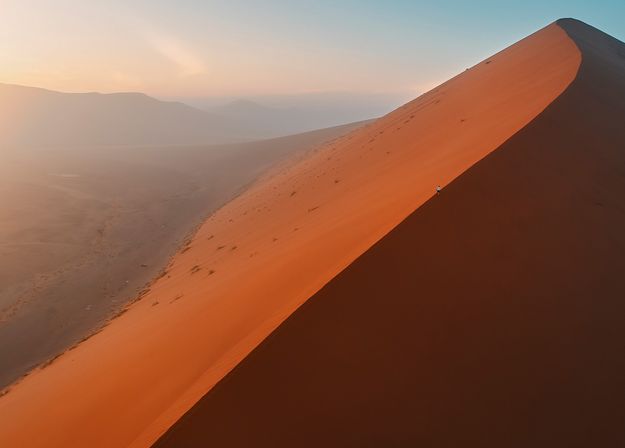


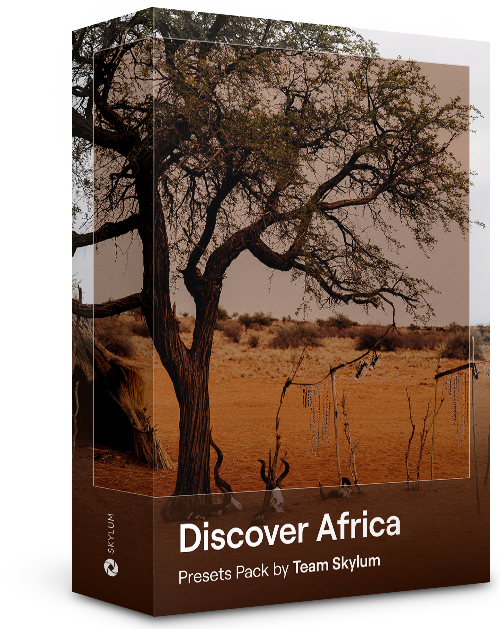
Dedicated to the wonderful continent of Africa, this pack combines a variety of Presets, both for portrait and landscape shots. Enhance landmarks, safari shots, architecture photos, and portraits of people that you meet on your travels around Africa.
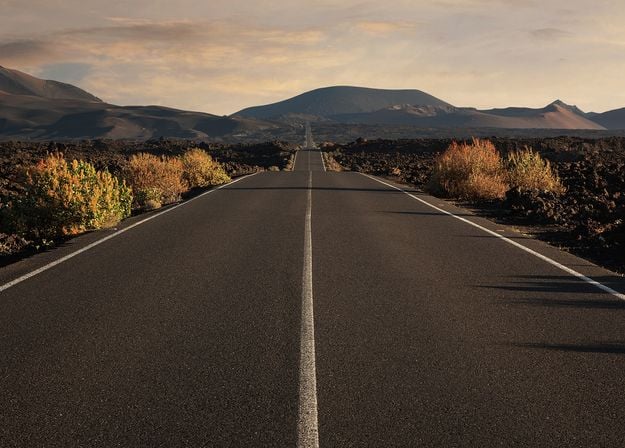
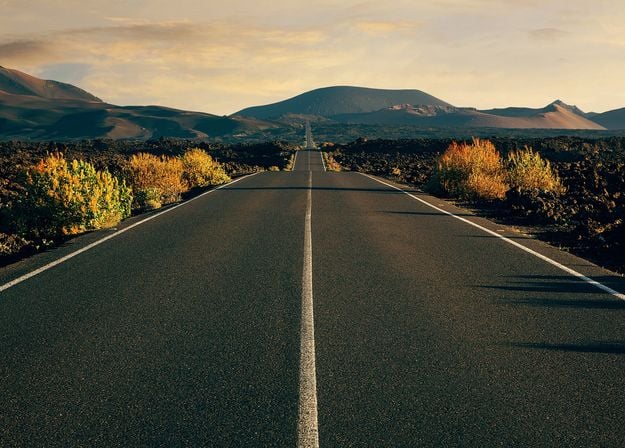
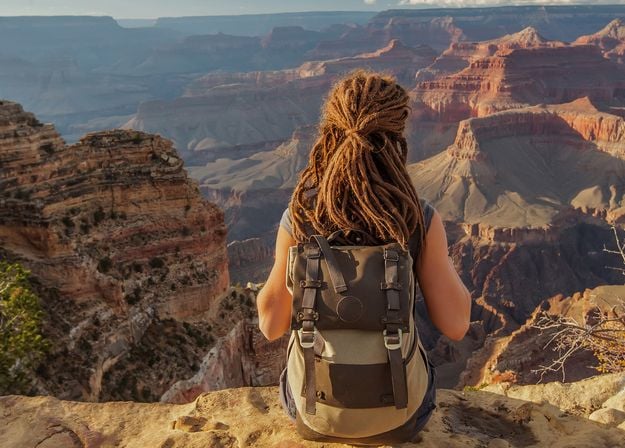
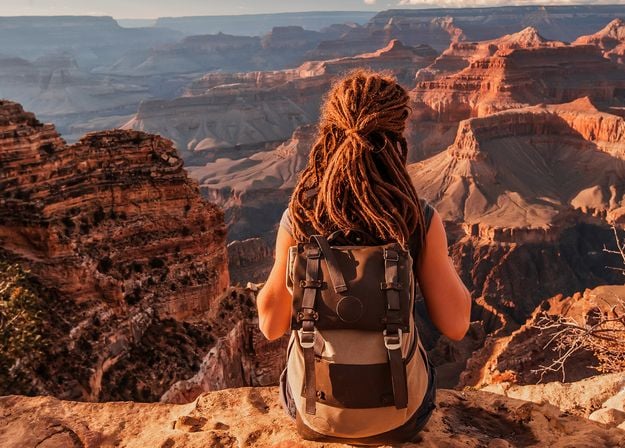
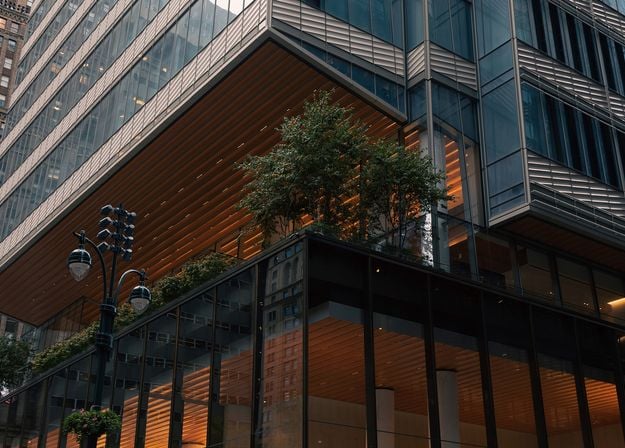
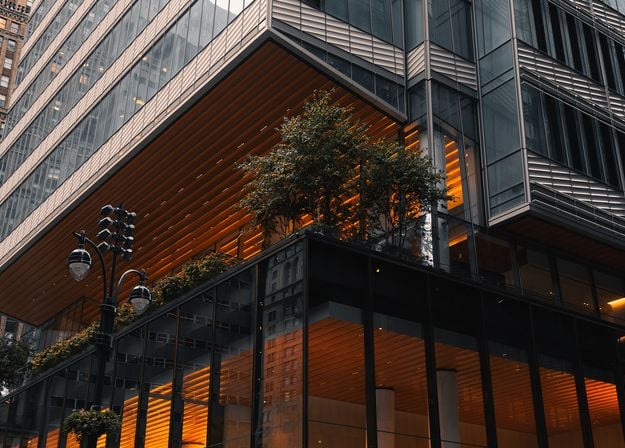
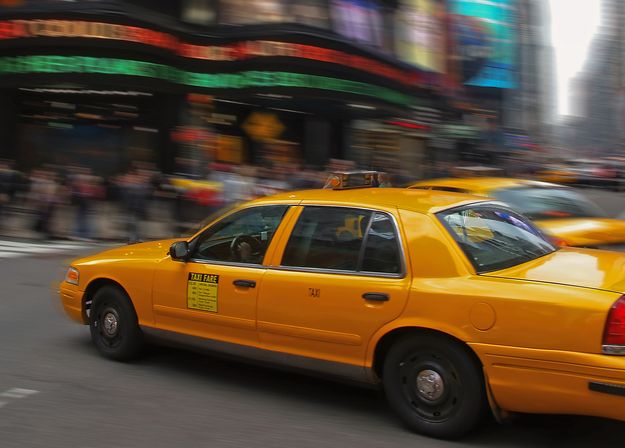
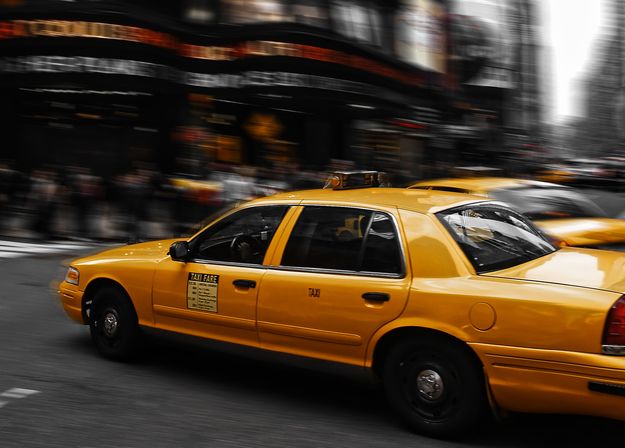


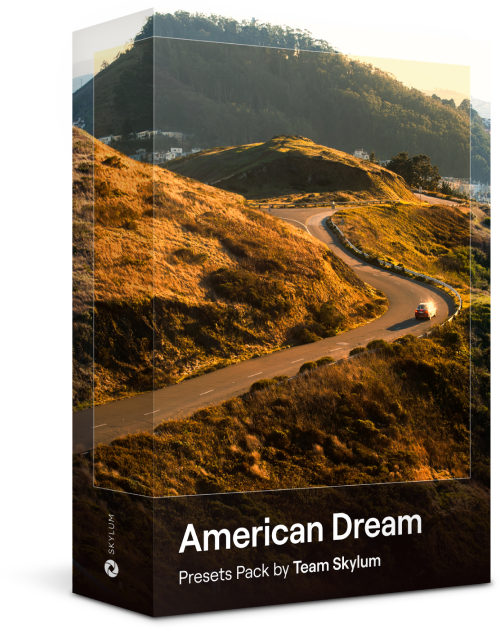
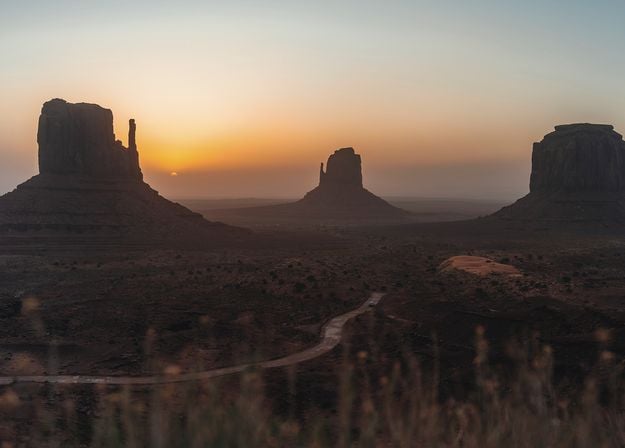
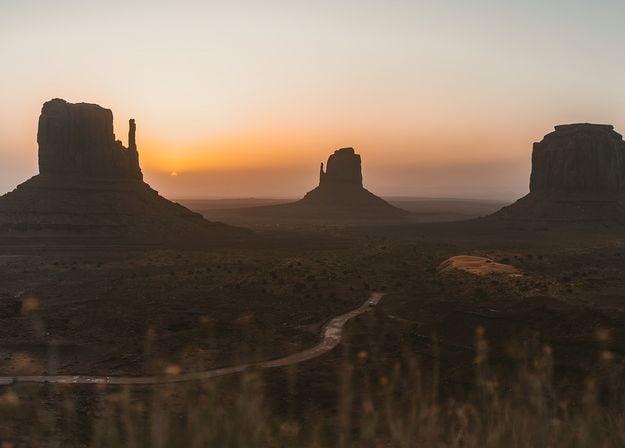
Create fantastic photos during your travels across the USA. Enhance images of landmarks, national parks, and general cityscapes of famous cities. Achieve various stunning effects with a few clicks of these 10 wonderful Presets.
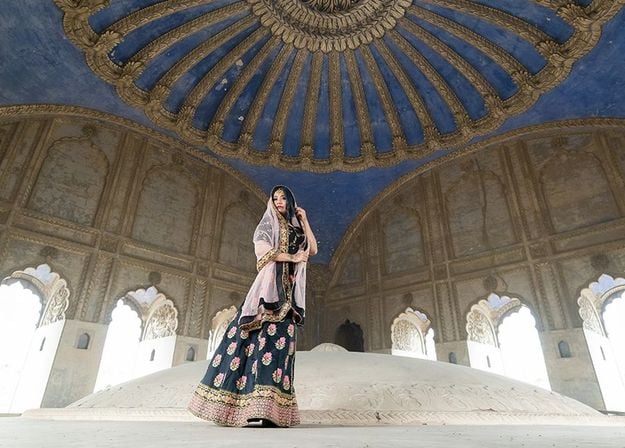
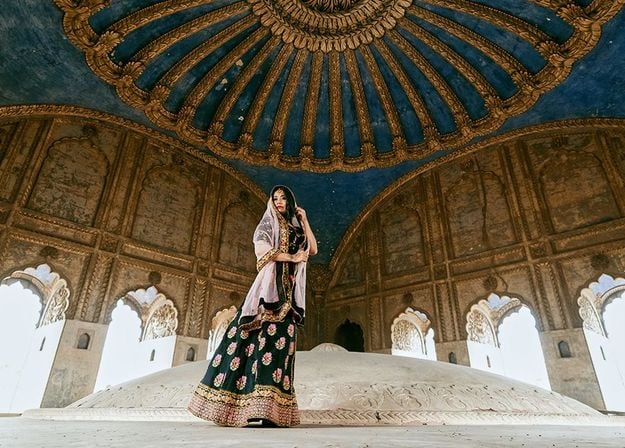
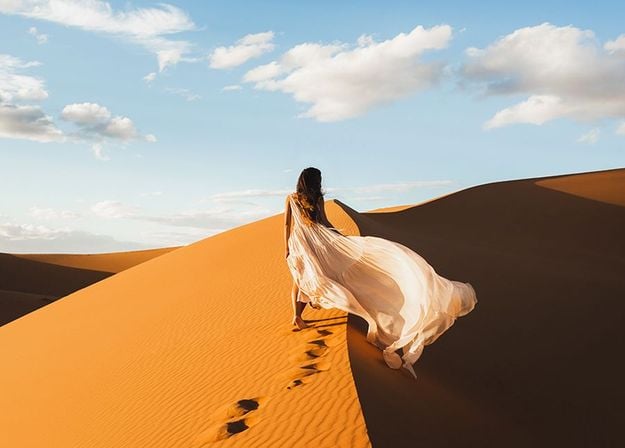
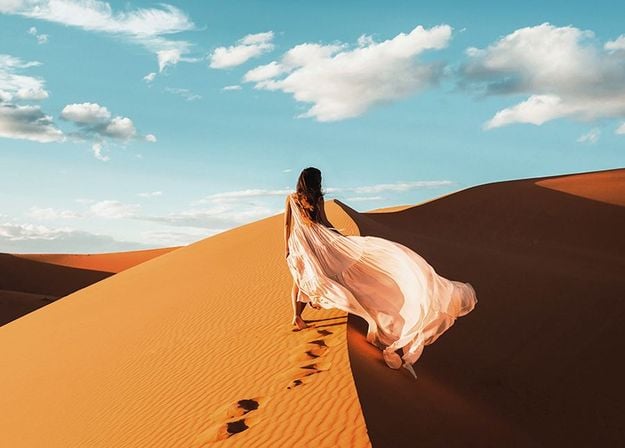
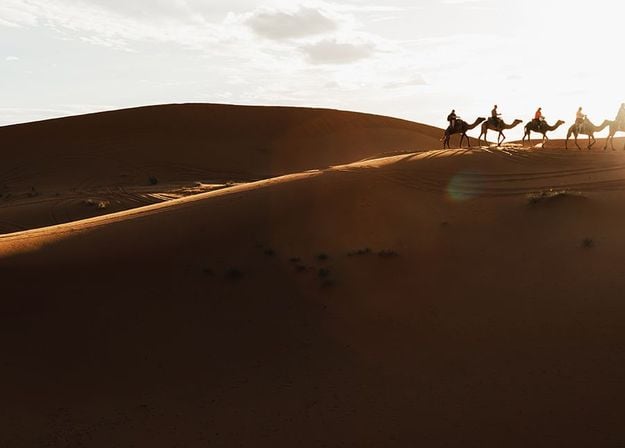
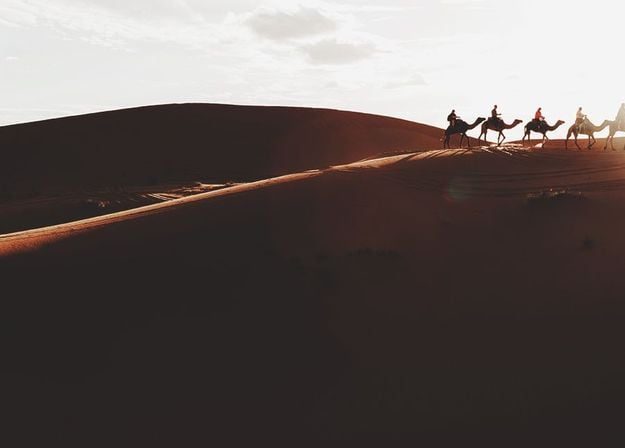
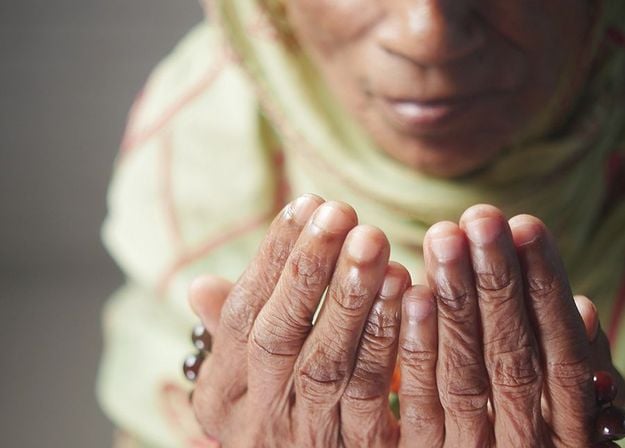
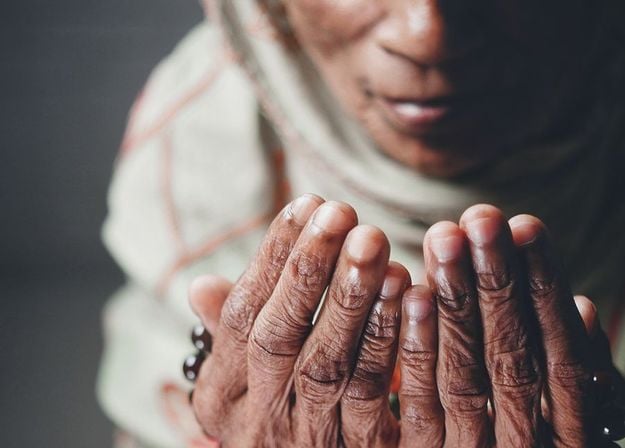


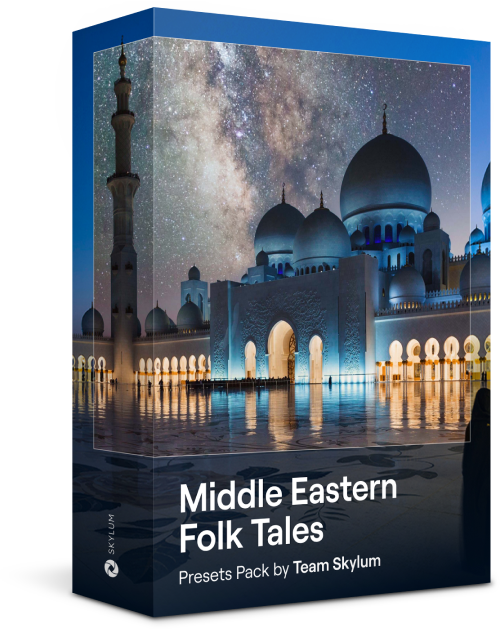
This alluring collection of 10 Presets is designed to bring out the mysterious beauty of Middle Eastern scenery, architecture, street style, and nature. Warm-toned, deep yellow, or blue and golden — you will certainly find a Preset perfect for your photo.
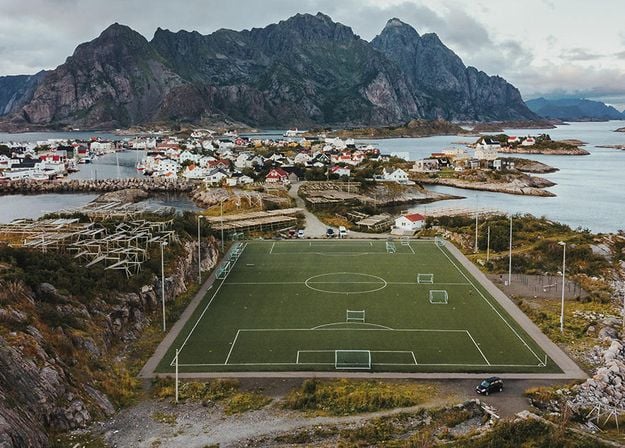
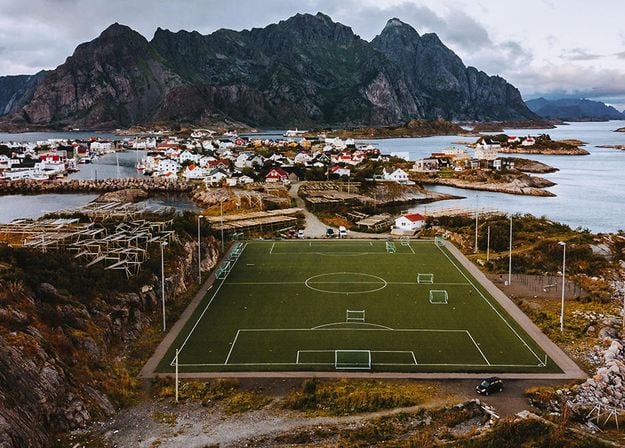
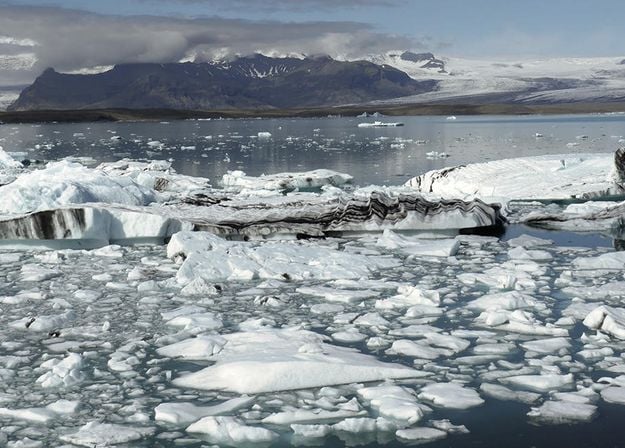
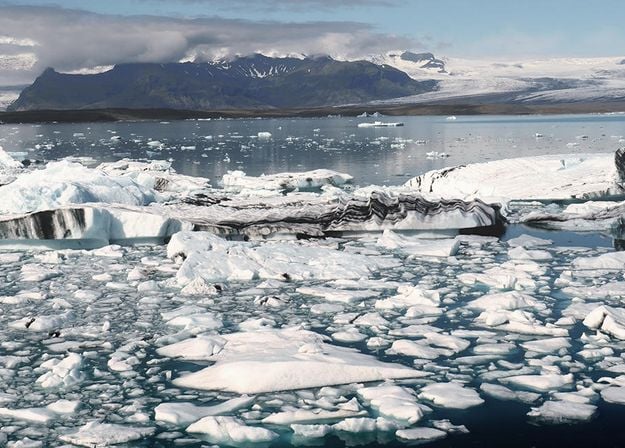
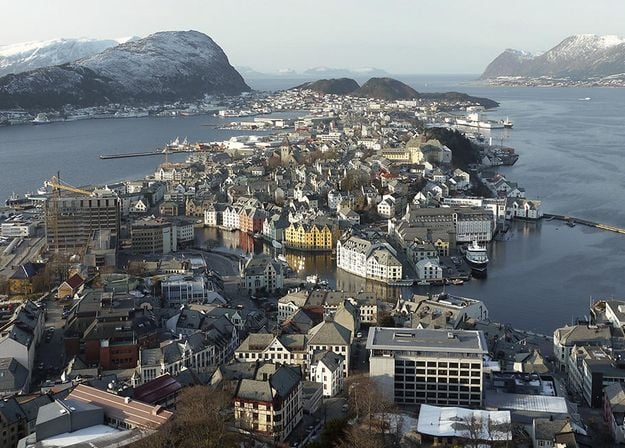
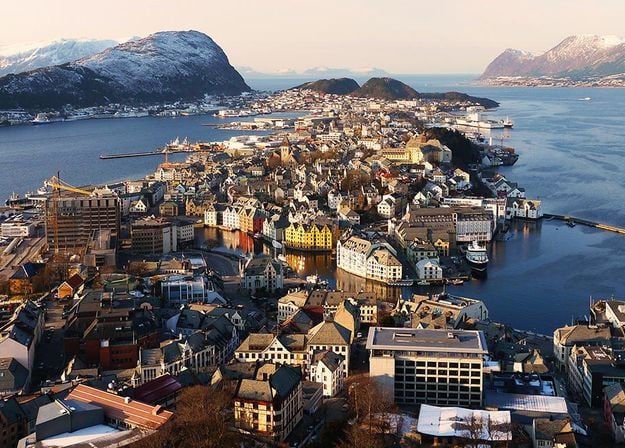
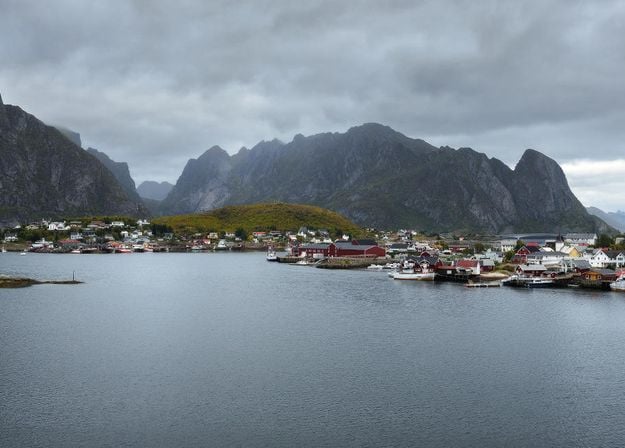
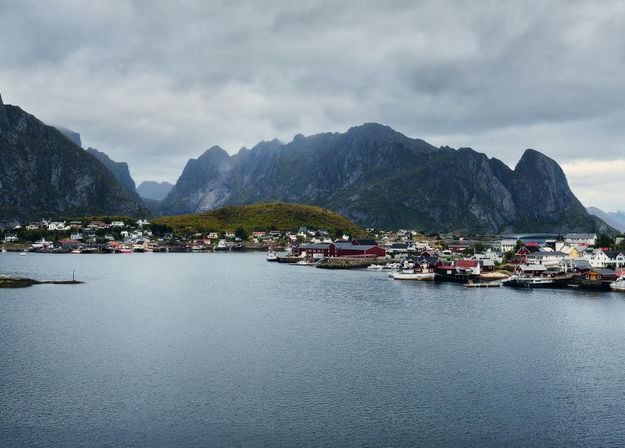
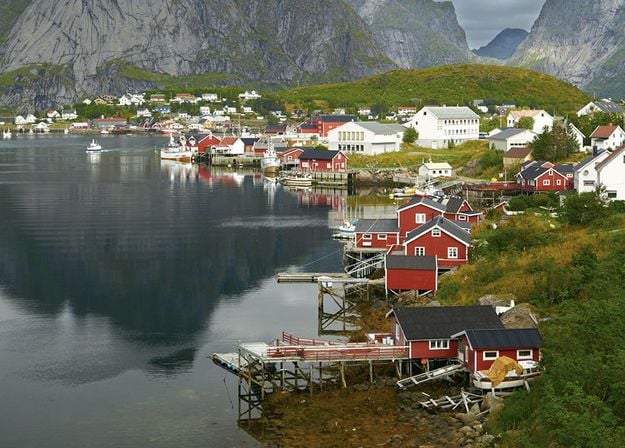
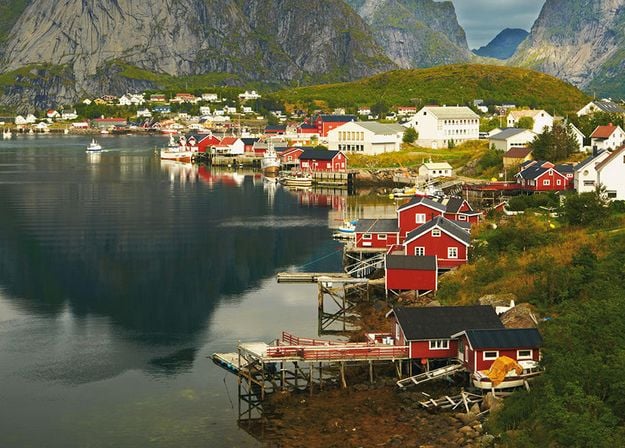


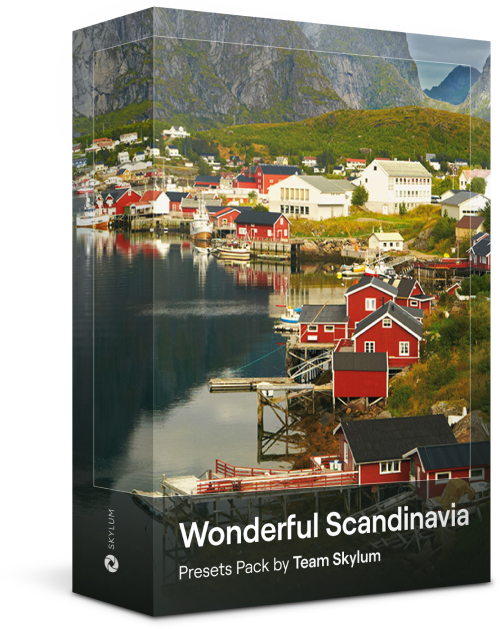
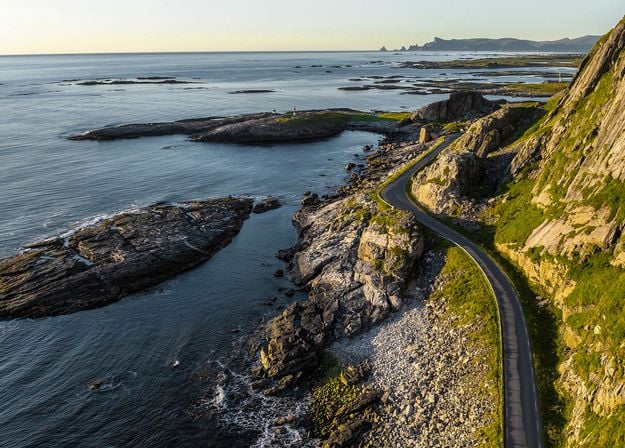
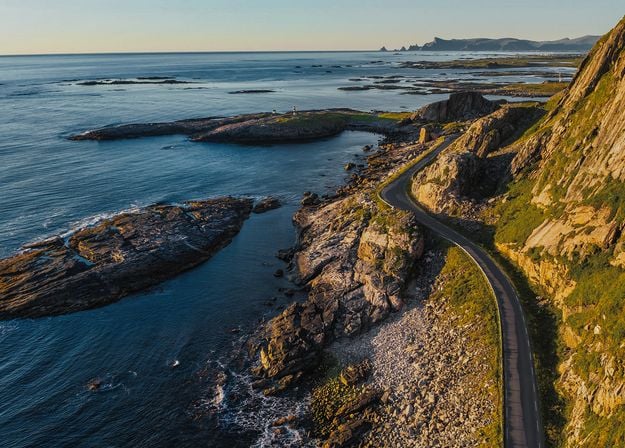
Discover this wonderful collection of 10 versatile Presets that are perfect for your travel photos from Nordic countries. Capture idyllic landscapes, natural wonders, and cozy architectural shots that breathe with the Scandinavian mood. Time to pack your travel bag!
Luminar Video Course
Creative Photo Editing Techniques in Luminar
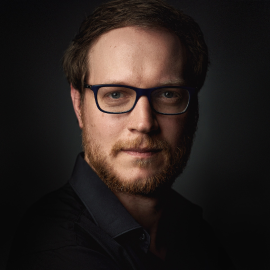
Introduction & Course Outline
Albert Dros introduces himself and gives a quick overview of what you will learn in this photography and...
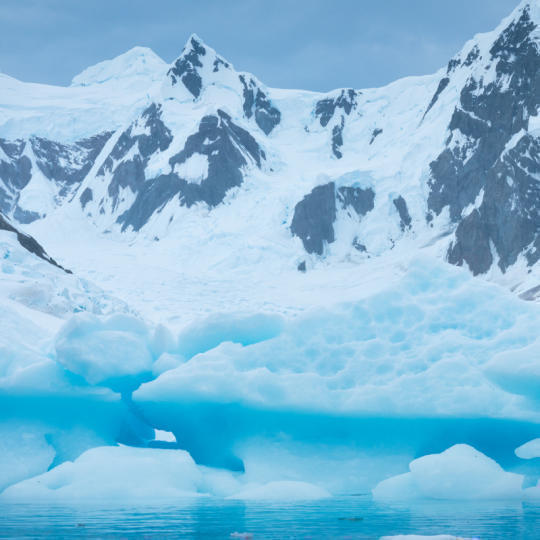
Introduction to Photography
What should you focus on when taking your photos to get the best results?
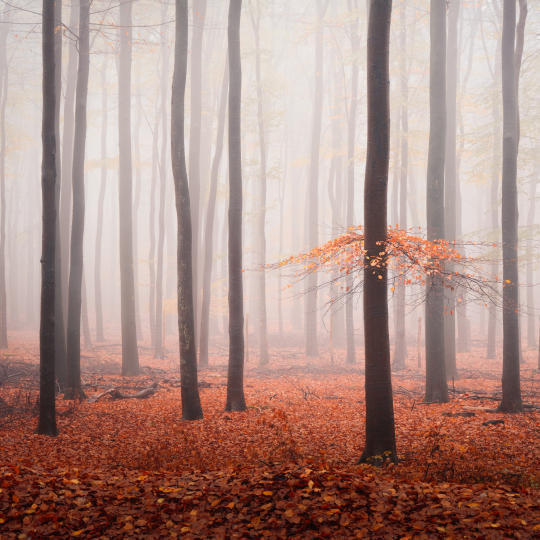
Basic Editing
Albert introduces the layout of Luminar and the basic instruments you can use to achieve great results instantly.
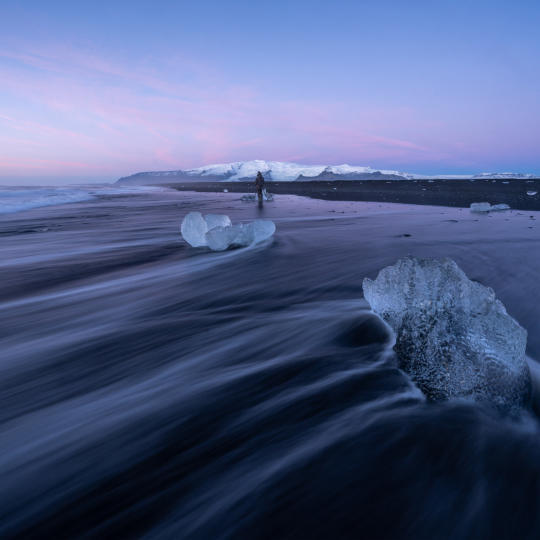
Advanced Editing
Going in depth, Albert shows you the more advanced tools in Luminar and how to use them to make your photos stand out.

Dramatic Editing
Get creative with your photos! Albert edits a photo with more creative tools to bring forward its dramatic aspects and breathe new life into it.
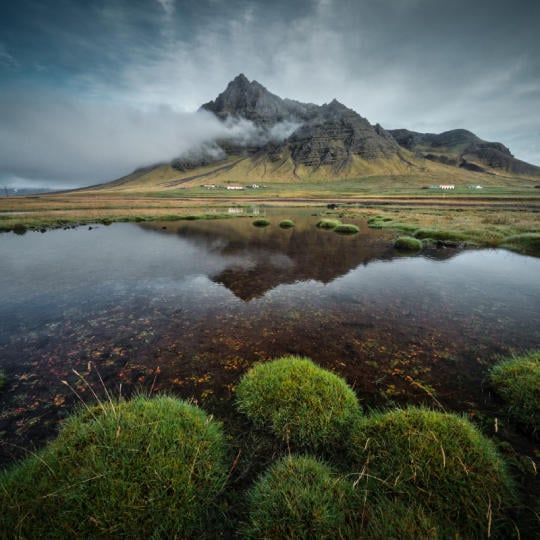
Focus Stacking
Luminar has Extensions that let you get even more impressive results. In this video, you will learn how to do focus stacking with Luminar’s Focus Stacking Extension.
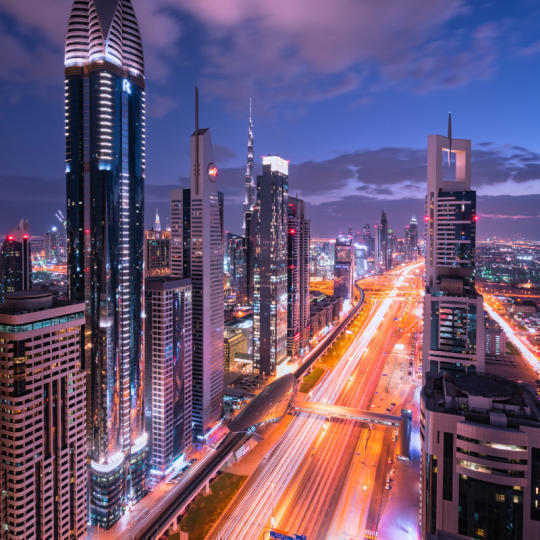
Cityscapes
What makes or breaks a cityscape shot? Take a look at how to transform a photo from Dubai from ordinary to impressive.
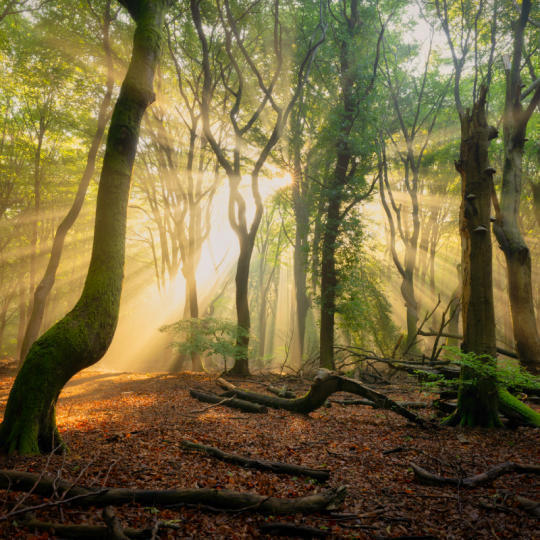
Forests
Find out what Luminar tools Albert uses to make his impressive signature forest photos. Look out for Atmosphere AI, Sunrays, and other tools!

Presets
Learn to use Presets to quickly get interesting color solutions in your photos. Albert guides you through using Presets to make even more beautiful forest shots.
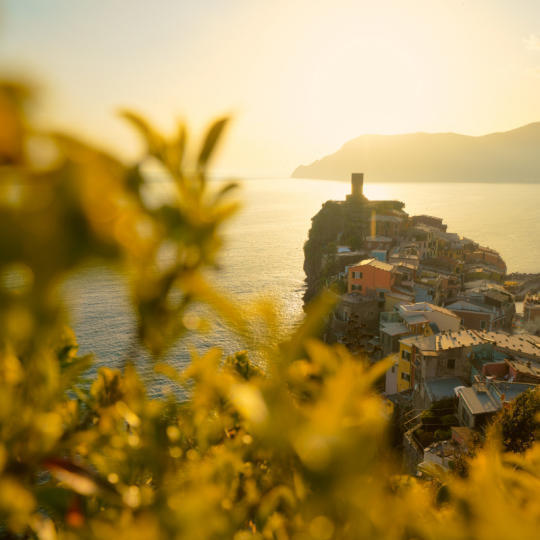
Course Summary
Get a quick summary of everything you have learned in this course. Happy creating!
Albert Dros
PHOTOGRAPHER, WRITER AND EDUCATOR
Albert Dros is a Dutch landscape photographer who has an extraordinary passion to plan and create unique shots. Volcanoes, solar eclipses and unique aspects of nature draw his attention. He doesn’t just go for the simple shot.
"Go big or go home" is his motto, always trying to add some unique element to his shots.
His work has been recognized on a worldwide scale and he has been published worldwide in the biggest media outlets.
Albert travels a lot as a photo educator but also for personal projects. But even in The Netherlands, he can’t stop photographing. His inspiration never stops.
What do I need to use AI Assistant?
You need an active Luminar Neo subscription or a Luminar Neo license with an Upgrade Pass. You’ll also need an internet connection.
How do I start using AI Assistant?
Click the white chat button in the bottom-right corner while editing a photo (in the Presets or Edits tab) to start a chat.
What file types does AI Assistant support?
AI Assistant supports RAW and non-RAW files, just like Luminar Neo, with no strict limits on file size or resolution.
What languages does AI Assistant support?
You can make queries in all the languages currently supported by Luminar Neo, including: English, Deutsch, Español, Français, Italiano, 日本語, 한국어, Português, Nederlands, 简体中文, 繁體中文, Ukrainian, Polish, Svenska, Norsk Bokmål, Dansk, Czech.
What shortcuts are available in AI Assistant?
You can use the following shortcuts:
Cmd/Ctrl + K – open or close the chat
What kind of requests can I make to AI Assistant?
AI Assistant responds only to requests relevant to photo editing. It doesn’t handle exporting, sharing, rating, or other non-editing actions.
What can AI Assistant help me with?
AI Assistant can suggest general enhancements, help boost colors, adjust white balance, and apply toning styles directly to your photo. It also provides guidance for edits like brightening, adjusting contrast, dehazing, or using tools for creative effects such as sky replacement, adding a sunset, perspective fixes, background replacement, helping you discover the right tools and approach for each image.
Can I get edit suggestions for multiple photos at once?
Each photo has its own separate chat. Switching to another photo opens a new chat.
Is my message history saved?
Message history is saved only for the current photo during your editing session. Once you close Luminar Neo or switch photos, the history is cleared.
Can I adjust the edits AI Assistant provides?
After applying edits, you can adjust them in the Edits tab. However, the order of edits applied by AI Assistant is fixed.
How many queries can I make?
There is no limit. You can ask for suggestions as many times as you want.
Are there any limitations to AI Assistant?
AI Assistant doesn’t currently support Generative, Merge, or Enhancement tools from the Catalog. For tools in the Edit tab, such as Erase, Background Removal, or Light Depth, AI Assistant can suggest how to use them, but won’t apply them automatically.
AI Assistant is designed to guide and inspire your creativity, helping you explore what’s possible while keeping you in control. More features and guidance will be added in future updates.
Mac Model
MacBook, MacBook Air, MacBook Pro, iMac, iMac Pro, Mac Pro, Mac mini, early 2010 or newer
Processor
CPU Intel® Core™ i5 8 Gen or better
OS version
macOS 12.0 or higher.
RAM
Memory 8 GB RAM or more (16+ GB RAM is recommended)
Disk space
Hard disk 10 GB free space; SSD for best performance
Display
1280x768 size or better
Hardware
Windows-based hardware PC with mouse or similar input device
Processor
CPU Intel® Core™ i5 8 Gen or better, AMD Ryzen™ 5 or better
OS version
10 version 1909 or higher (only 64-bit OS)
RAM
Memory 8 GB RAM or more (16+ GB RAM is recommended)
Disk space
Hard disk 10 GB free space; SSD for best performance
Display
1280x768 size or better
Graphics
Open GL 3.3 or later compatible graphics card
