Prohlédnout tarify

Blemish Remover to Erase Flaws

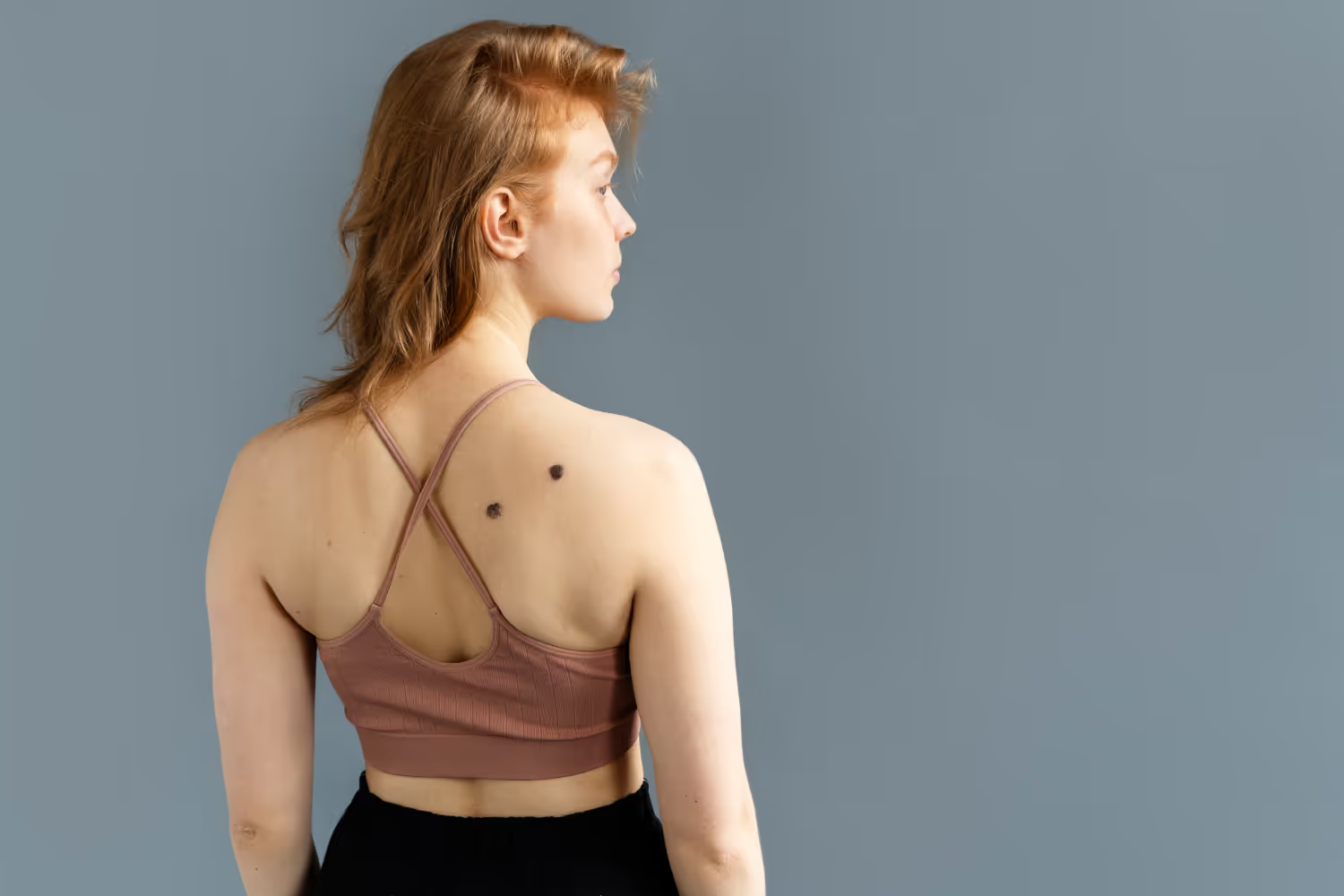
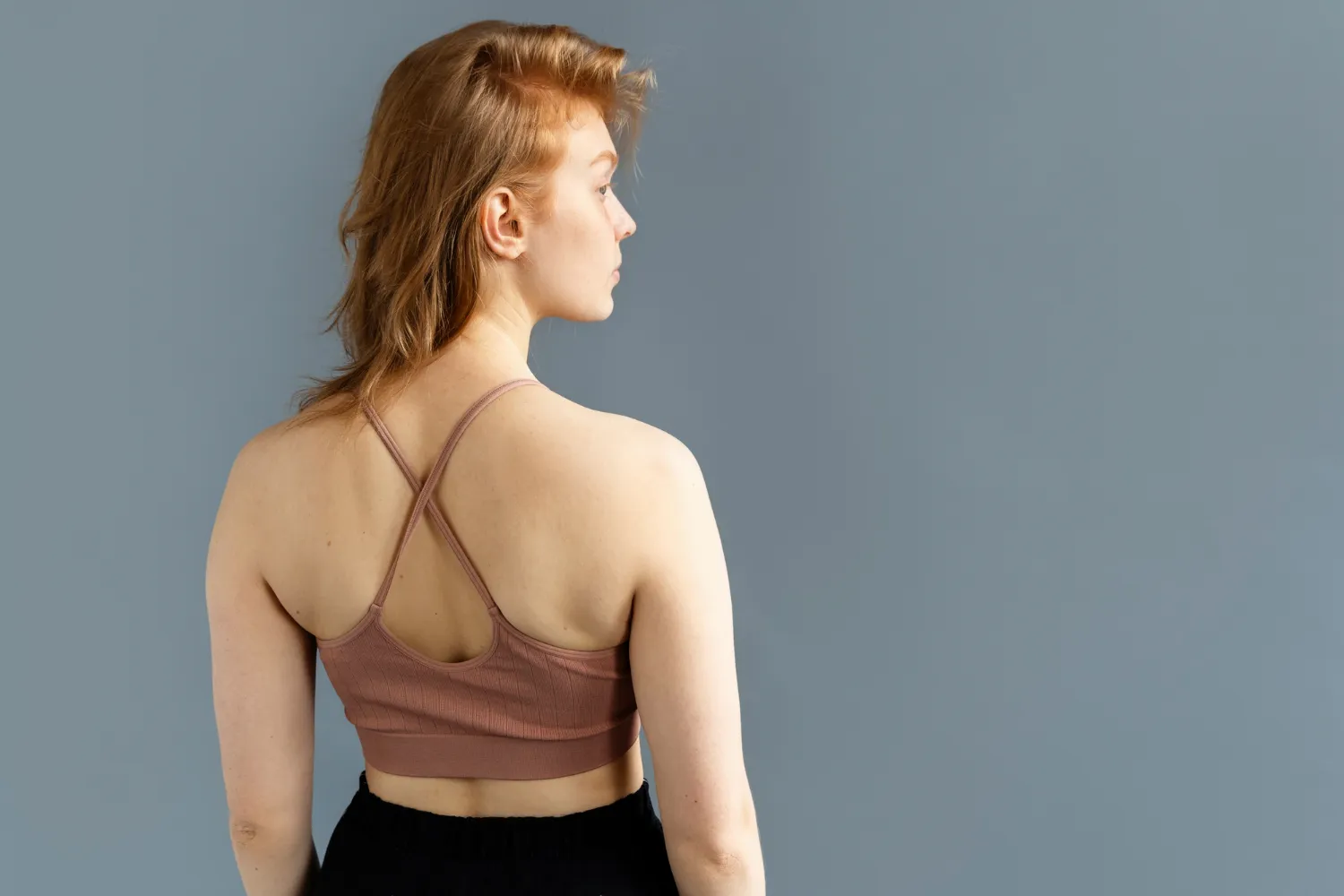
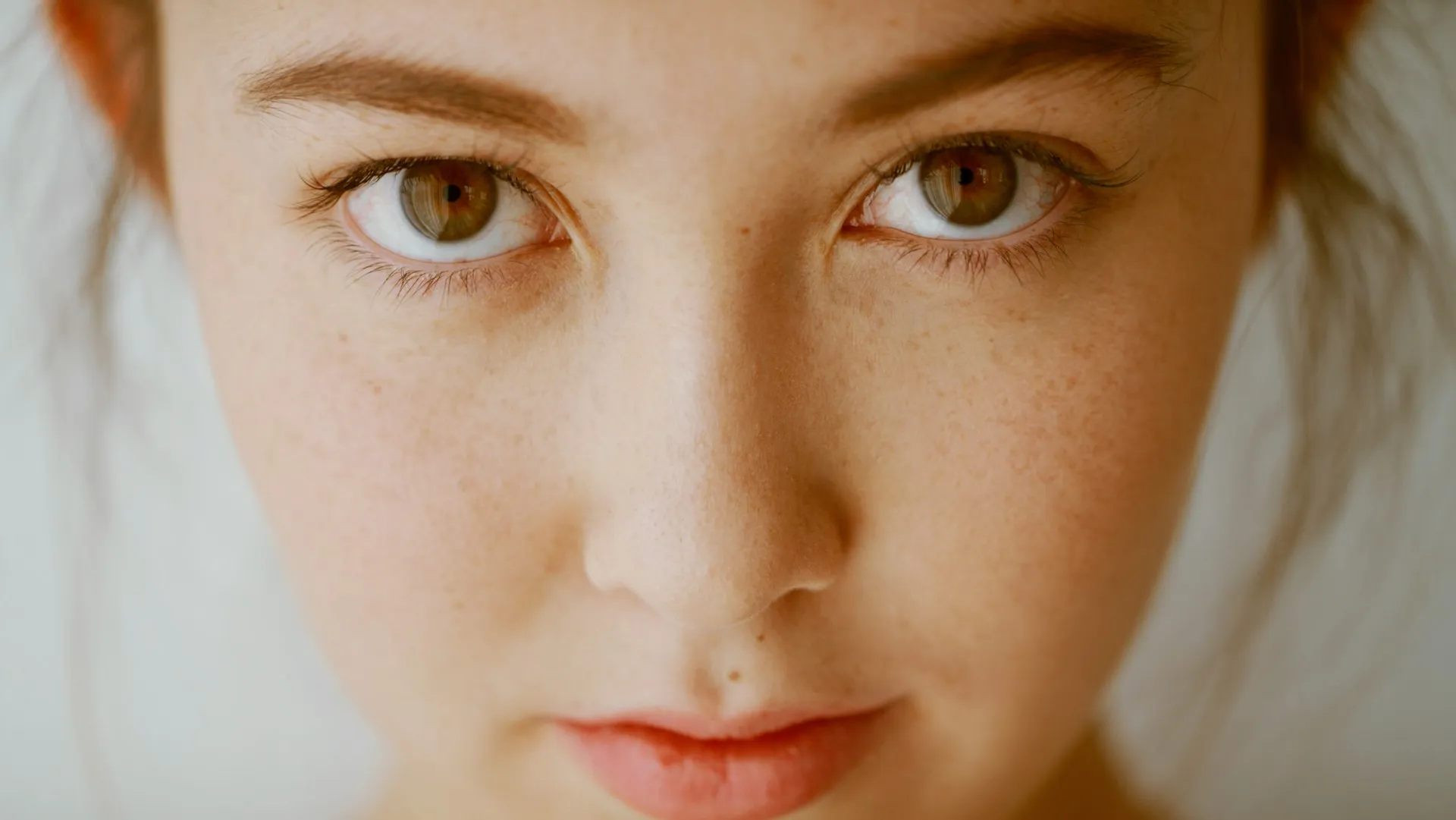
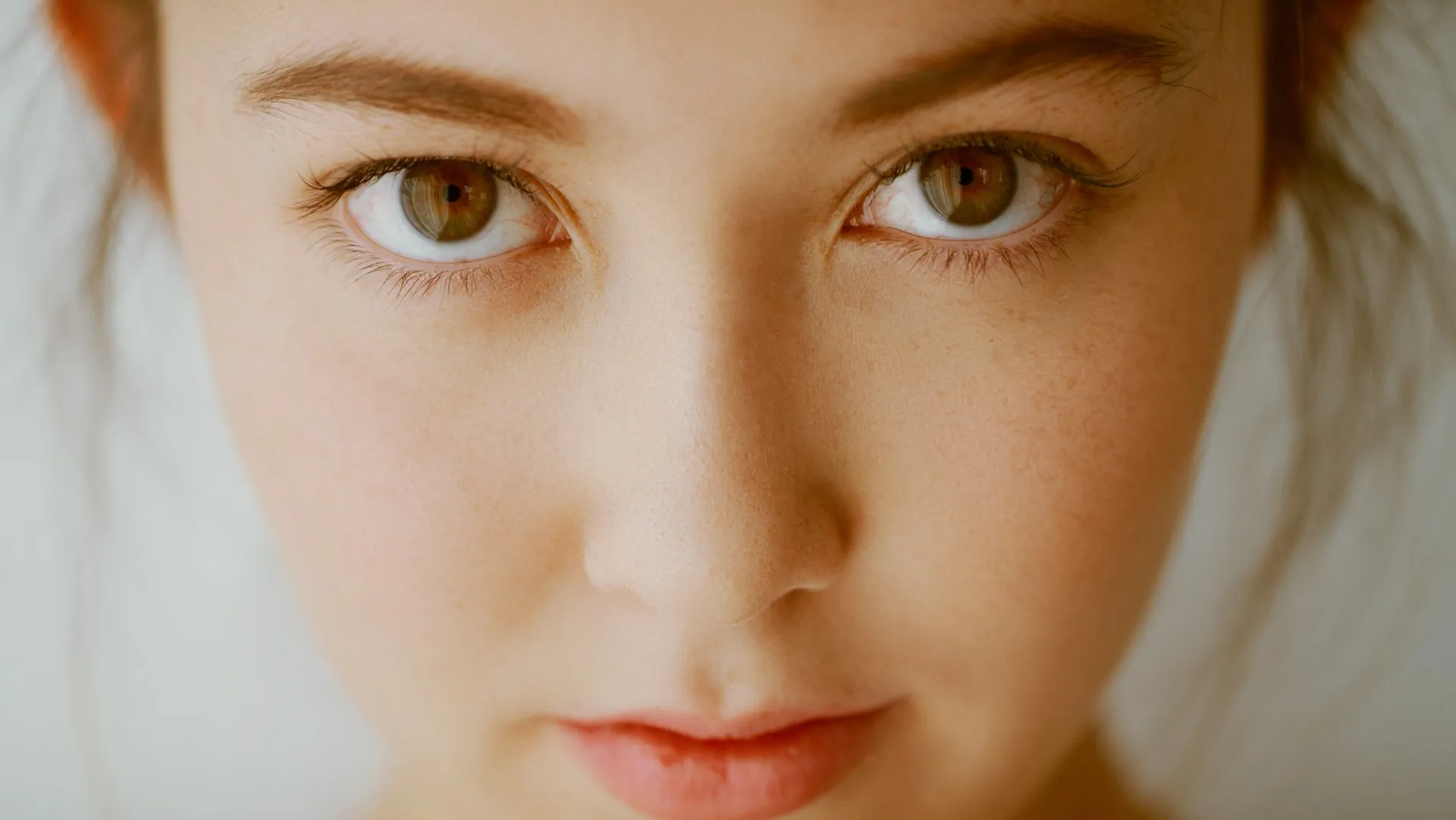
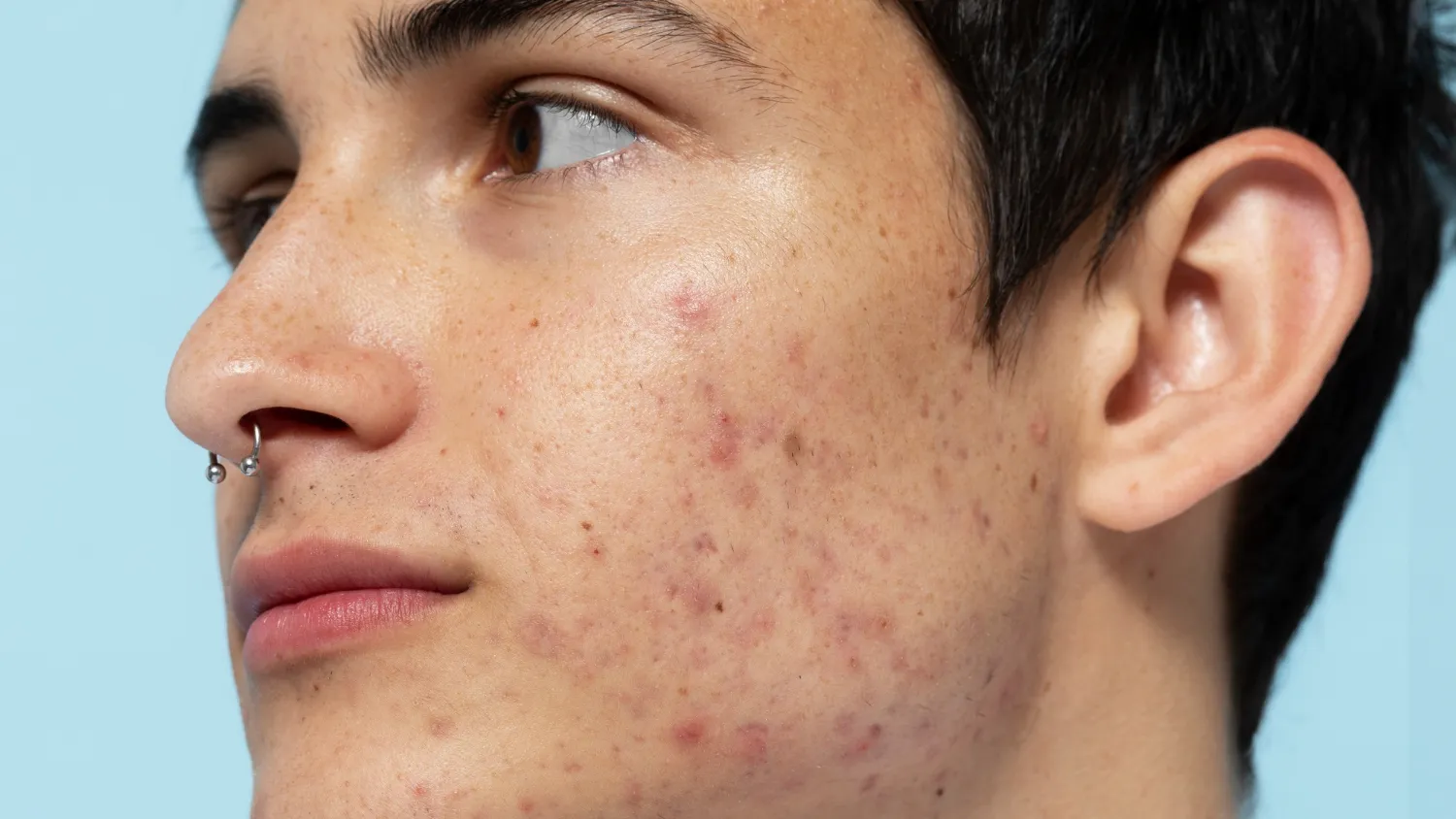
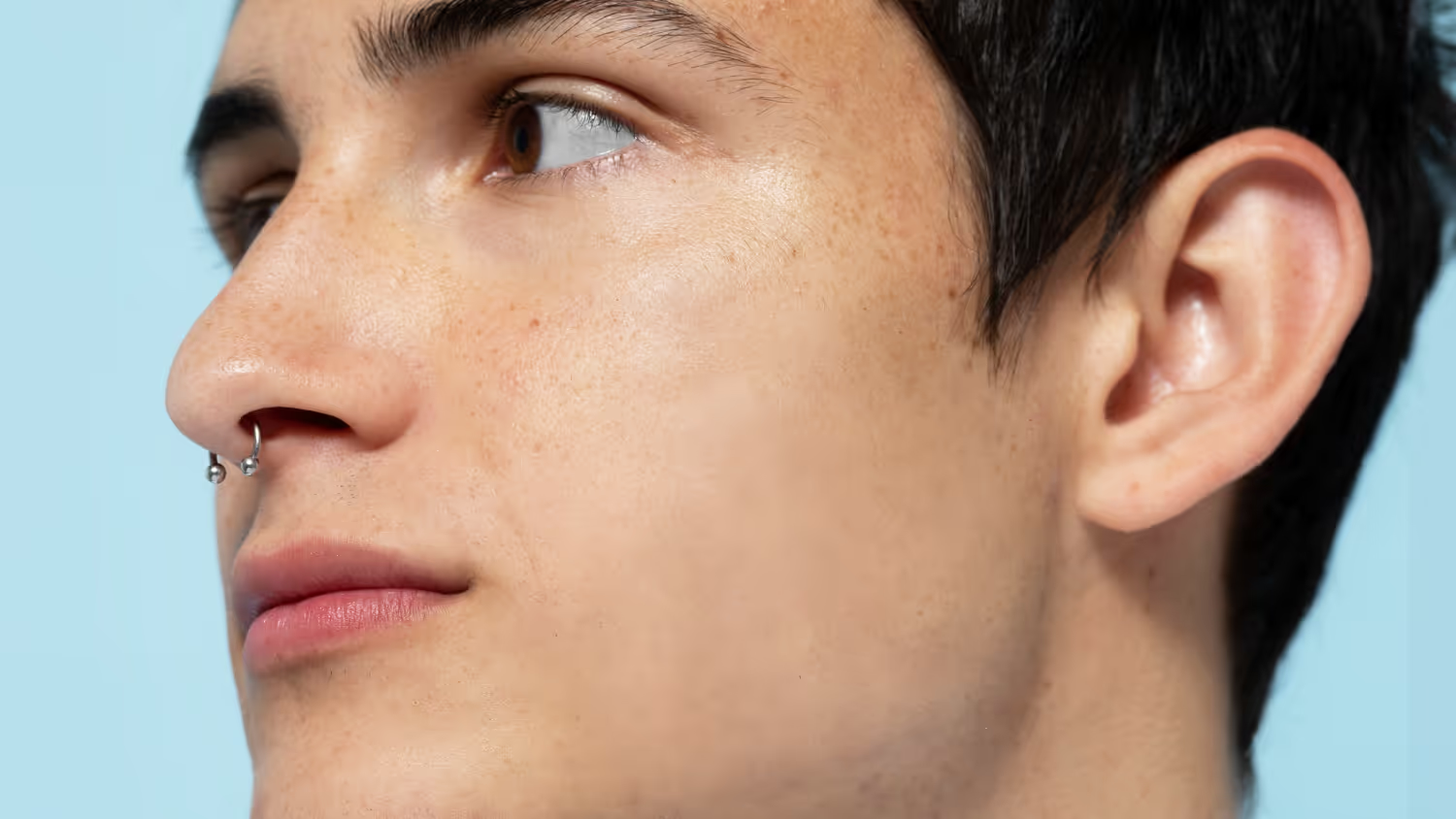
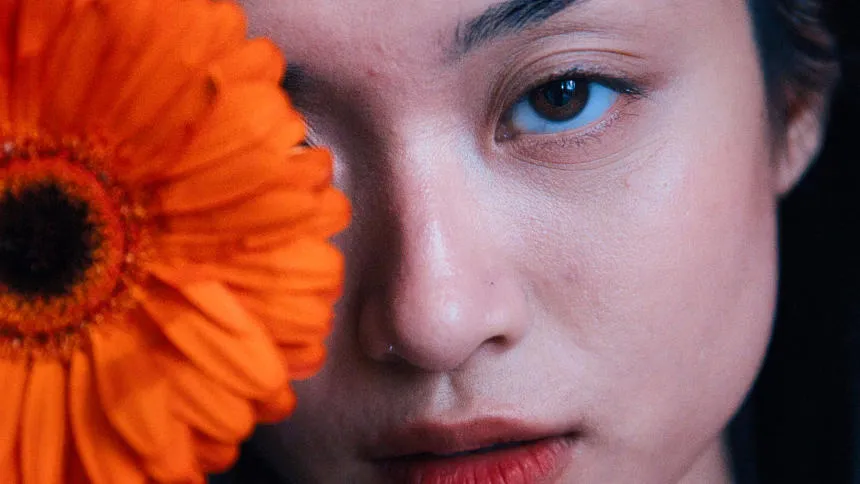
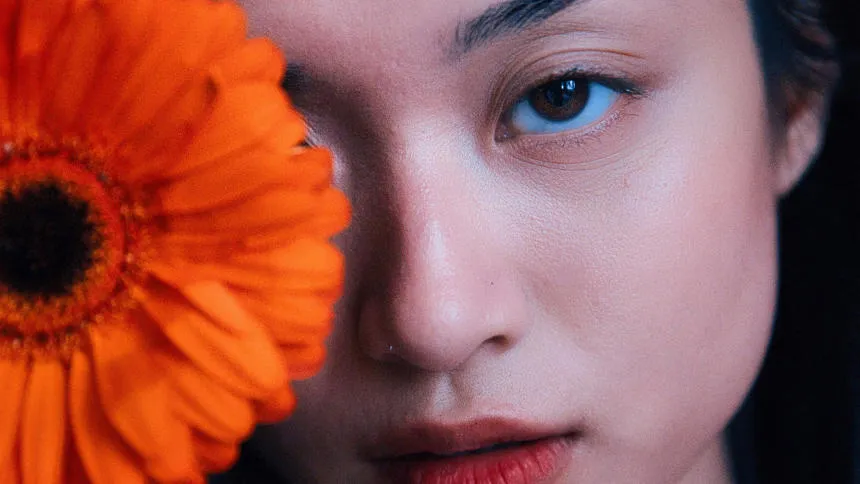
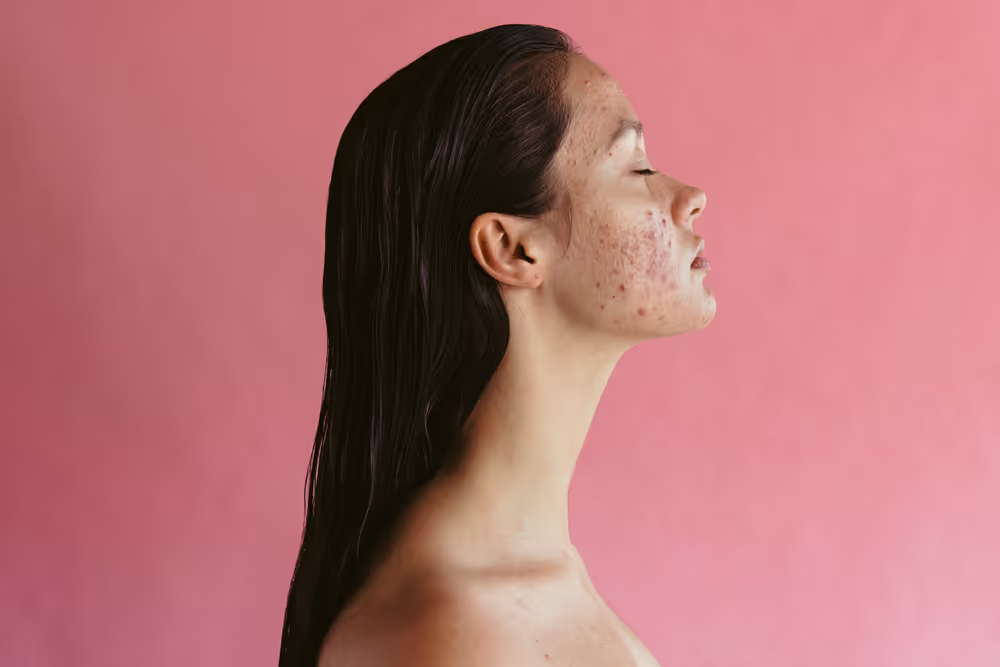
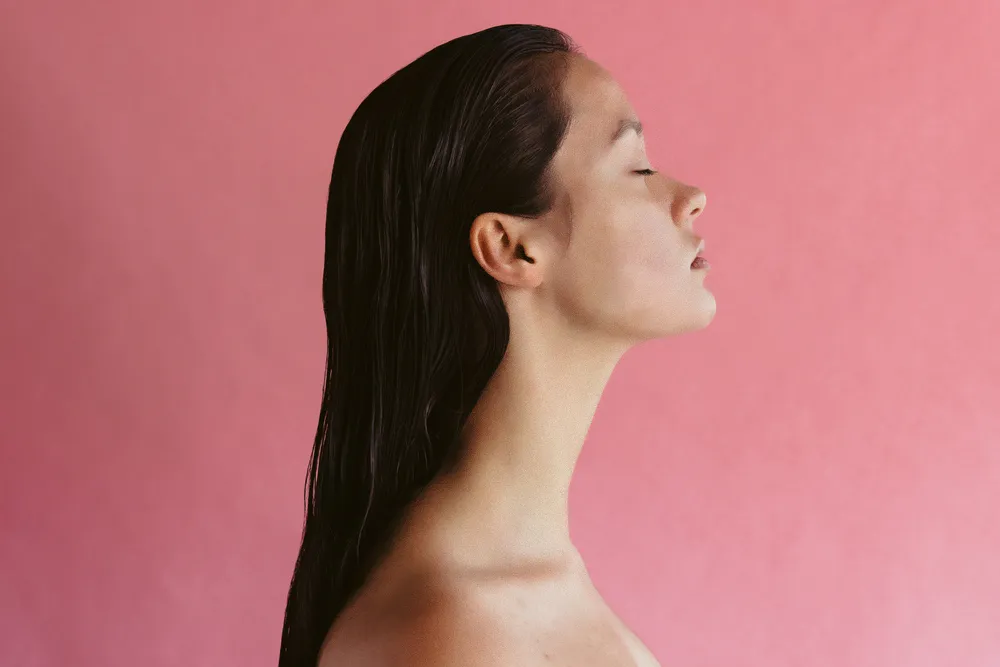
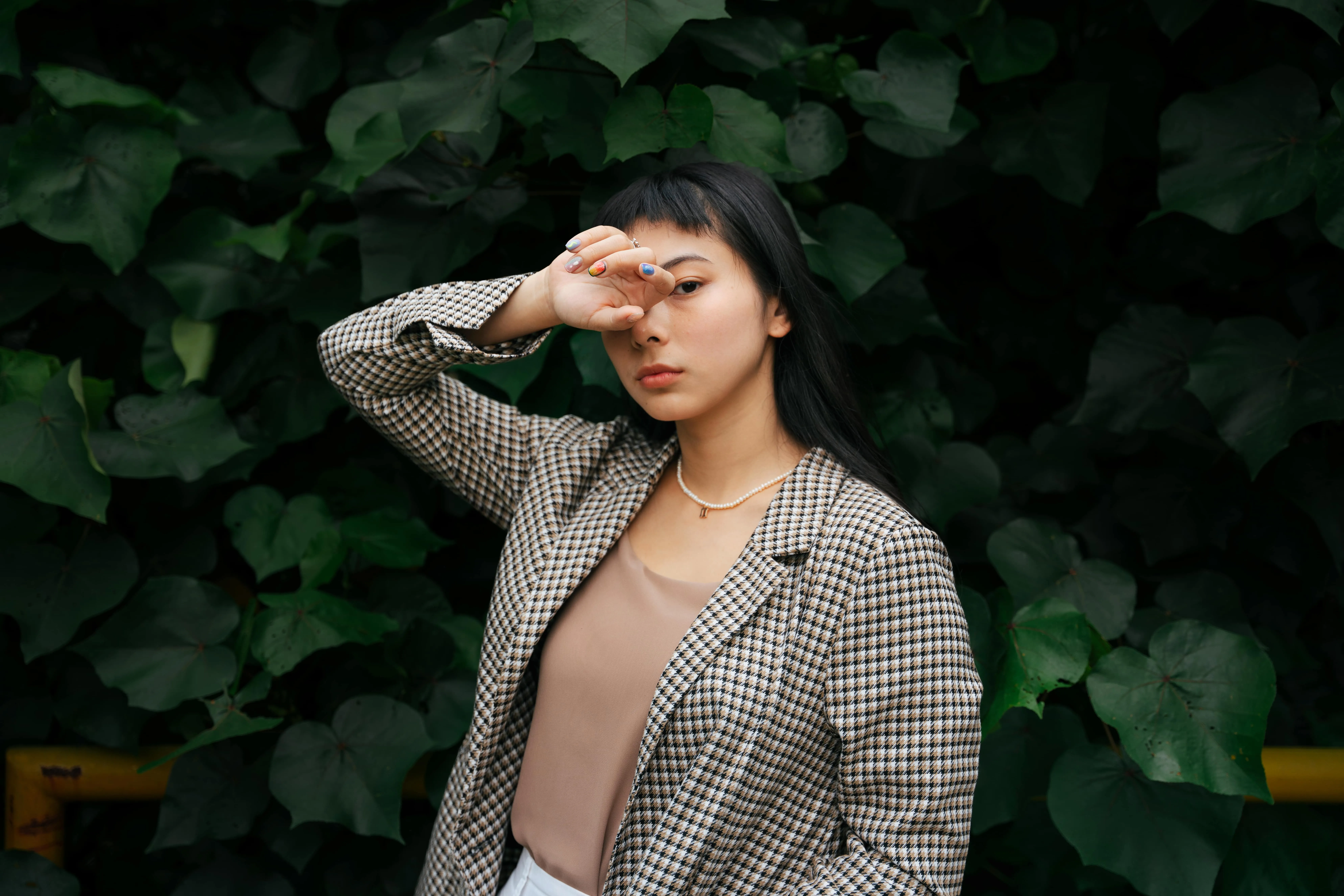
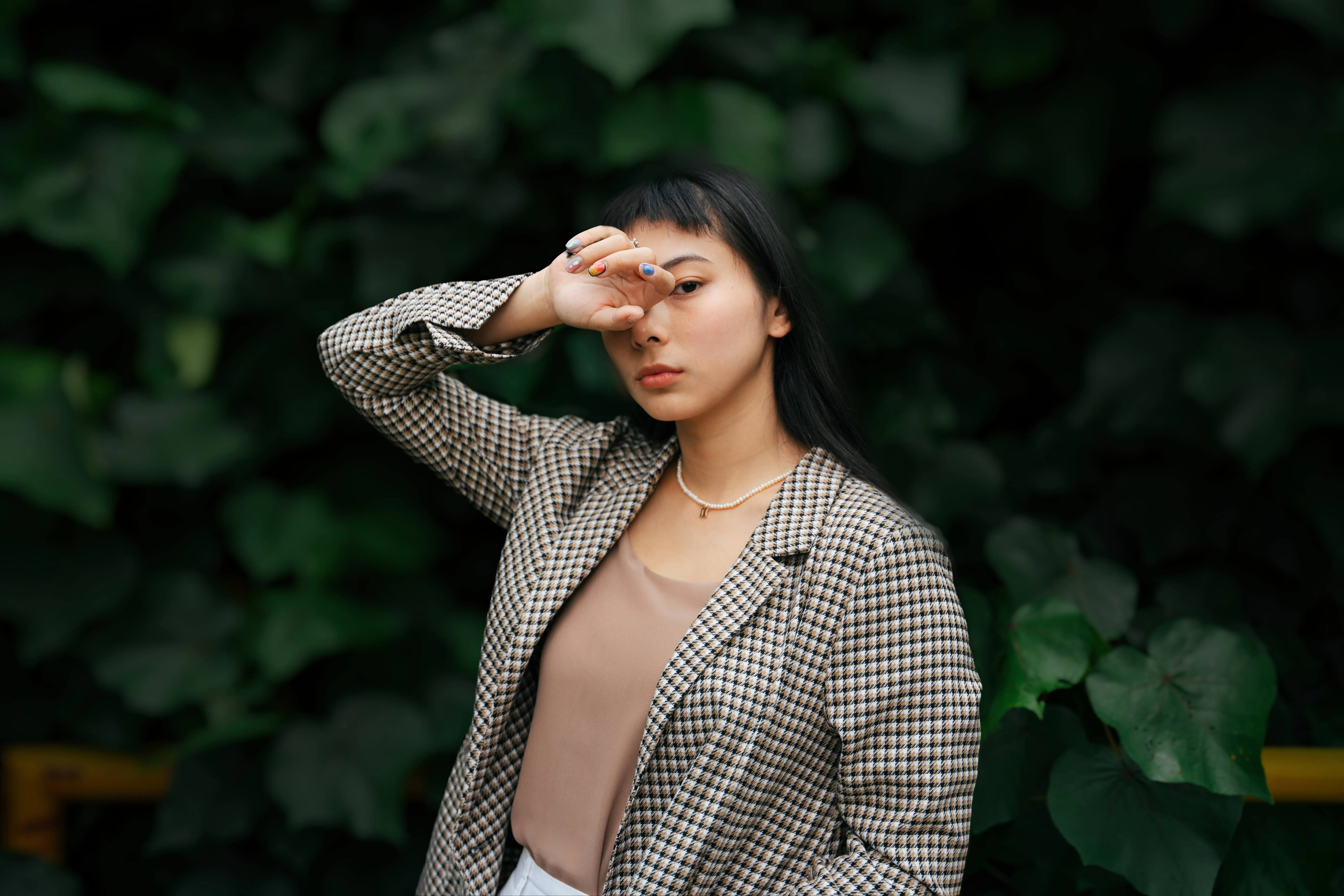
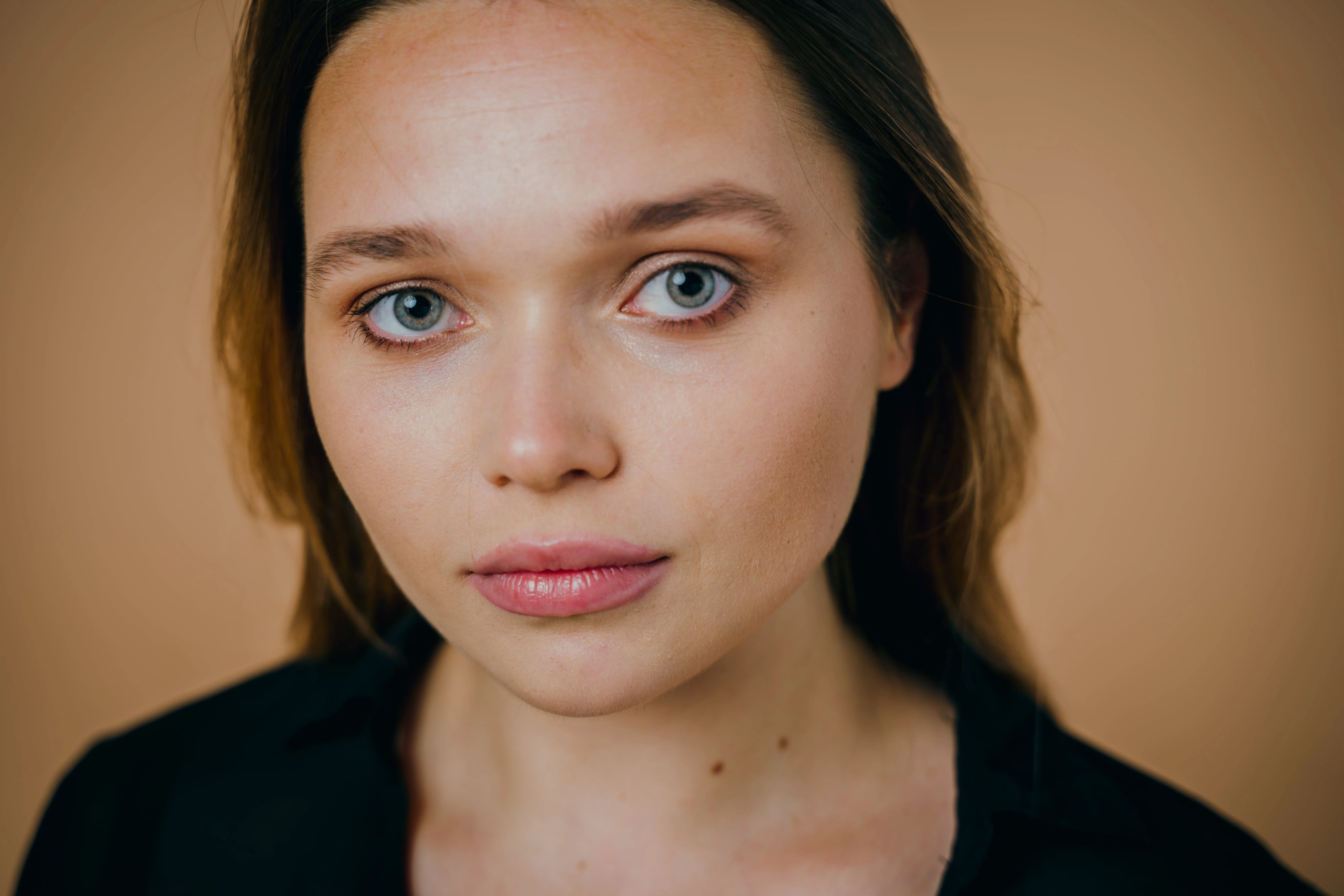
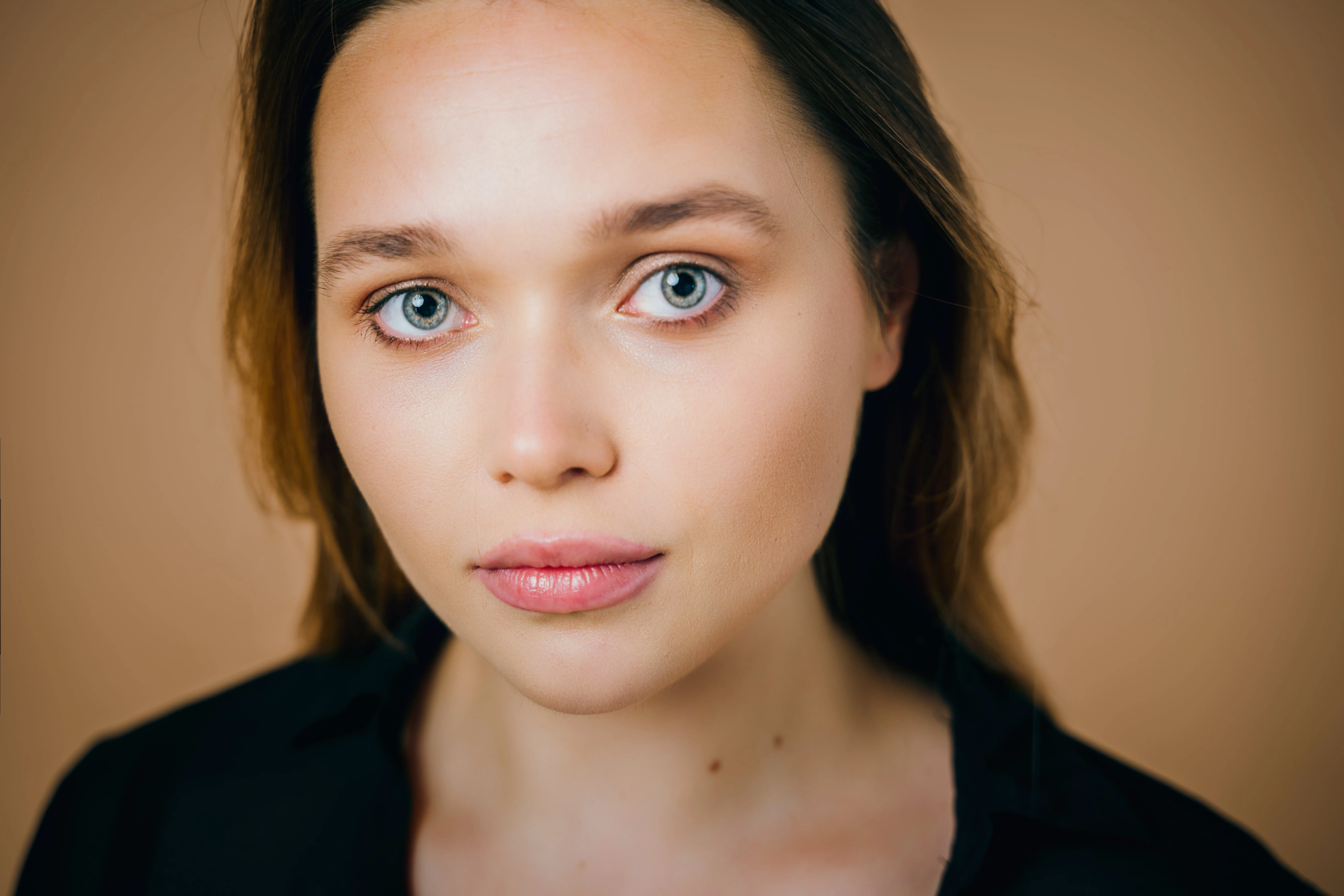
Small skin imperfections can distract from an otherwise strong portrait. A blemish photo editor helps create a cleaner, more polished image while keeping the focus on the subject—not the flaws.

Prohlédnout tarify

How to Use Blemish Removal in Photos?

Fixing blemishes on photos doesn’t have to be complicated. With Luminar Neo, you can clean up skin imperfections in just a few clicks while keeping the texture natural.

(2)

Step 1. Open your photo. Launch Luminar Neo and open the portrait you want to retouch.

(3)

Step 2. Enable Skin AI. Go to Portrait tools and select Skin AI. Turn on Skin Defects Removal AI to automatically detect and remove blemishes.

(4)

Step 3. Adjust and refine. Fine-tune the effect strength to keep skin texture natural. If needed, use Edit Mask to restore details like hair, eyelashes, or freckles.

(5)

Step 4. Review and export. Zoom in to check the result, then export your photo with clean, natural-looking skin.

What Other Tools Can You Use?

To remove blemishes from photos, Luminar Neo offers a complete set of retouching tools.

(6)
(7)
(8)
Před
Po
© rushay

Odstranění lesku

Nadměrný lesk na čele nebo tvářích kazí jinak dokonalou fotografii. Nástroj Odstranění lesku vytváří realisticky vypadající pleť a obnovuje místa na obličeji, která byla vymazána nadměrným světlem.
(6)
(10)
(11)
Před
Po
© freepik

Essentials (Erase Tool)

Allows you to manually remove unwanted details or remaining imperfections when extra precision is needed.
(6)
(13)
(14)
Před
Po
© unsplash

Úprava masky

Lets you manually restore or protect details you want to keep, giving you full control over where the effect is applied.
Odstranění lesku
Essentials (Erase Tool)
Úprava masky

What Other Tools Can You Use?

To remove blemishes from photos, Luminar Neo offers a complete set of retouching tools.

(15)
(16)
(17)
Před
Po
© Shutterstock

Portrait Photography

Remove temporary skin imperfections while preserving natural texture and facial details. Ideal for close-ups and expressive portraits.

Professional Headshots

Clean, refined skin helps create a confident first impression for LinkedIn profiles, portfolios, and company websites.
(15)
(19)
(20)
Před
Po
© Jim Nix
(15)
(22)
(23)
Před
Po
© Shutterstock

Lifestyle & Social Media Photos

Quickly polish everyday images so they look intentional, clean, and camera-ready without over-retouching.

Beauty & Fashion Photography

Subtle blemish removal enhances skin tone consistency while keeping makeup, freckles, and texture intact.
(15)
(25)
(26)
Před
Po
© Jim Nix
(15)
(28)
(29)
Před
Po
© Shutterstock

Personal Photos

Improve casual photos by removing pimples with AI or other small distractions from the photo, helping the subject stand out naturally.

Prozkoumejte další funkce

Luminar Neo obsahuje spoustu dalších funkcí, které vám pomohou upravovat rychleji a snadněji
(31)
(32)
Před
Po
© marcel-strauss
Tvář AI
Vyzkoušejte kouzlo umělé inteligence s nástrojem Tvář AI - snadno vylepšujte, retušujte a zkrášlujte!
(33)
Bělení zubů
(34)
(35)
Před
Po
© Ksenia Kazak
Bělení zubů
Proměňte svůj úsměv s Luminar Neo! Rozjasněte své zuby a získejte bezchybný, dokonalý úsměv.
(36)
Portrétní efekt bokeh
(37)
(38)
Před
Po
© theshots.contributor
Portrétní efekt bokeh
Zjistěte, jak pomocí nástroje Portrétní efekt bokeh proměnit pozadí v okouzlující rozostření.
(39)
Editor těla
(40)
(41)
Před
Po
© HayDmitriy
Editor těla
Změňte přirozeně vzhled svého těla pomocí našeho pokročilého editoru postavy. Vyzkoušejte si to hned!
(42)
PokožkaAI
(43)
(44)
Před
Po
© unsplash
PokožkaAI
Proměňte svou pleť pomocí Pokožka AI - dosáhněte bezchybné krásy bez nedokonalostí ještě dnes!
(45)
Hubená tvář
(46)
(47)
Před
Po
© Ksusha Kazak
Hubená tvář
Objevte funkci Hubená tvář v aplikaci Luminar Neo a změňte své fotografie pouhým posunutím! Vyzkoušejte ji hned!

Aplikace a zásuvný modul
Pro macOS a Windows

  • Vysoce výkonný obrázkový editor s AI
  • Technická podpora 24/7

  • 30denní záruka vrácení peněz

  • Join our communities

Často kladené otázky

How to get rid of acne in photos?

Open your photo in Luminar Neo, go to Portrait tools → Skin AI, and enable Skin Defects Removal AI. The tool automatically removes acne from a photo while preserving natural skin texture. If you want to keep certain details, use Edit Mask to restore them selectively.

Zanechává nástroj na odstranění skvrn nějaké viditelné stopy nebo šmouhy?

No. Luminar Neo’s AI blemish remover is designed to deliver natural-looking results, preserving skin texture without leaving visible smudges or artificial artifacts.

Mohu nastavit intenzitu nástroje na odstranění skvrn?

Blemish removal is applied automatically for realistic results. If you want to keep certain imperfections or details, you can use the Edit Mask tool to restore them selectively.

Jak mohu v případě potřeby vrátit změny provedené nástrojem na odstranění skvrn zpět?

All edits in Luminar Neo are non-destructive. You can undo changes using Ctrl/Cmd + Z, redo them with Ctrl/Cmd + Y, or simply disable Skin Defects Removal AI at any time.

Why Luminar Neo is the best photo editor to remove blemishes?

Luminar Neo combines AI-powered blemish removal with manual control tools like masking and erase options. This allows you to remove pimples from a photo quickly while keeping skin texture natural. When more precision is needed, you can fine-tune the result for clean, realistic retouching.
(49)