
 查看平面圖
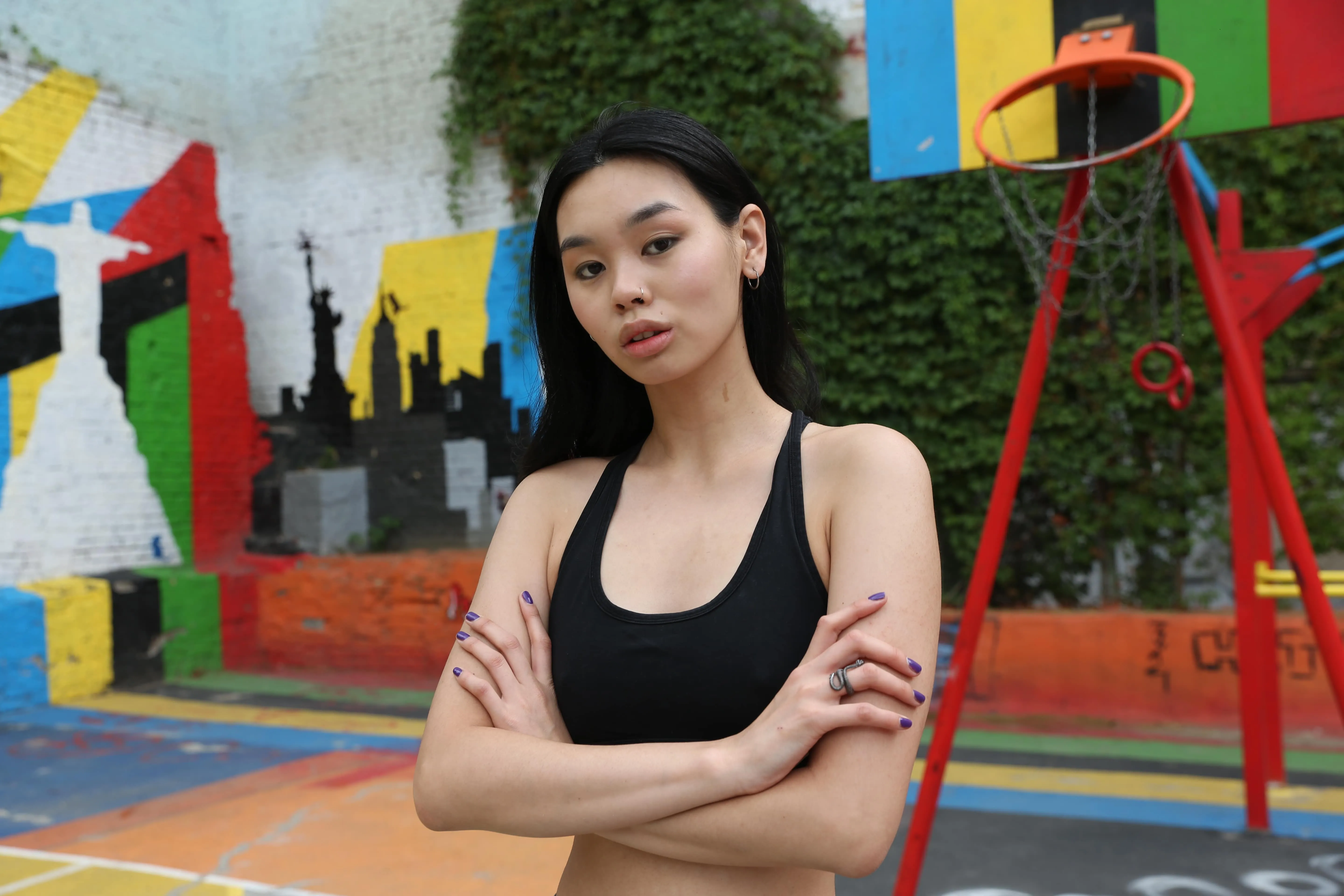
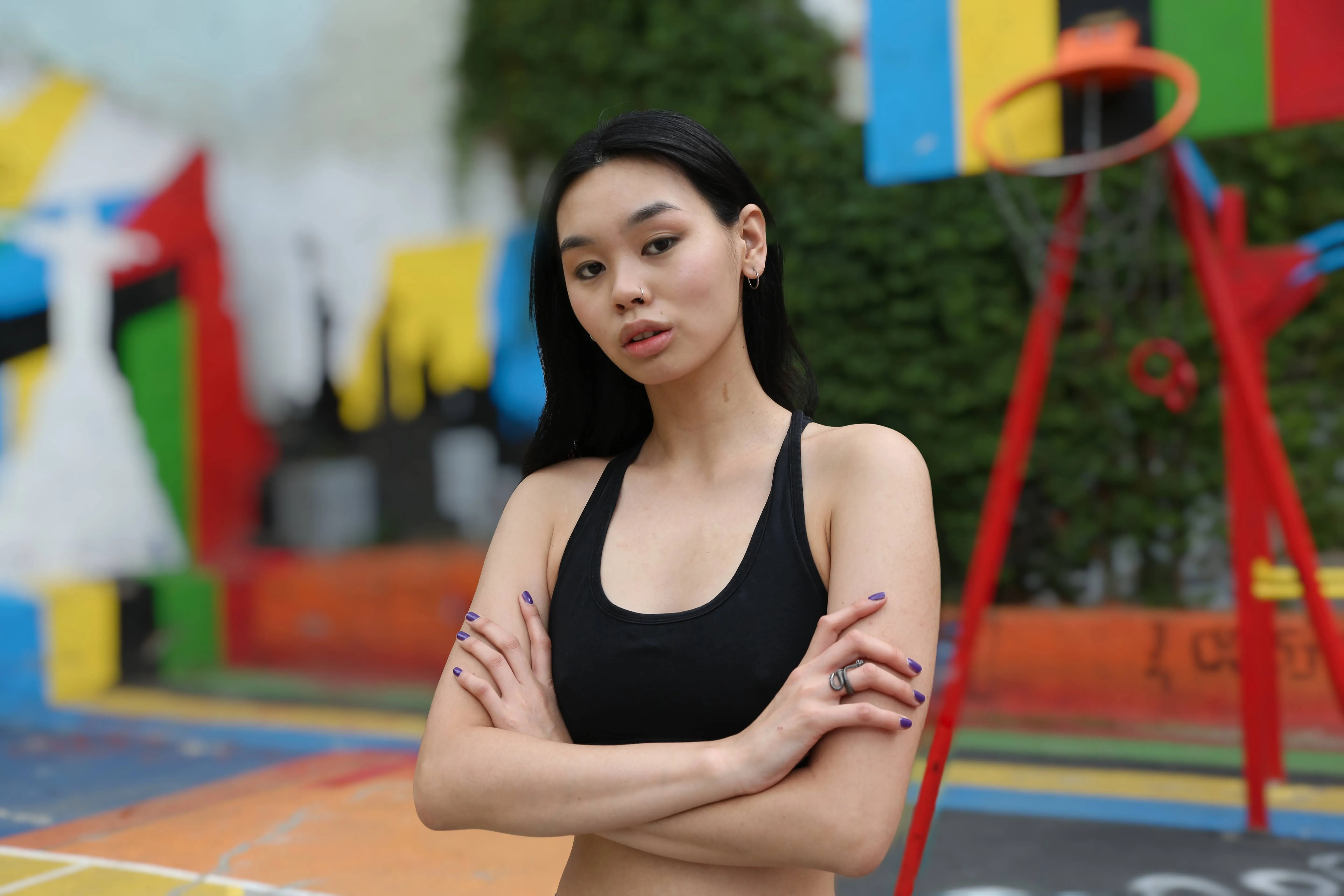
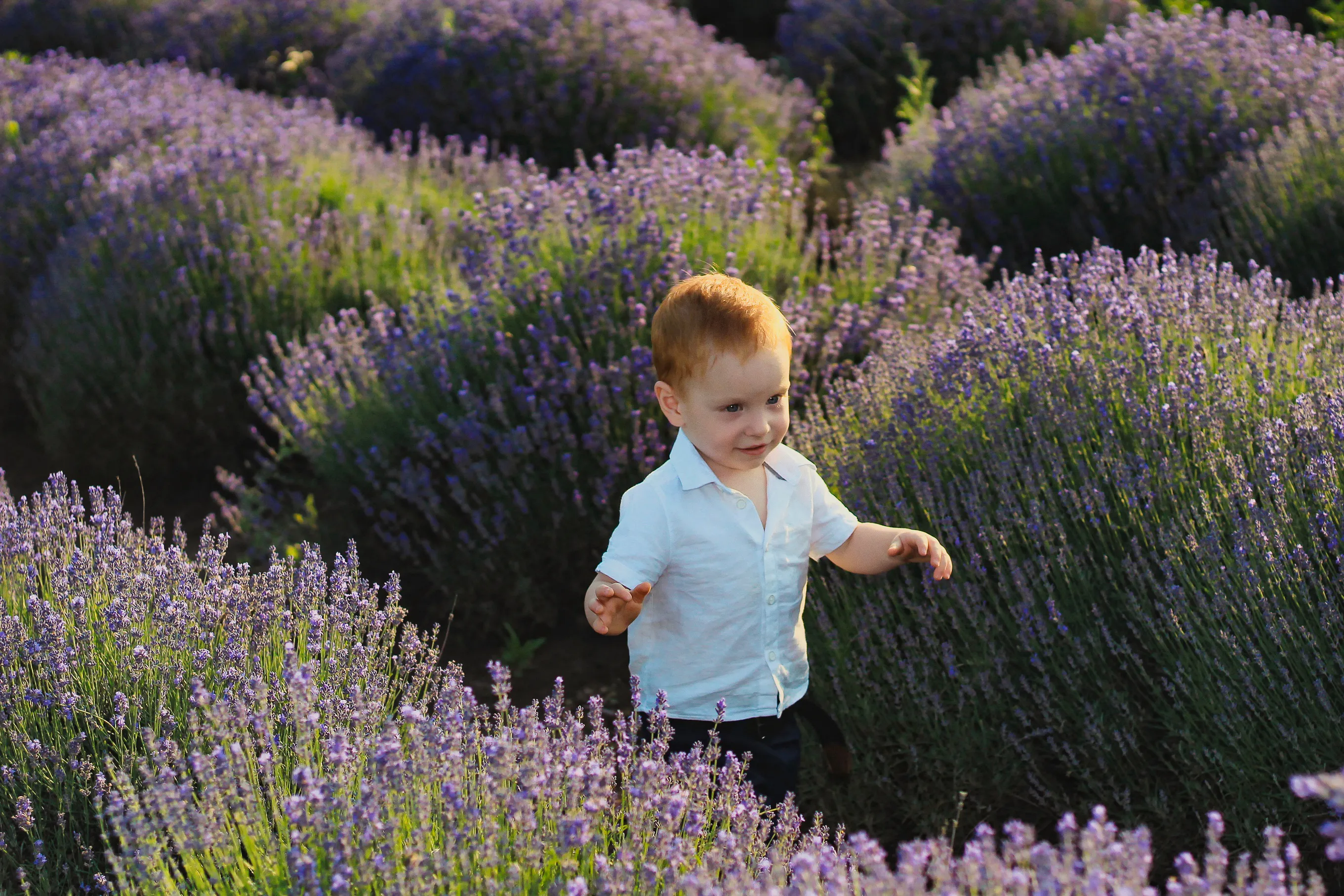
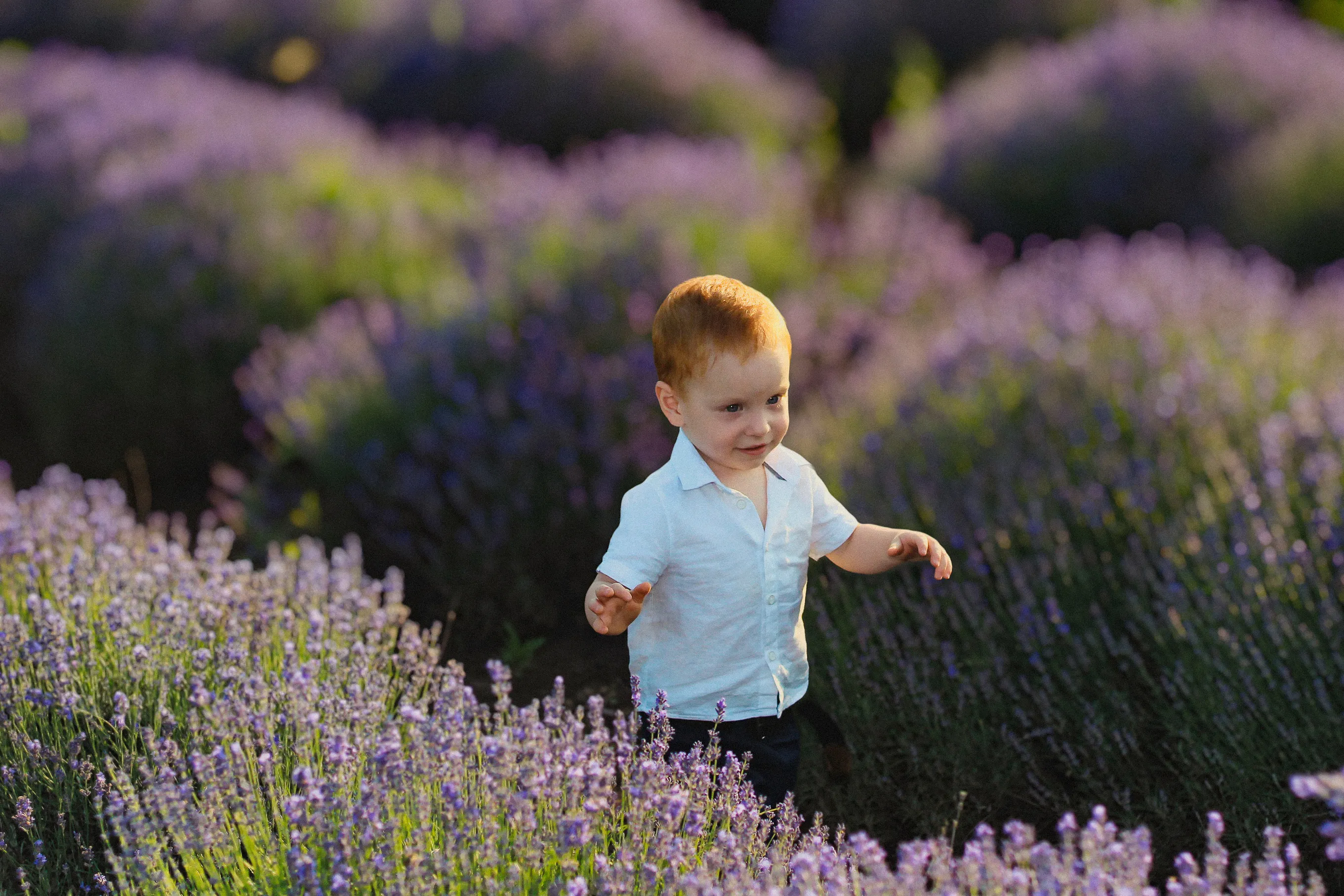
查看平面圖AI 照片背景模糊與手動模糊的比較
在 Luminar 中,您可以透過 AI 或手動影像背景模糊功能來模糊背景。這兩種選項均能穩定運作,但分別針對不同的視覺風格而設計。
AI 模糊功能快速且自動,非常適合呈現乾淨、自然的效果;而手動模糊則讓您能完全掌控,進行更精準或風格化的編輯。您可以自行決定在編輯過程中希望投入多少親手操作。
AI 模糊功能快速且自動,非常適合呈現乾淨、自然的效果;而手動模糊則讓您能完全掌控,進行更精準或風格化的編輯。您可以自行決定在編輯過程中希望投入多少親手操作。
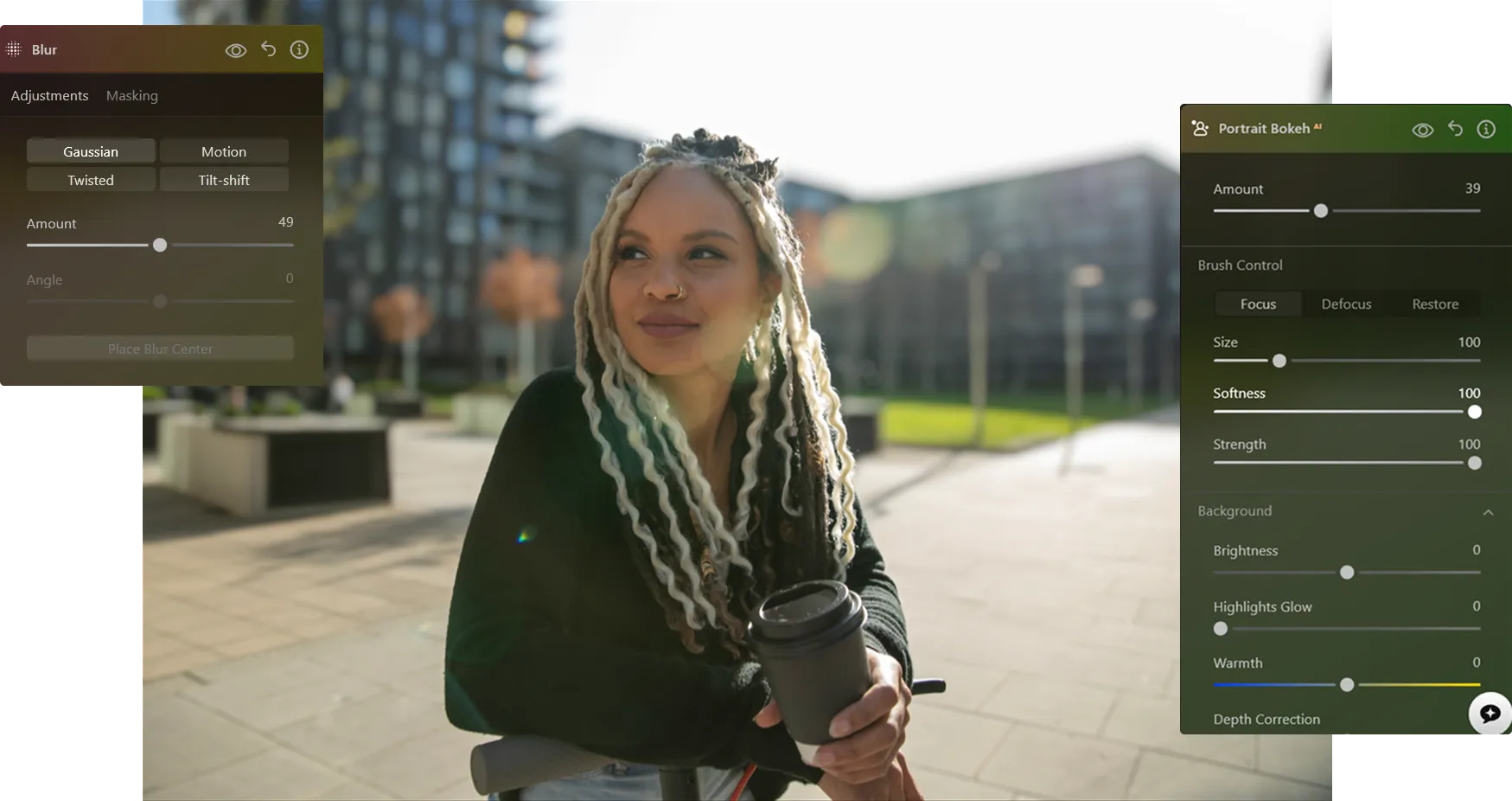
如何讓照片中的背景變模糊
使用 Luminar,您可以在拍攝照片後創造出背景模糊的效果——並進行微調,直到效果完全符合您的期待。

步驟 1.請開啟您的照片。啟動 Luminar,並開啟您要編輯的圖片。

步驟 2. 將背景模糊化。 前往「人像散景 AI」或「模糊工具」。Luminar 會自動偵測主體,並將其與背景分離。

步驟 3. 調整模糊效果。 調整模糊程度,以營造自然的背景模糊效果。微調景深與過渡效果,呈現逼真的視覺效果。

步驟 4. 精修並匯出。 如有需要,請修整邊緣,然後將照片匯出,使其擁有乾淨且專業的背景模糊效果。
背景模糊效果最佳的場合
使用照片編輯軟體來模糊背景,是一種適用於多種攝影類型的多功能技巧,能幫助您引導視線、減少干擾,並營造出更精緻的視覺效果。

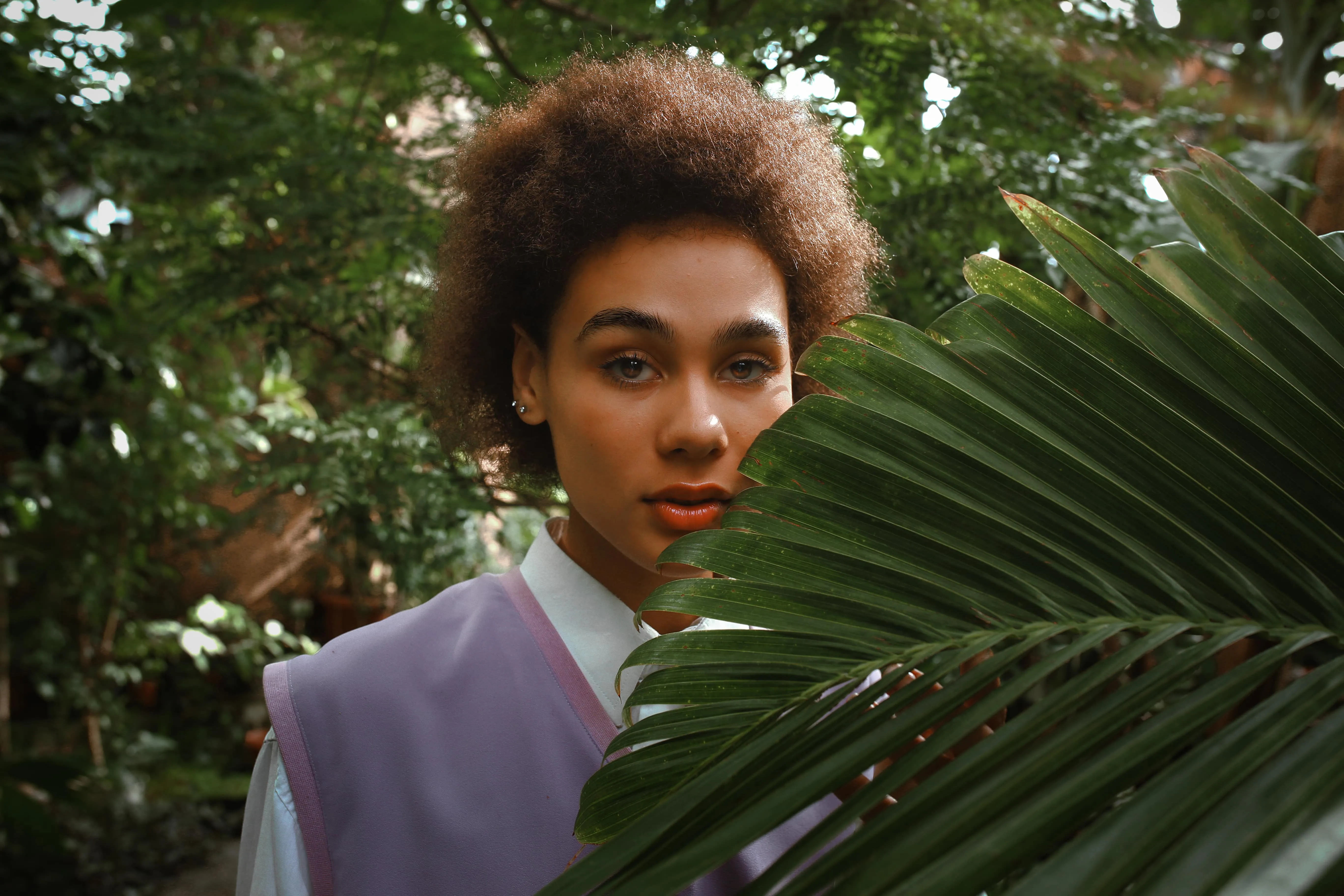
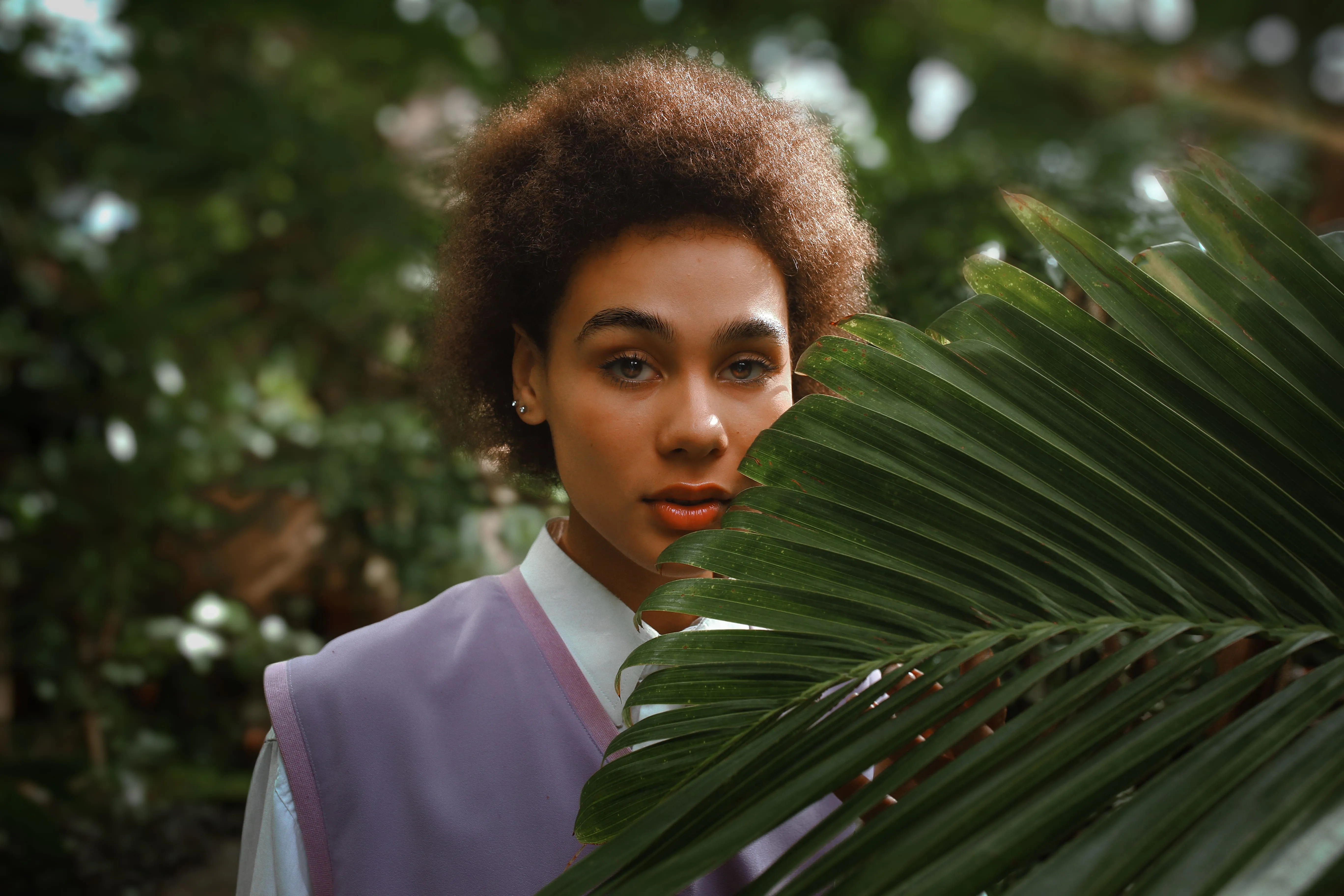
© Maryna Yurlovska
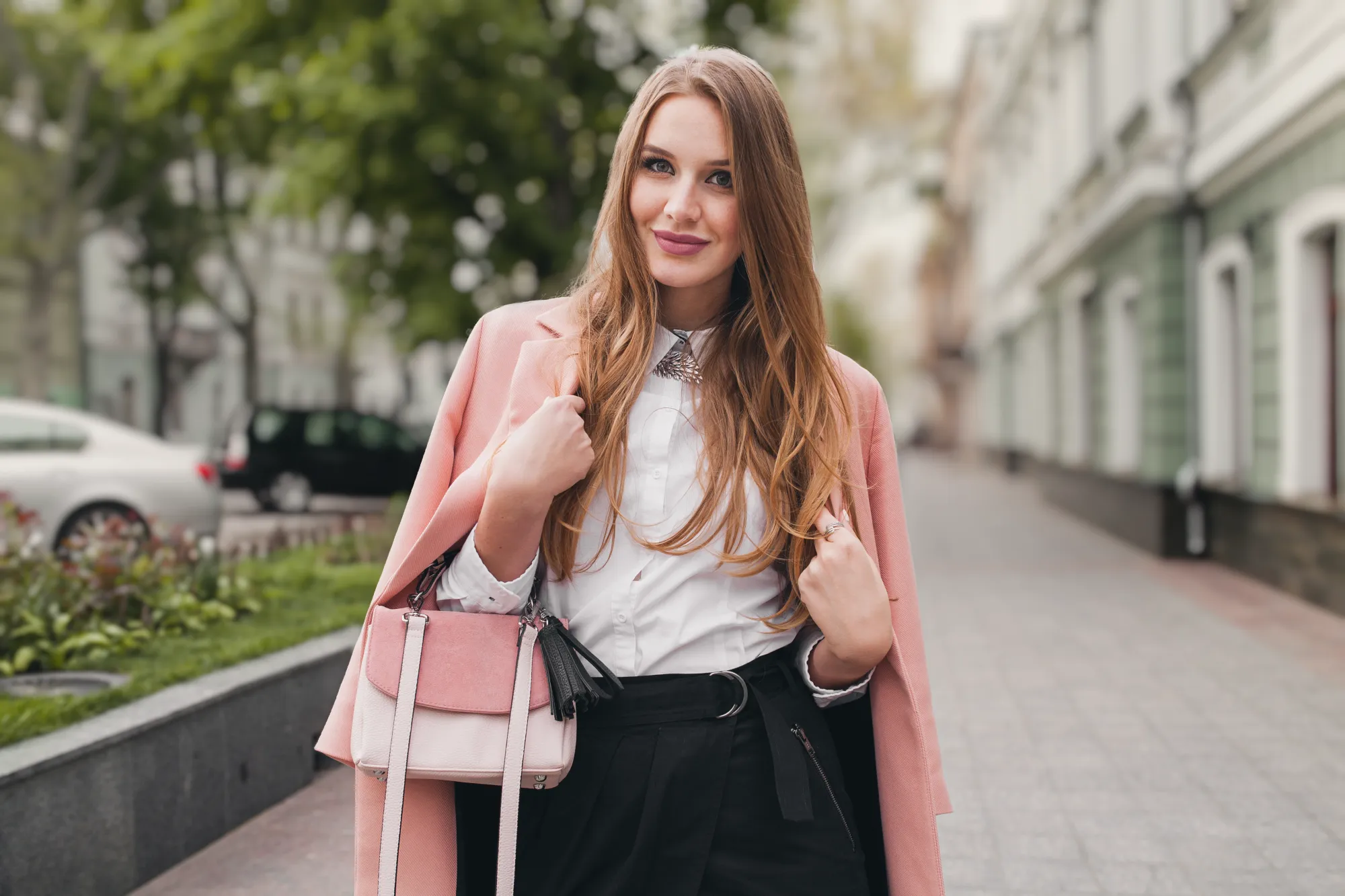
人像攝影
模糊背景能清晰區分主體,並營造柔和的散景效果。此舉可消除視覺雜訊,讓觀者專注於面部特徵、表情與情緒——非常適合專業人像、生活寫真及個人品牌宣傳照。
© derepente
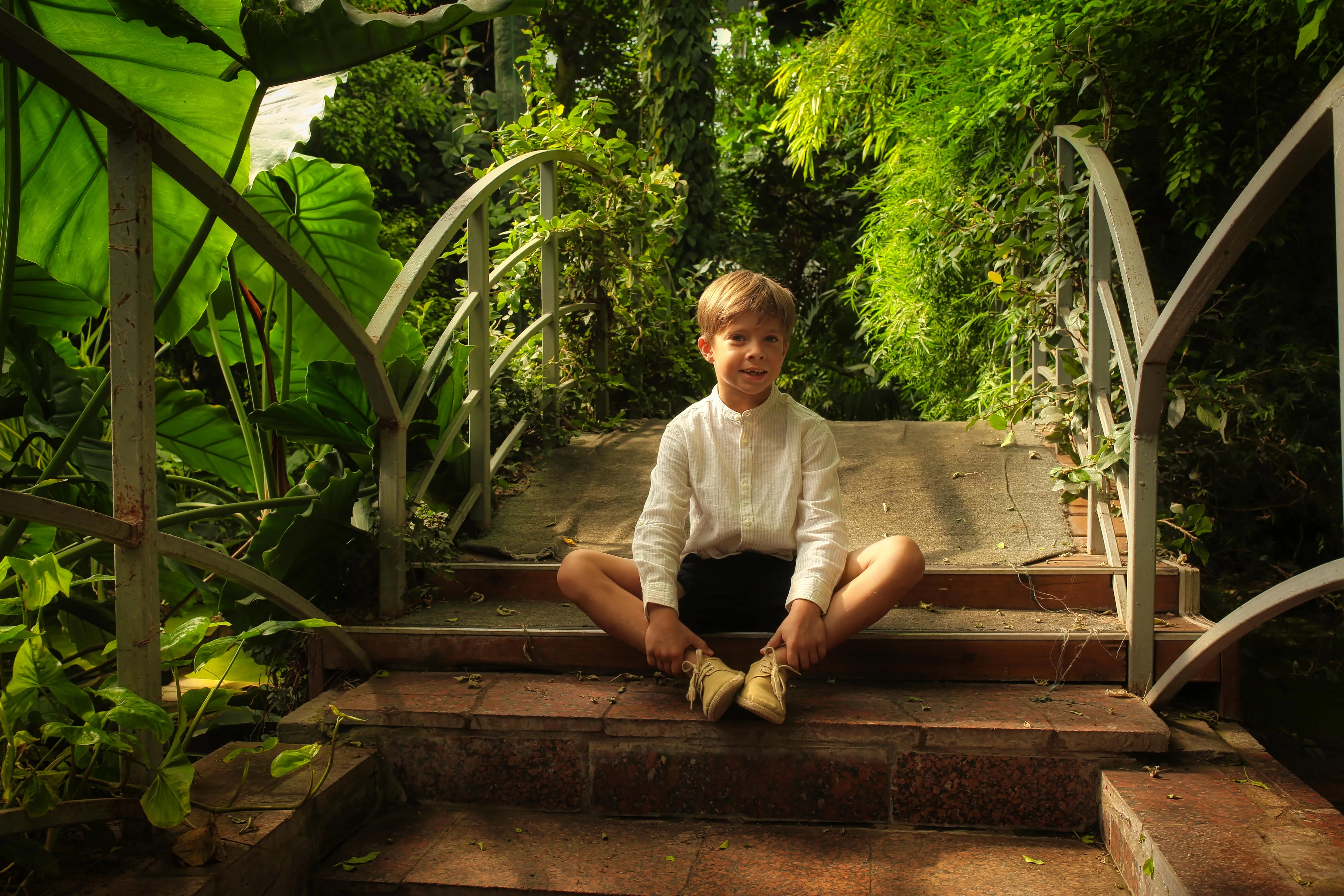
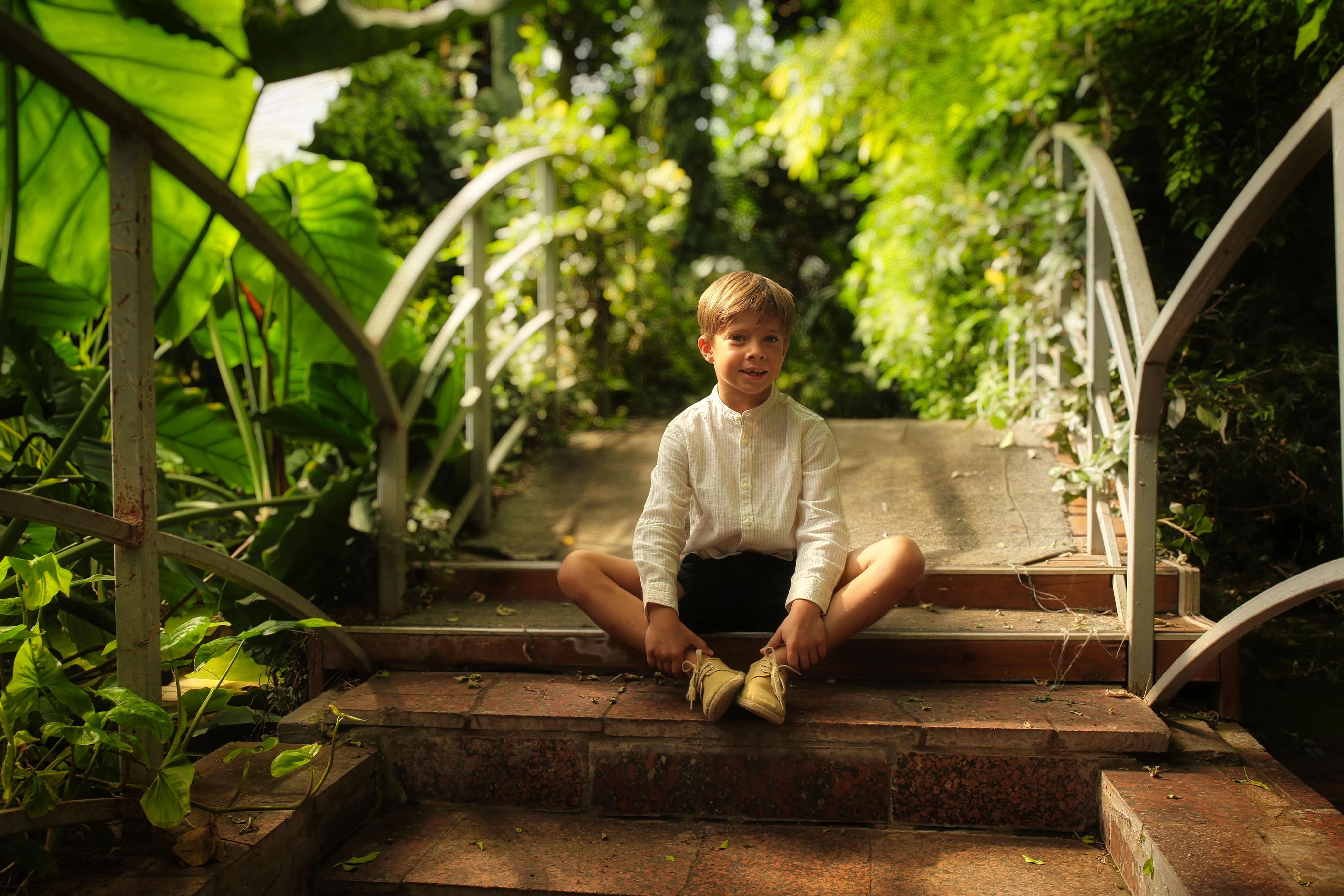
商業與產品攝影
模糊的背景有助於讓產品在毫無干擾的背景中清晰地脫穎而出。此技巧能突顯關鍵細節、提升視覺清晰度,並賦予產品圖片更專業、高品質的質感——非常適合用於電子商務商品頁面及宣傳視覺素材。
© Maryna Yurlovska
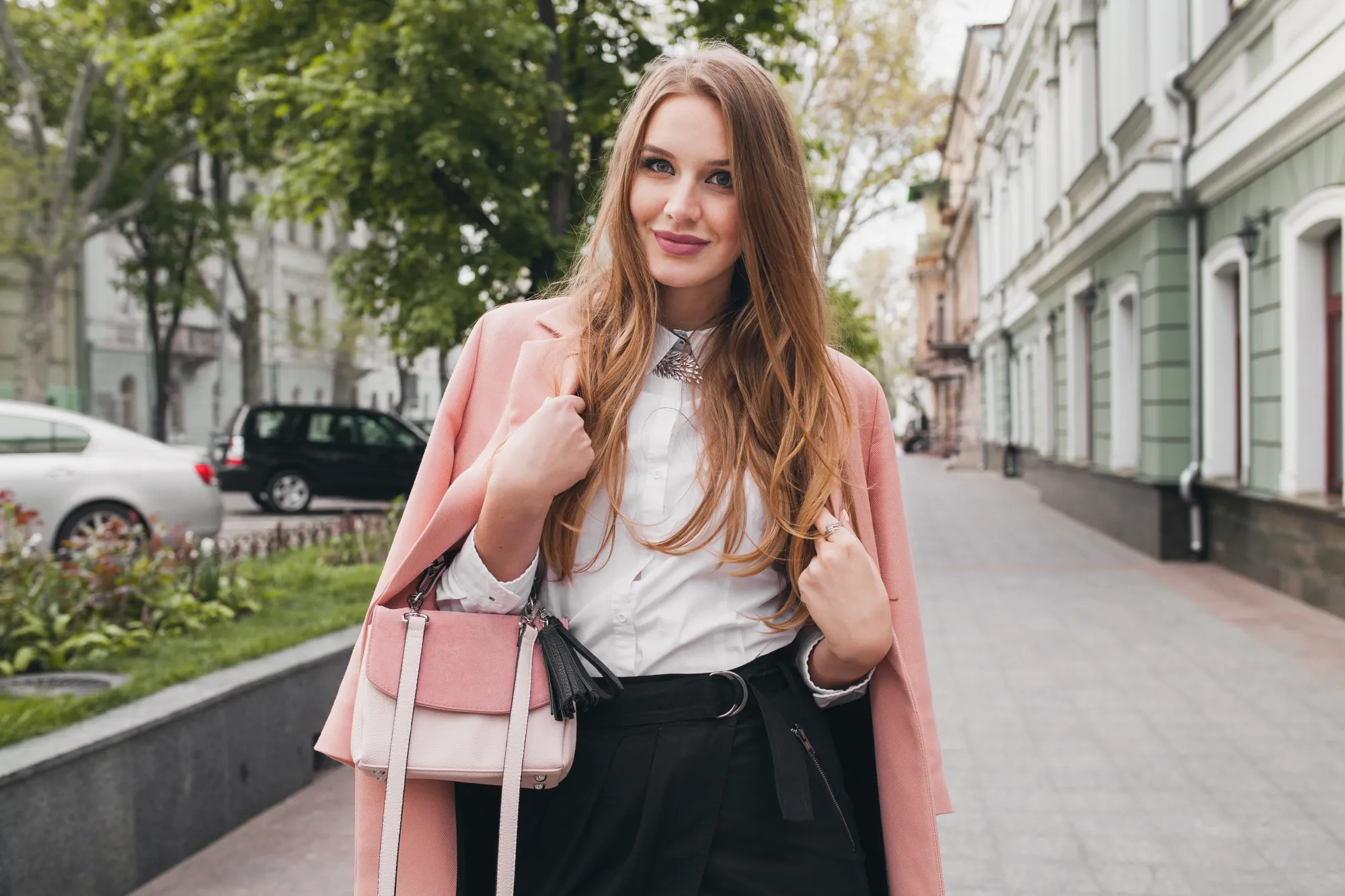
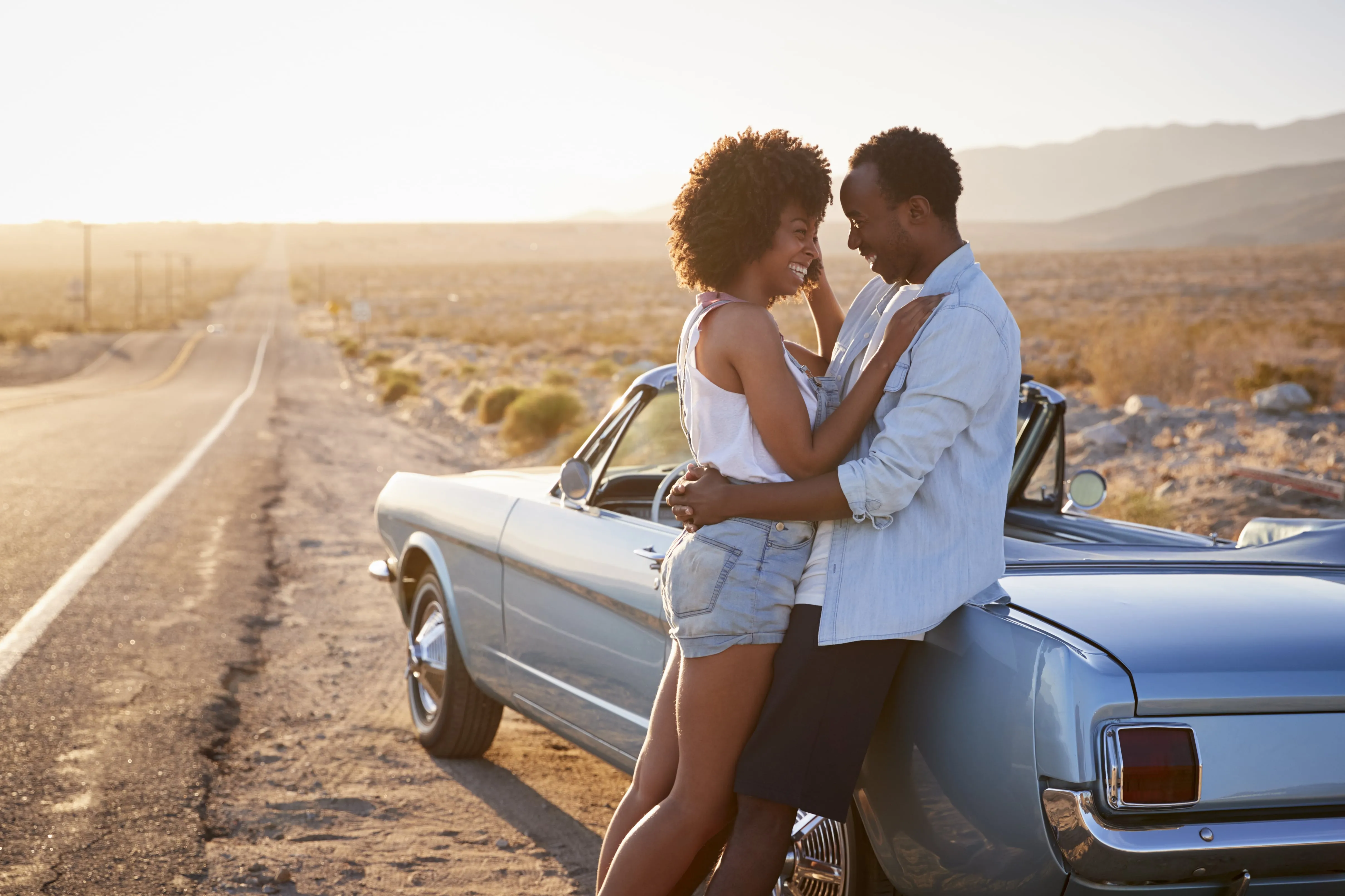
個人照片
即使是隨手拍的照片,也能透過背景模糊照片編輯工具來提升效果。將照片背景模糊化不僅能改善構圖、隱藏瑕疵,還能立即提升整體視覺效果,無需重新拍攝。
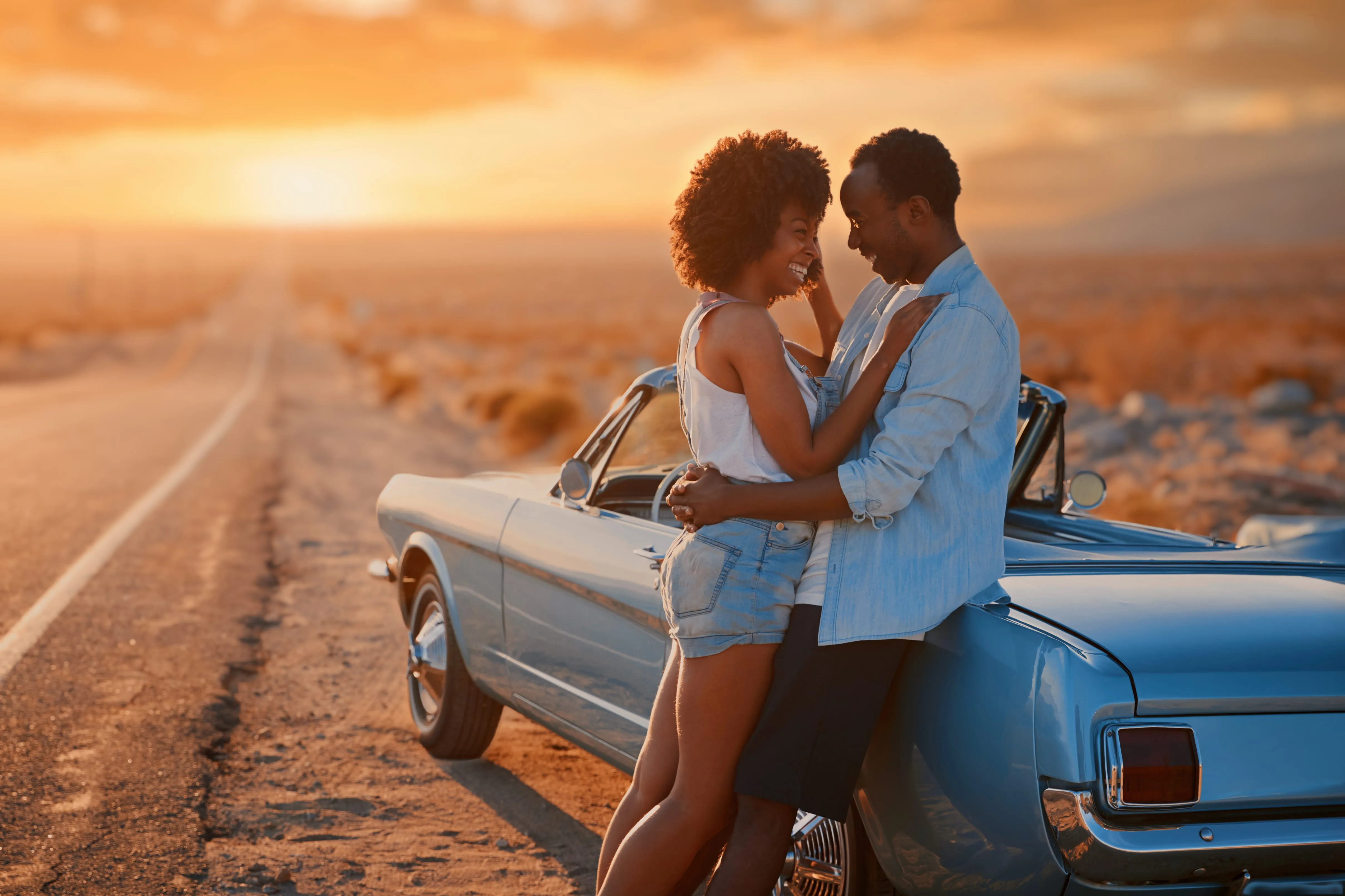
© monkeybusiness
旅遊攝影
人潮擁擠的場所,背景往往顯得雜亂無章。背景模糊軟體能減少視覺雜訊,並在不破壞現場氛圍的前提下,突顯畫面中的主體、氛圍或故事。

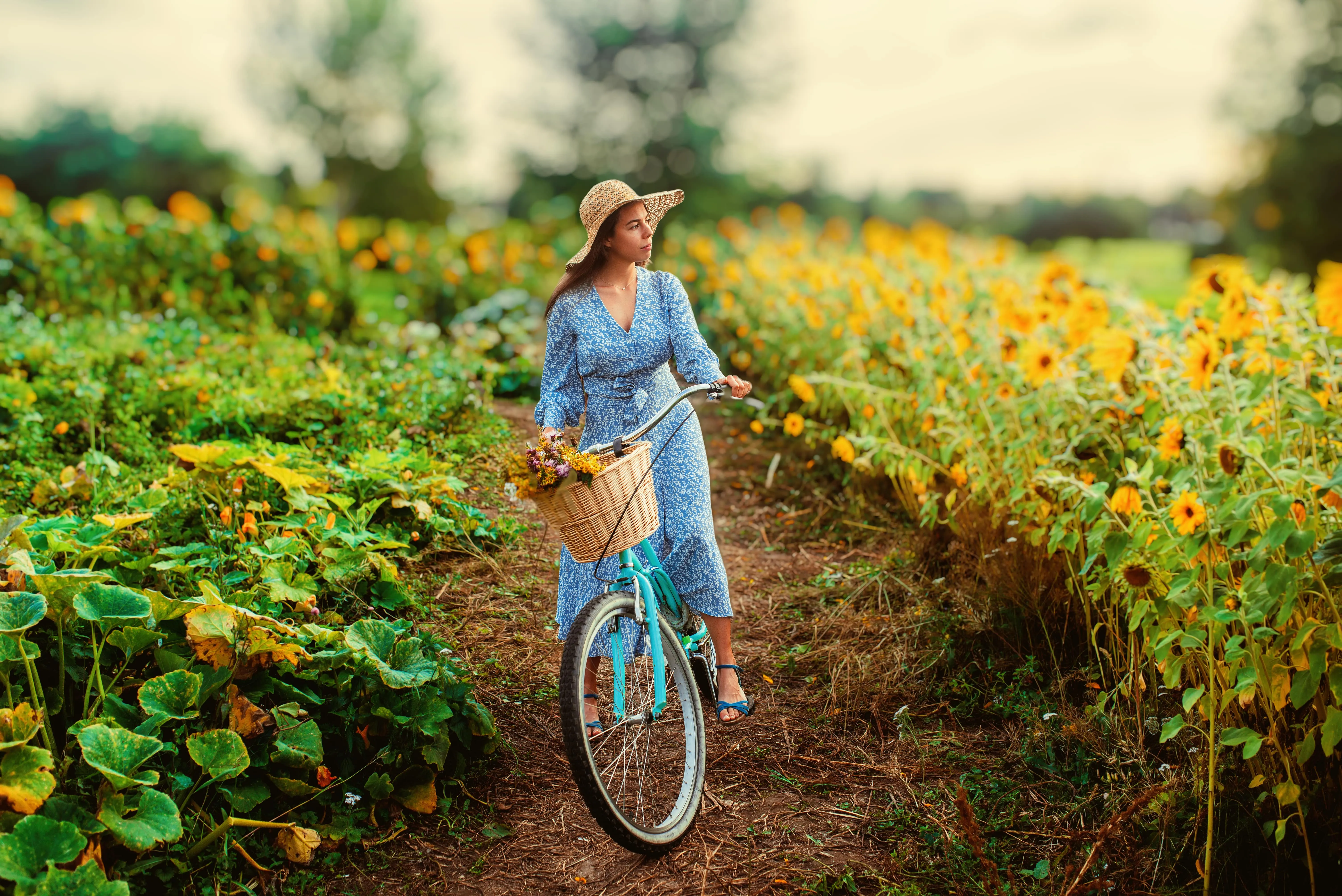
© depositphoto
生活風格與社群媒體照片
「背景模糊」工具能為日常照片增添深度與電影般的質感。它有助於突顯主體,同時保持影像的視覺吸引力,讓內容顯得更具巧思,並能吸引人們駐足瀏覽。
肖像
商業與產品
個人
旅遊
生活型態與社群媒體
探索其他功能
Luminar 還具備許多其他功能,能協助您更快速、更輕鬆地進行編輯

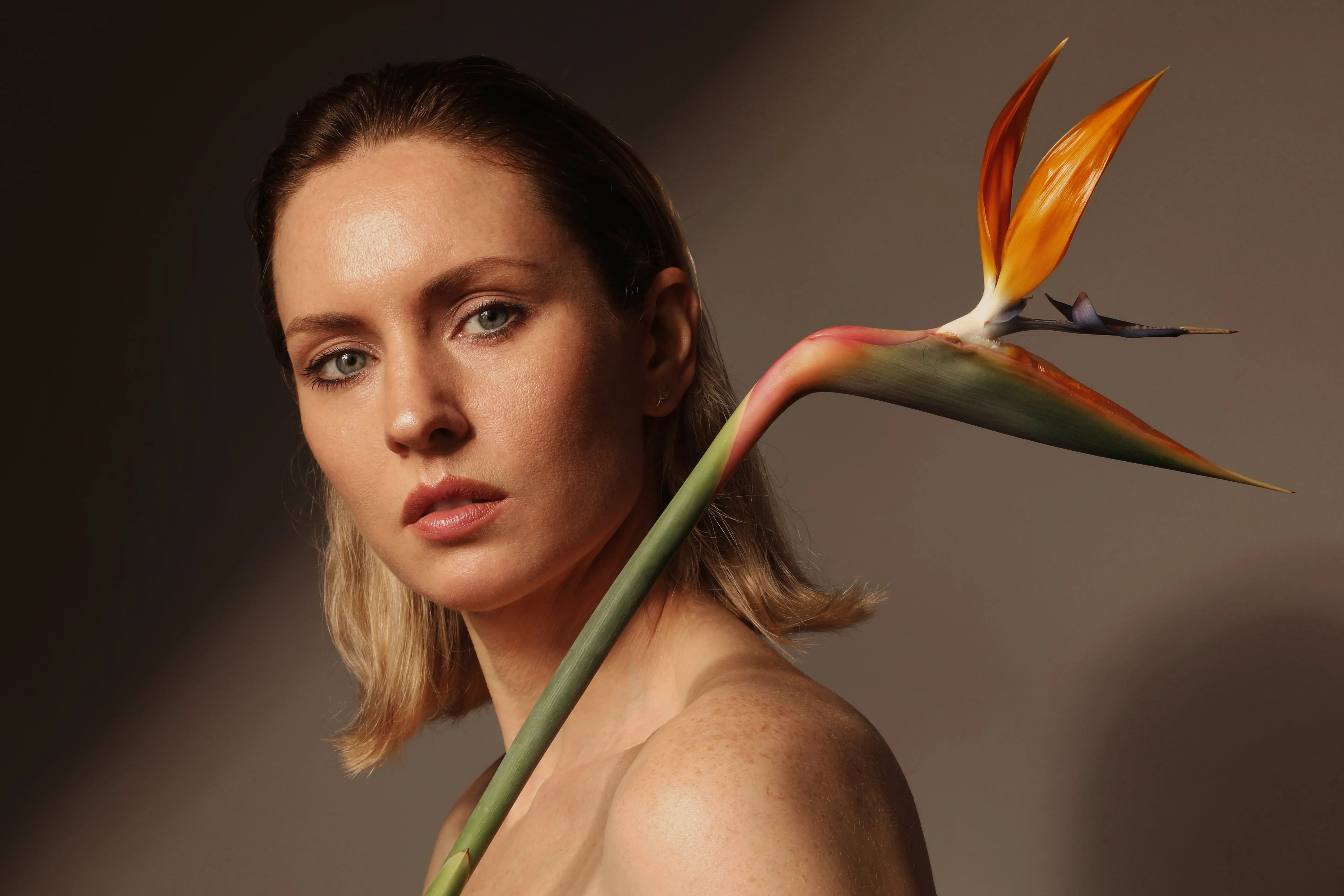
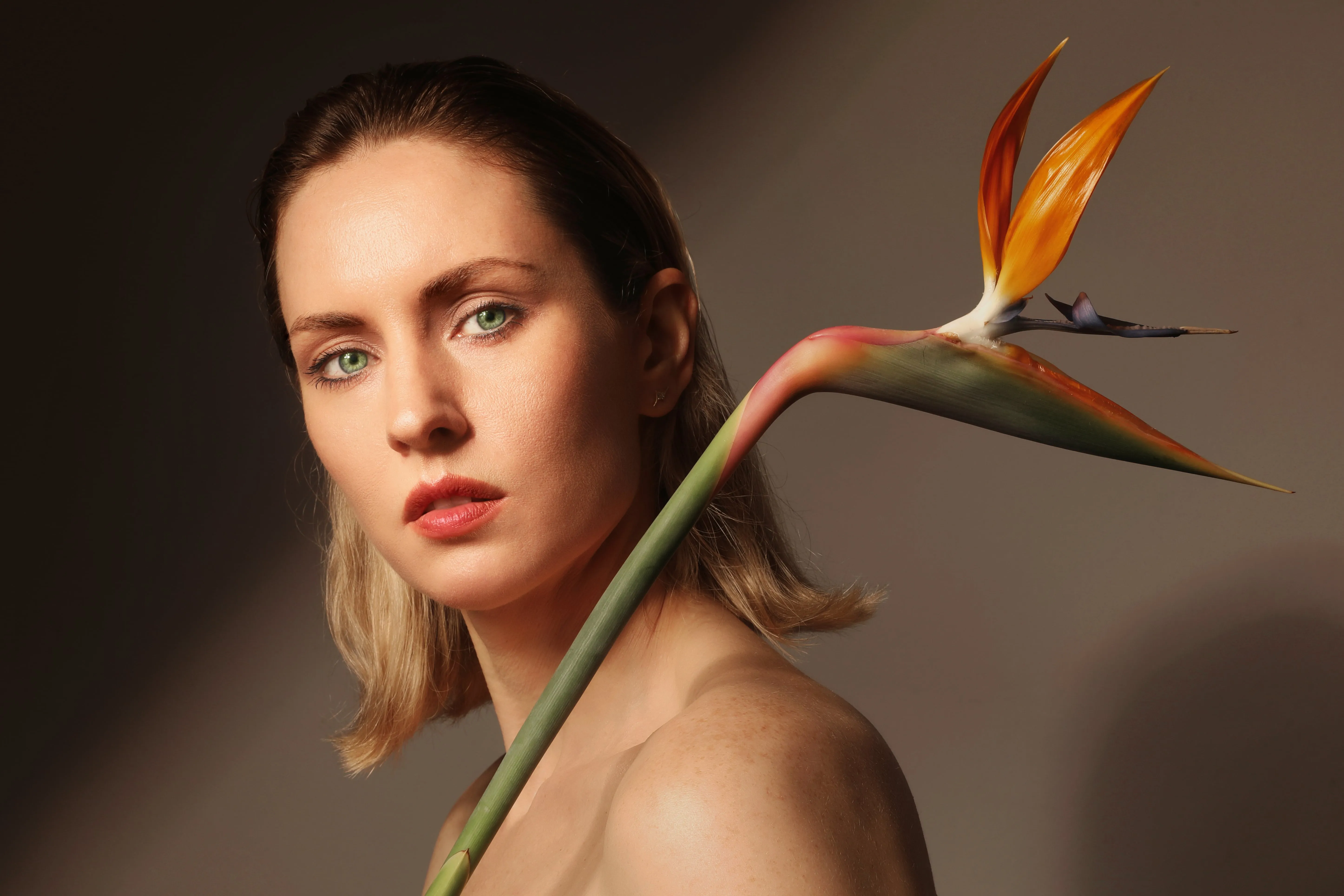

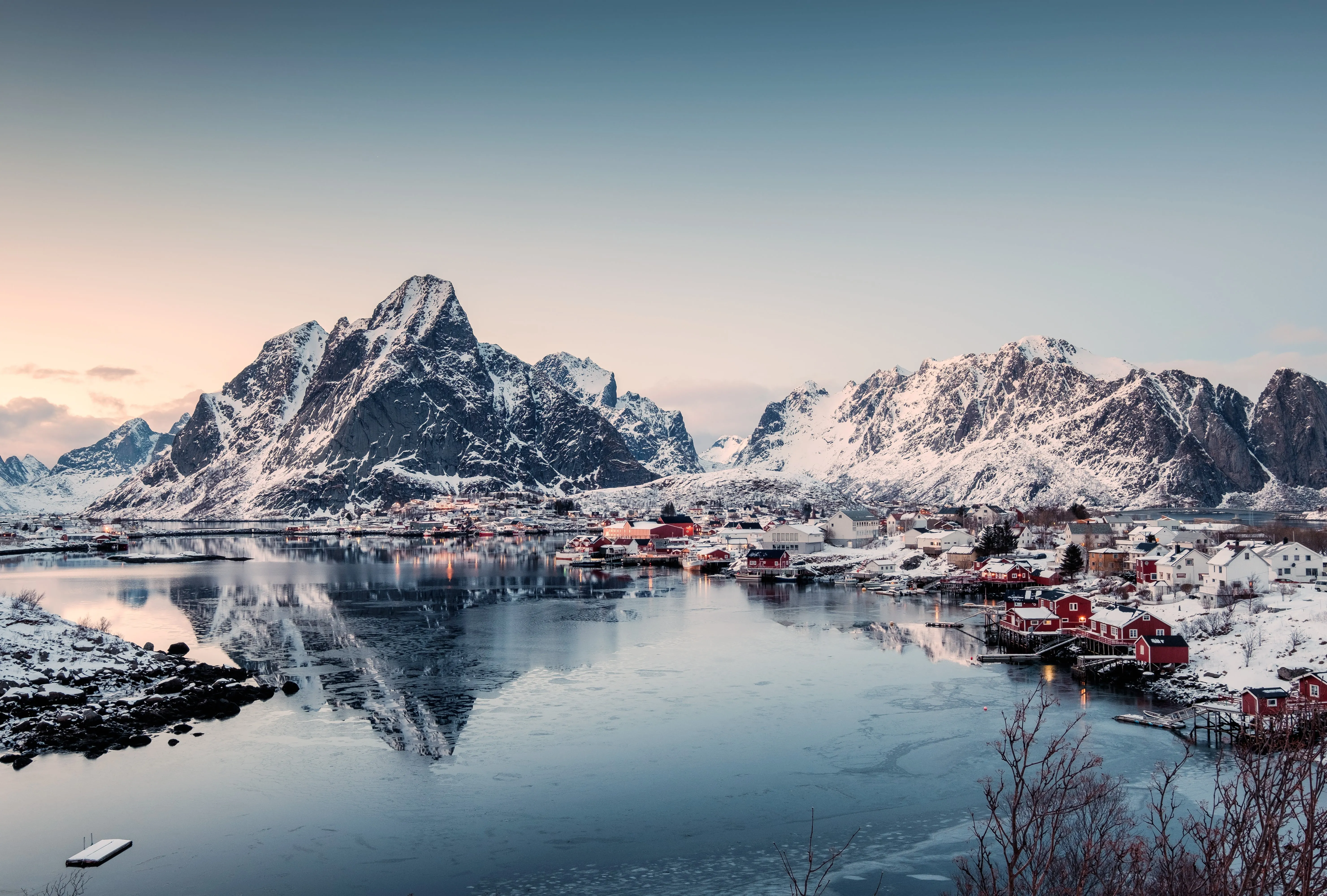
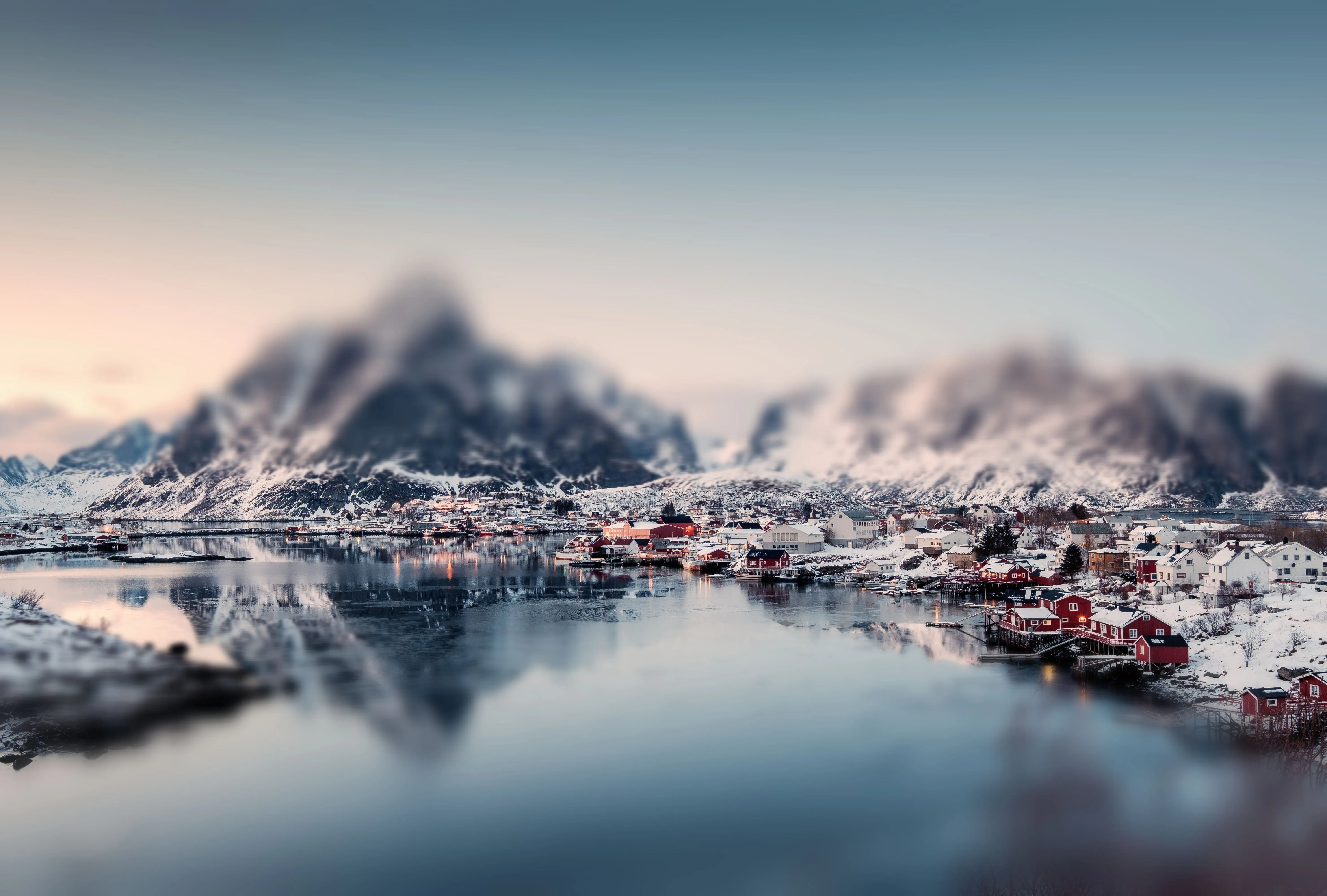

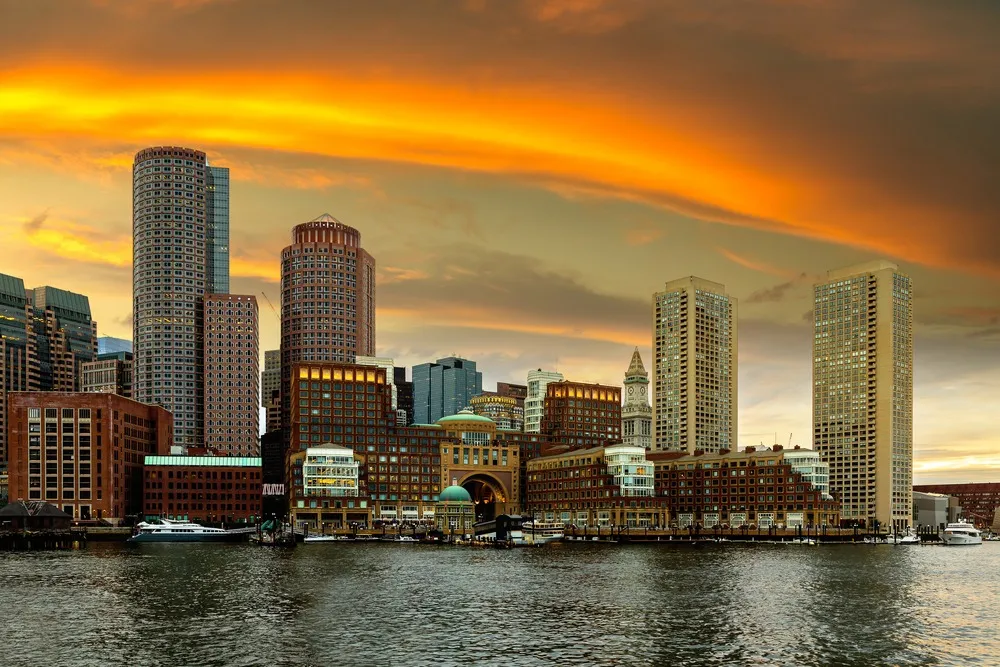
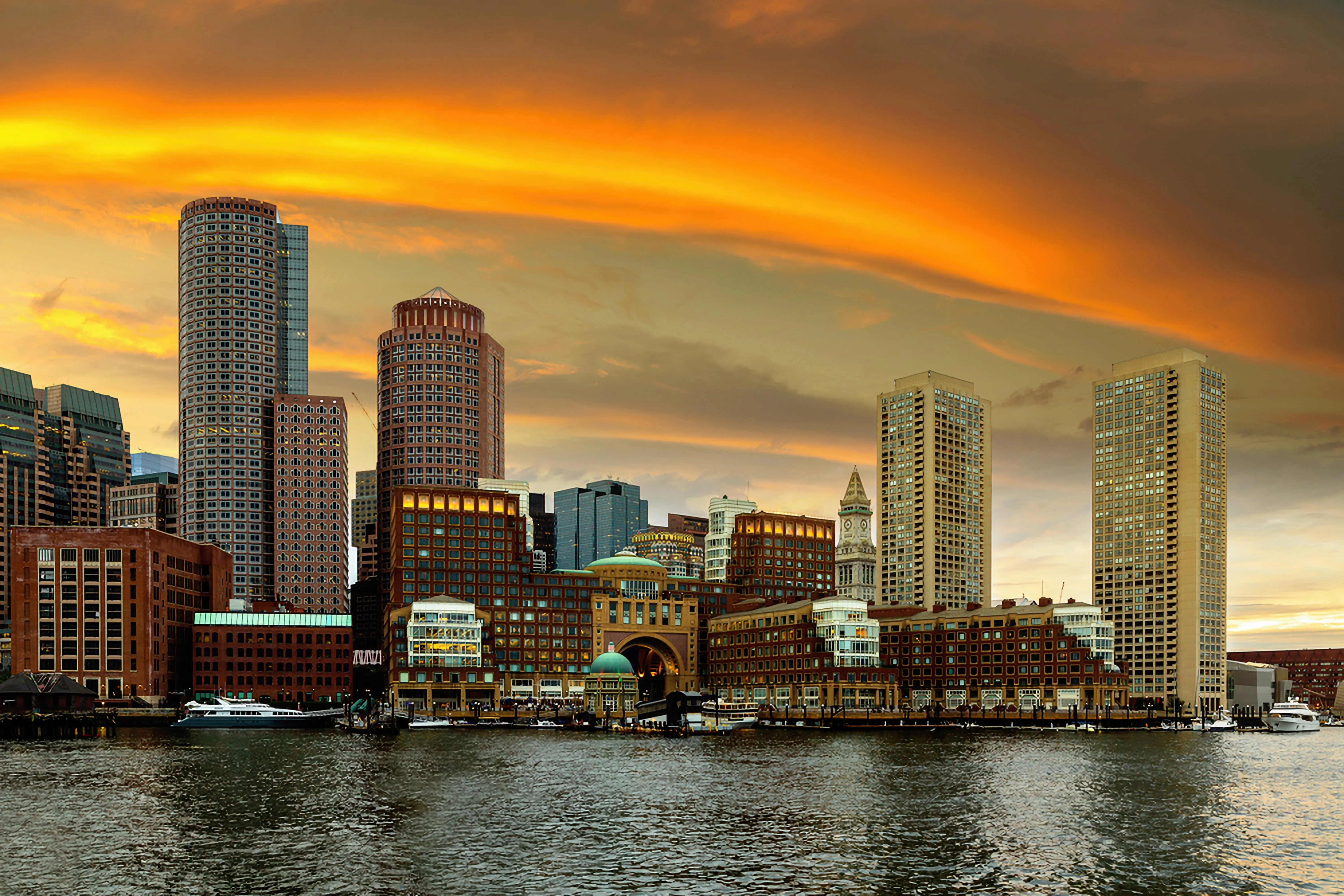





一個應用程式與外掛程式
適用於 macOS 與 Windows
- 高效能 AI 編輯器
全年無休的技術支援
30 天退款保證
加入我們的社群

常見問題
我可以套用不同程度的模糊效果嗎?
是的。您可以輕鬆調整模糊程度,根據您想要的效果,將模糊背景的效果調整得較為自然或更為明顯。
如何移除模糊的背景?
如果您剛才才套用模糊效果,可以撤銷該操作或降低模糊程度。如果背景看起來過於柔和,您也可以使用 Luminar 中的「Supersharp AI」等工具來增強清晰度與細節。
我可以選擇性地套用「模糊背景」濾鏡嗎?
是的。Luminar 允許您透過 AI 偵測或手動遮罩,有選擇性地將圖片背景模糊化,因此僅會影響照片中的特定區域。
為什麼 Luminar 是模糊照片背景的最佳照片編輯軟體?
Luminar 將 AI 照片背景模糊功能與手動控制整合於單一的背景模糊編輯器中。這讓您能夠快速獲得乾淨、自然的效果,或對模糊效果進行微調,以實現更具創意且風格鮮明的編輯效果。
如何將已經拍好的照片背景模糊化?
只需在 Luminar 中開啟現有的照片,並使用「人像散景 AI」或「模糊」工具來模糊背景。您無需重新拍攝,即可在後製過程中營造出淺景深的效果。
